


In the User Management section, the Super Admin can create, edit and delete the team to help to manage a newly started project or delete it when it is finished.
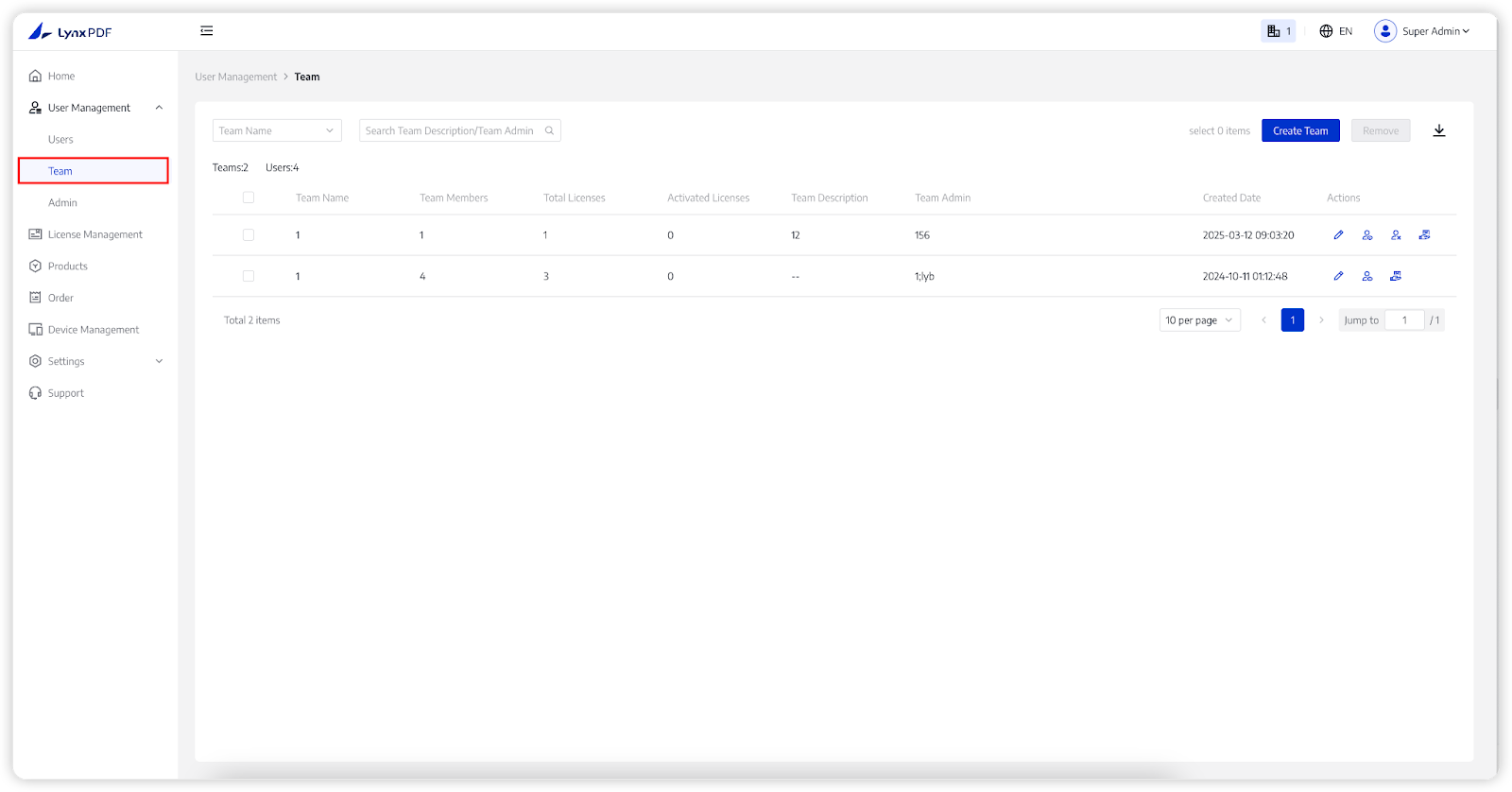
Create Team
1. In the Admin Console, navigate to User Management -> Team;
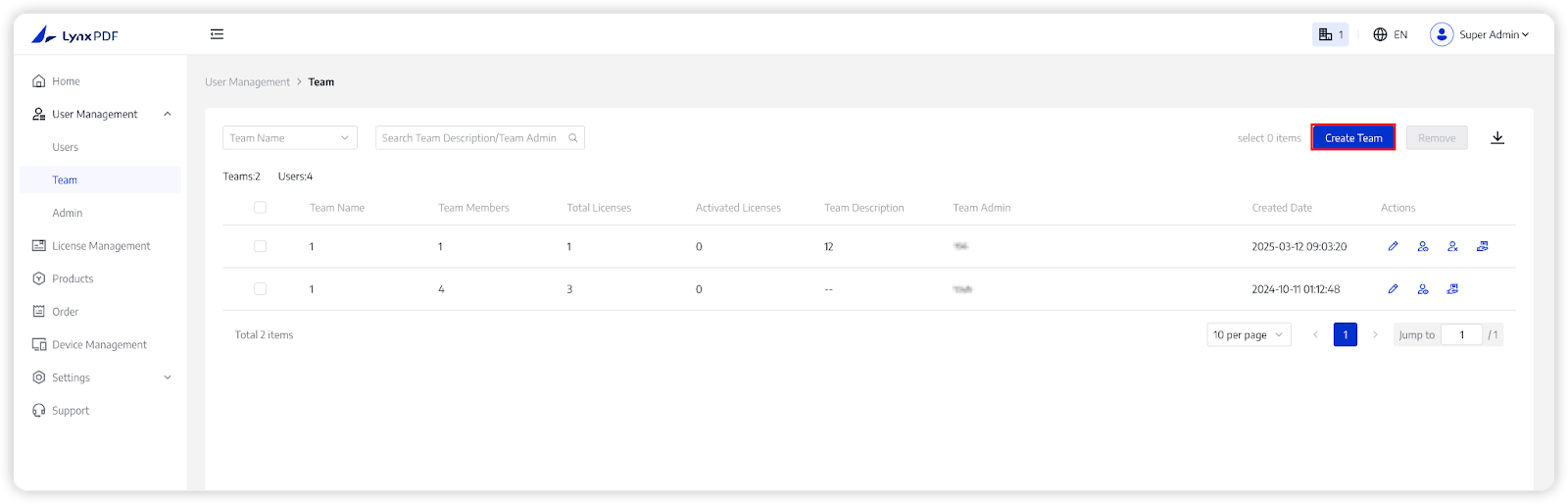
2. Click on Create Team on the upper right;
3. In the Create Team page,
- Team Name: the name of the team;
- Team Description: a brief and concise description that accurately represents the team;
- Parent Team: the higher-level team to which the current team belongs;
- Team Admin: all team members except for the Super Admin can be designated as Team Admin;
- Add Team Members: you can add users to the team for easier management;
4. Tap Save, the team has already created successfully.
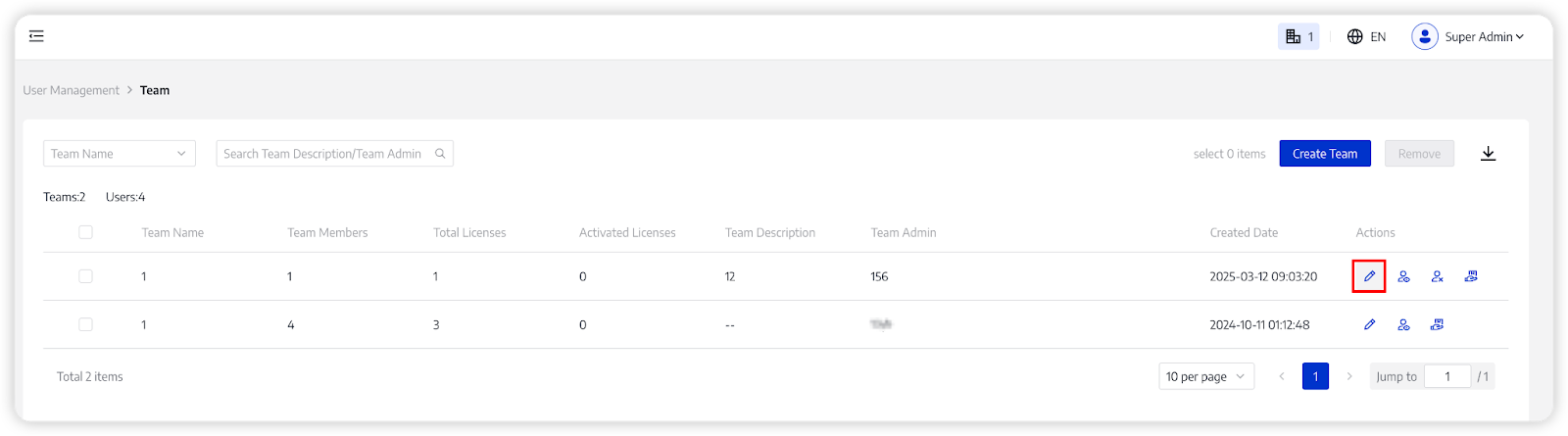
Edit Team
1. In the Admin Console, navigate to User Management -> Team;
2. Click on Edit;
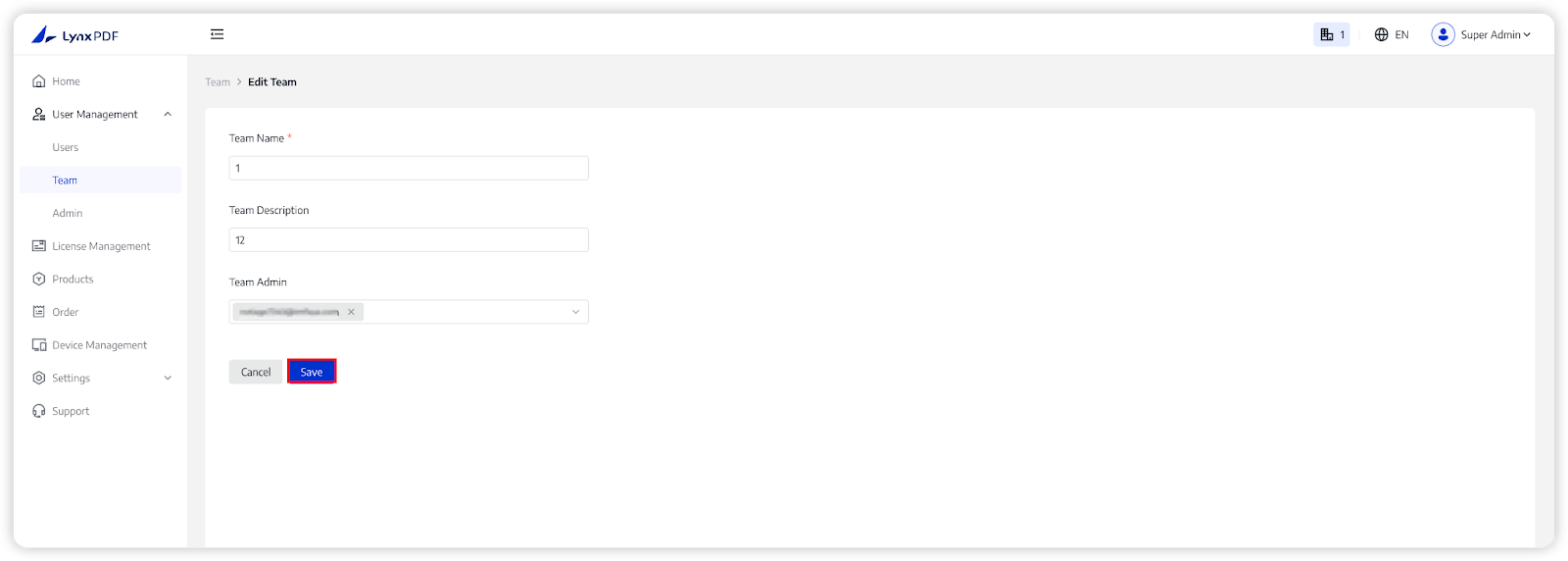
3. In the Edit Team page,
- Team Name: the name of the team;
- Team Description: a brief and concise description that accurately represents the team;
- Team Admin: add or remove team admin in the previously designated Team Admin;
4. Tap Save to save the modified information.
Note:
- Only Super Admin can change Amount of Team License and Team Admin;
Delete Team
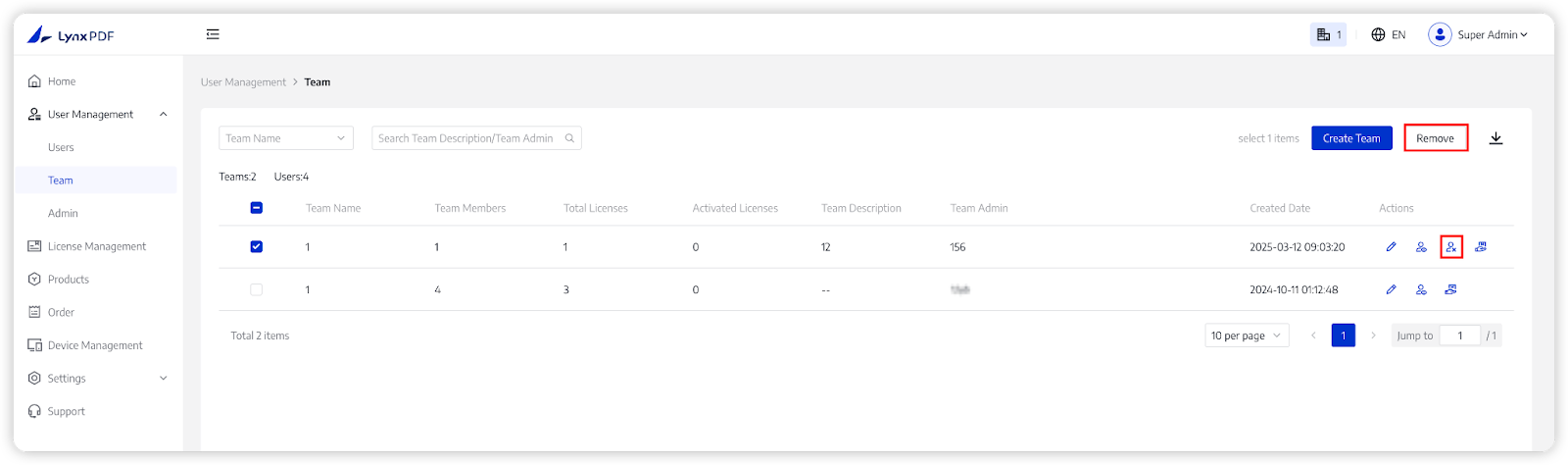
1. In the Admin Console, navigate to User Management -> Team;
2. Click on Delete;
3. Or select the team, and click the Remove button in the upper right corner;
4. Tap Delete on the pop-up window to confirm again.
Note:
- Only Super Admin can delete the team;
- After deleting the team, the members in the team will be automatically assigned to the default team.

