


The removal of a license for a team member means that this member will not be able to activate the product later on. If a member leave your team, you can remove the license.
Remove Individually:
1. Go to License Management section;
2. Choose a member from the list, or quickly find a member by using the filter/search bar above;
3. Click Remove under Action;
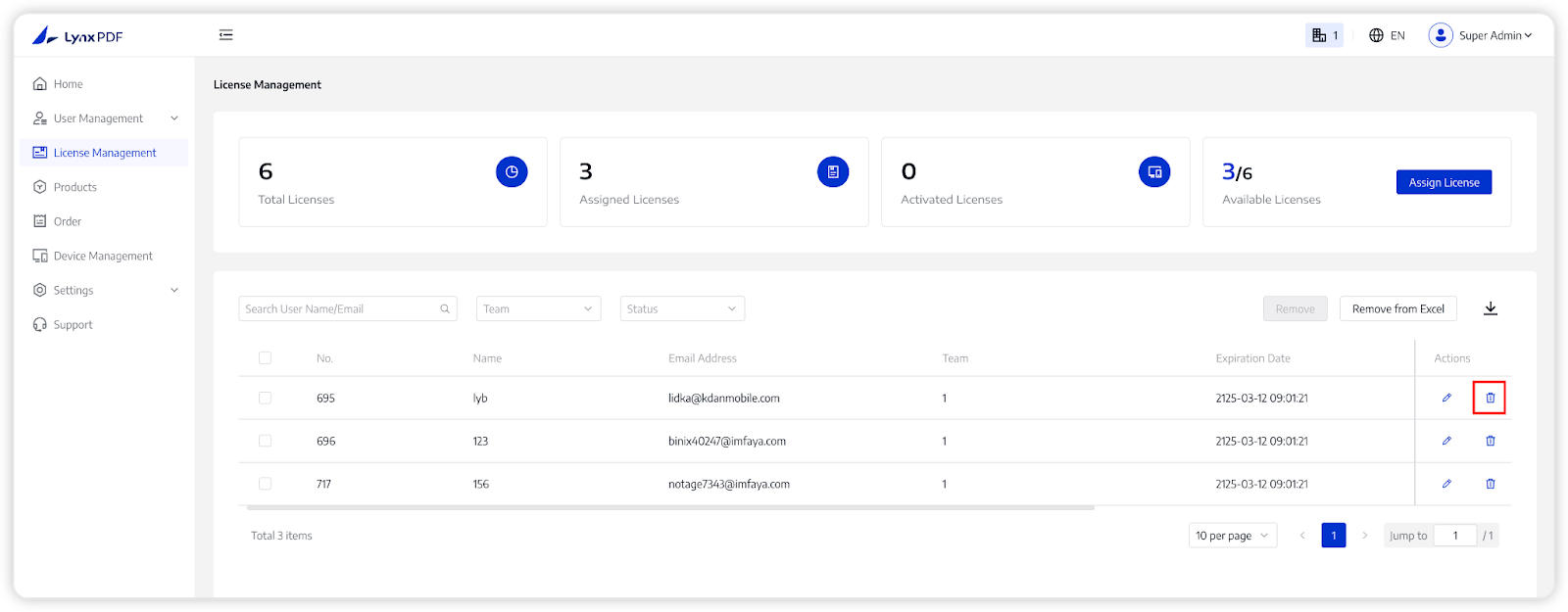
4. A pop-up window will ask you to confirm the cancellation, click Remove.
Remove in Batch:
If the Super Admin and Team Admins need to remove many members’ licenses, this function can help them save a lot of time. You can remove in bulk by selection or import a removal list from a file.
Remove by Multi-selection
1. In the Admin Console, navigate to License Management;
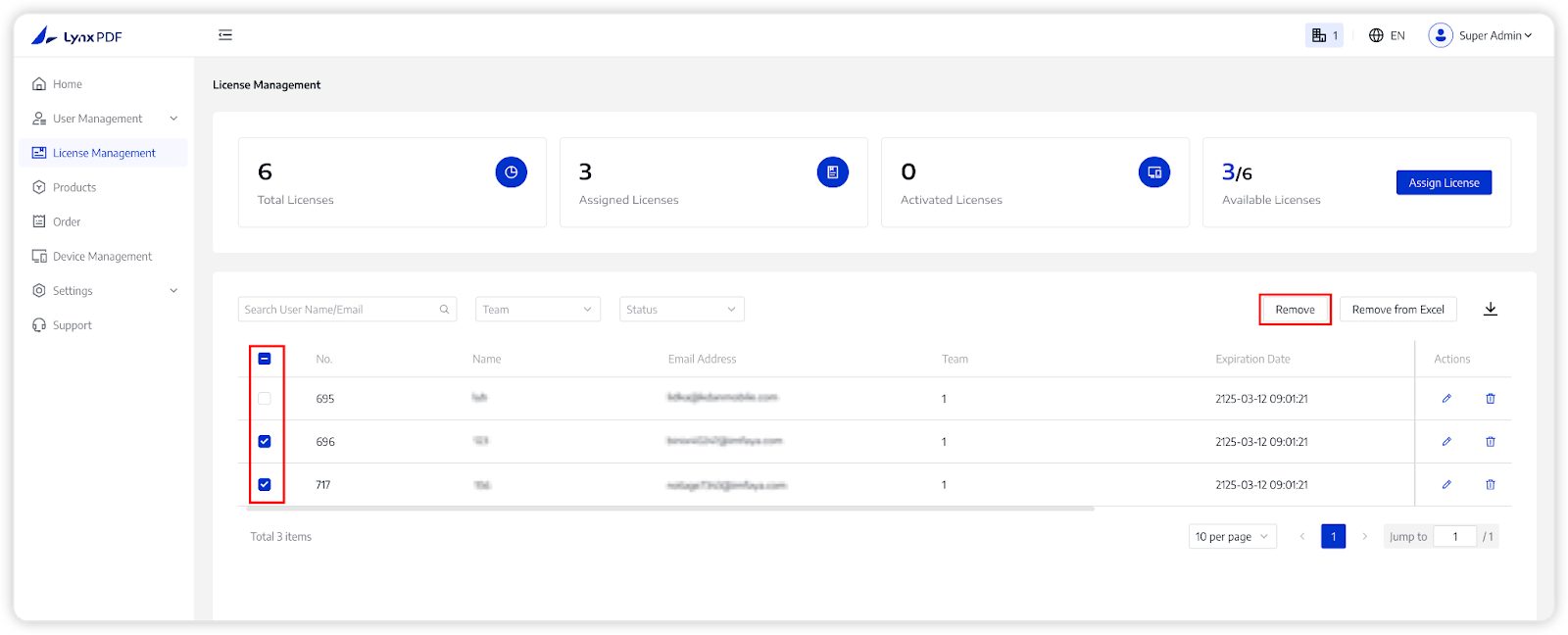
2. Tick the members you want to remove, then click Remove.
Remove from Excel
1. Navigate to License Management;
2. Click Remove from Excel on the upper right corner to download the sample file;
3. Fill in the information in order
Email: email of the member that the Super Admin removes licenses;
4. Upload the file just filled out or the file that was prepared before;
5. Tap Delete to complete the operation.

