


Learn how to convert documents, spreadsheets, presentations, images, and more file formats into PDFs using LynxPDF’s Create and Merge tools.
Convert Other File Formats to PDF by Creating a PDF
Supported file types:
-
Documents: .doc, .docx, .txt, .rtf, .pages, etc.
-
Spreadsheets: .xls, .xlsx, .numbers, .csv, etc.
-
Presentations: .ppt, .pptx, .key, etc.
-
Images: .jpg, .jpeg, .png, .gif, .bmp, .tiff, .tif, etc.
Follow these steps:
1. Open LynxPDF and go to the Home page.
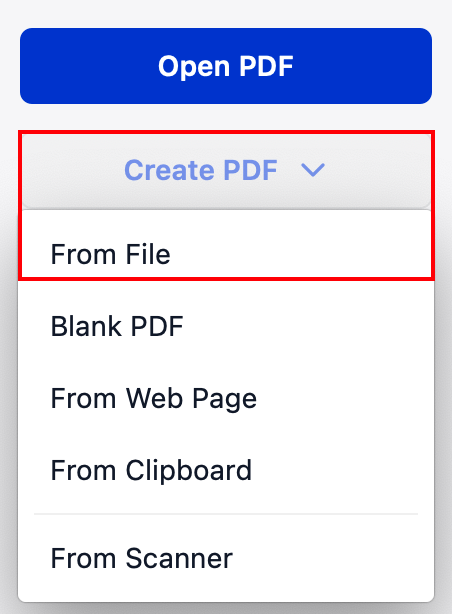
2. Click Create PDF -> From File, then select the file you want to import.
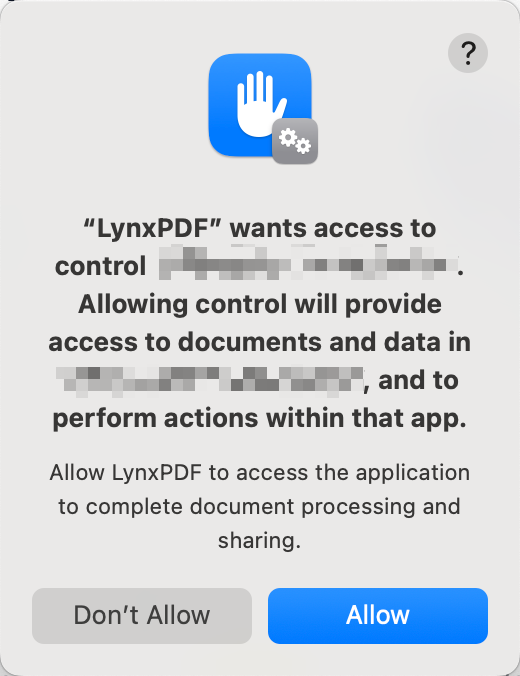
3. In the pop-up window, click Allow to convert the file to PDF.
4. Once the conversion is complete, you can use LynxPDF to edit your PDF document.
Convert Other File Formats to PDF Using Merge
Supported file types (Same as above):
-
Documents: .doc, .docx, .txt, .rtf, .pages, etc.
-
Spreadsheets: .xls, .xlsx, .numbers, .csv, etc.
-
Presentations: .ppt, .pptx, .key, etc.
-
Images: .jpg, .jpeg, .png, .gif, .bmp, .tiff, .tif, etc.
Here are the steps:
1. Open LynxPDF and go to Quick Tools on the Home page.
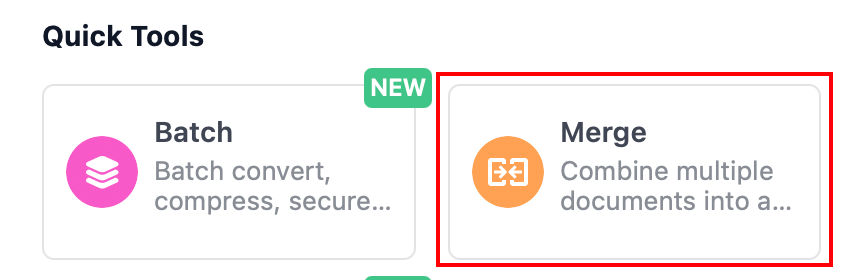
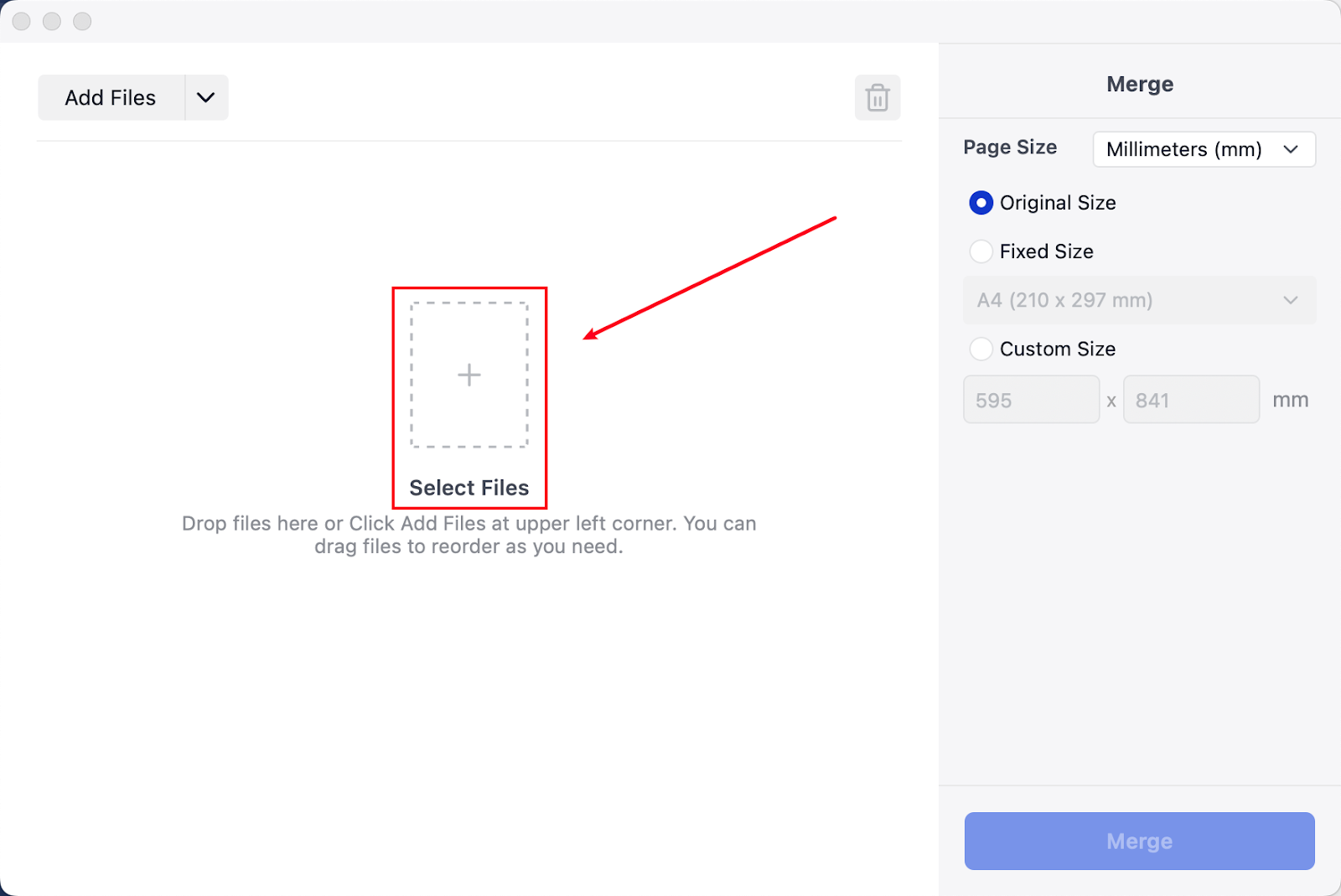
2. Click Merge, then choose Select Files to import your files.
3. In the pop-up window, click Allow to convert the files to PDF.
4. After importing and converting the files, you can merge multiple PDFs into a single document using LynxPDF.
Things to Know When Converting Files to PDF
1. File conversion requires support from your system or related applications. Make sure an application that can open the file format is installed and working properly.
2. During the conversion process, required permissions must be granted. Otherwise, the file cannot be converted to PDF.

