Research and Industry Report Reading
Ask about conclusions, data, methods, or context, then narrow the scope with follow-up questions to help researchers quickly find chapters that need deeper reading.


LynxPDF's AI Document Q&A helps research, operations, legal, and other professional teams ask questions and follow up about the current PDF to understand complex documents faster.
Teams do not need to read an entire file before starting a discussion. Start with a specific business question and let AI extract relevant content and answer with the full context.
Ask about conclusions, data, methods, or context, then narrow the scope with follow-up questions to help researchers quickly find chapters that need deeper reading.
Look up processes, responsibilities, deadlines, or notes and get the relevant passages directly, reducing repeated searches through lengthy materials.
Ask about specific wording in contracts, policies, or professional reports. Use AI answers as a starting point, then review the full context before drawing conclusions.
Open a PDF and ask a question directly. LynxPDF AI answers based on the document content, supports multi-turn follow-up questions, and lets you reopen recent conversations.
Ask about concepts, conclusions, numbers, or context. AI organizes an answer from the current PDF, reducing repeated searching and page turning.
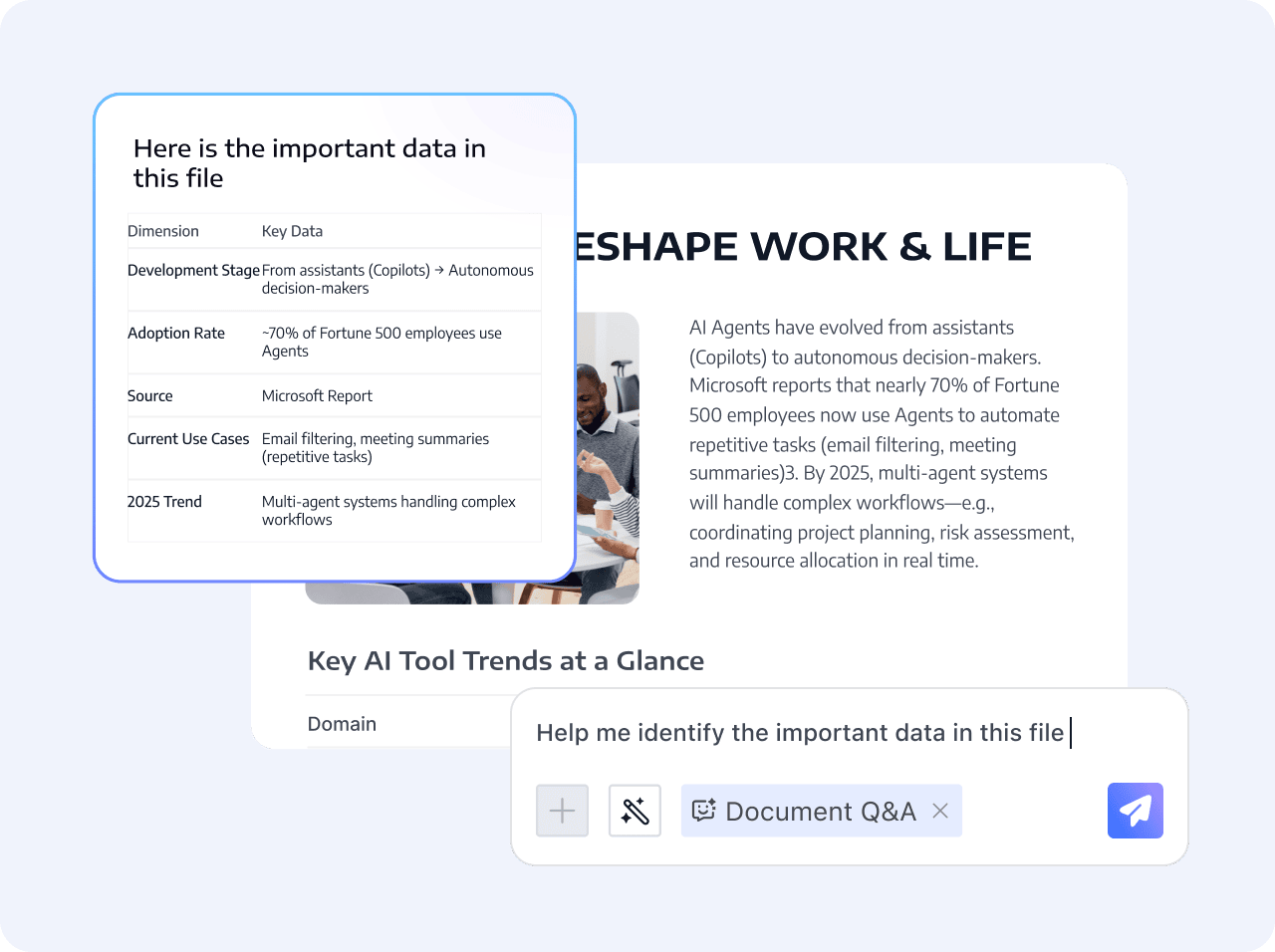
Add conditions, ask for an explanation of a previous answer, or narrow the content scope while preserving the current file and conversation context to focus on key information step by step.
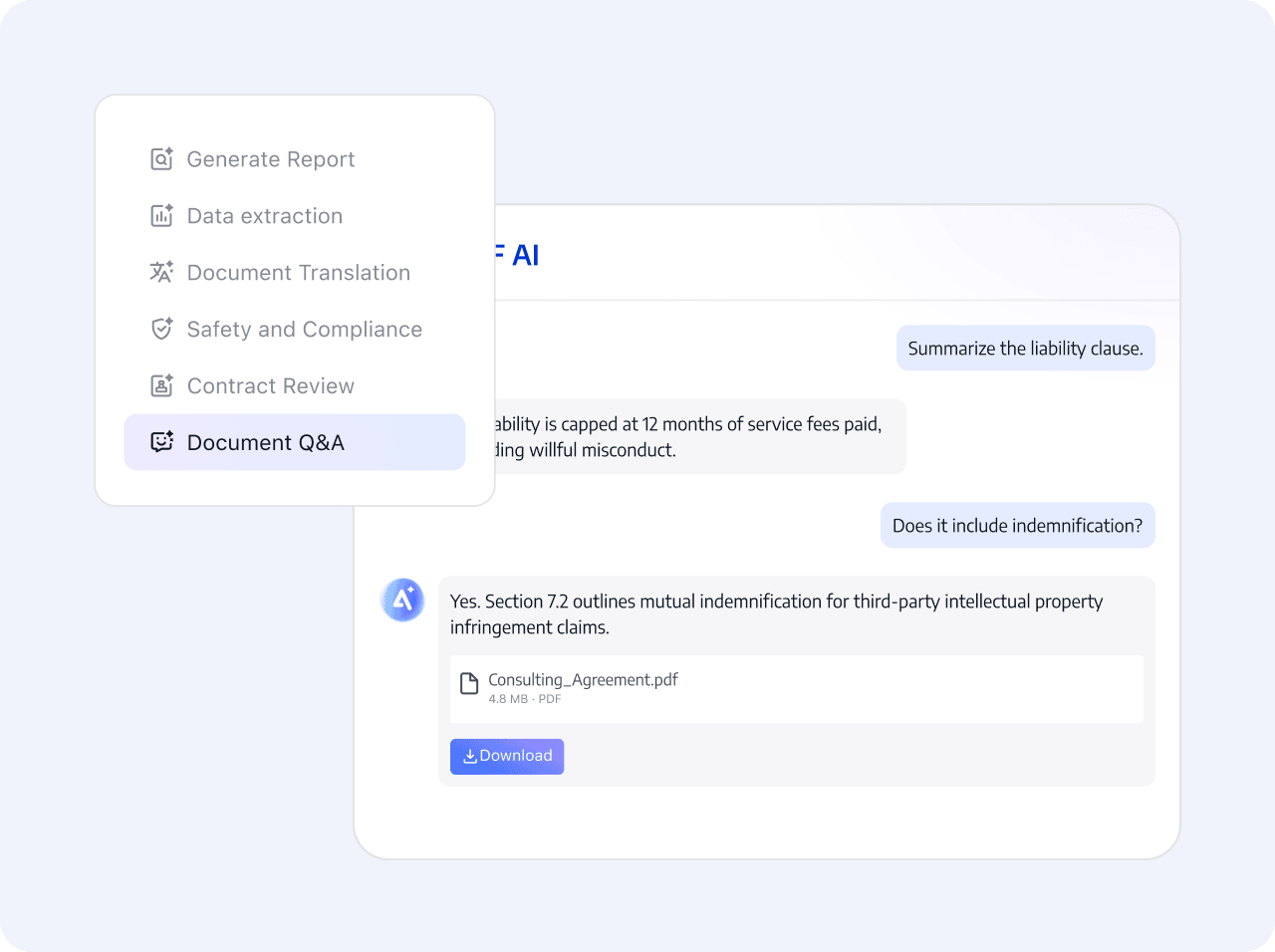
Recent conversations are shown by account and enterprise identity. Reopen history associated with local files to continue viewing answers or asking new questions.
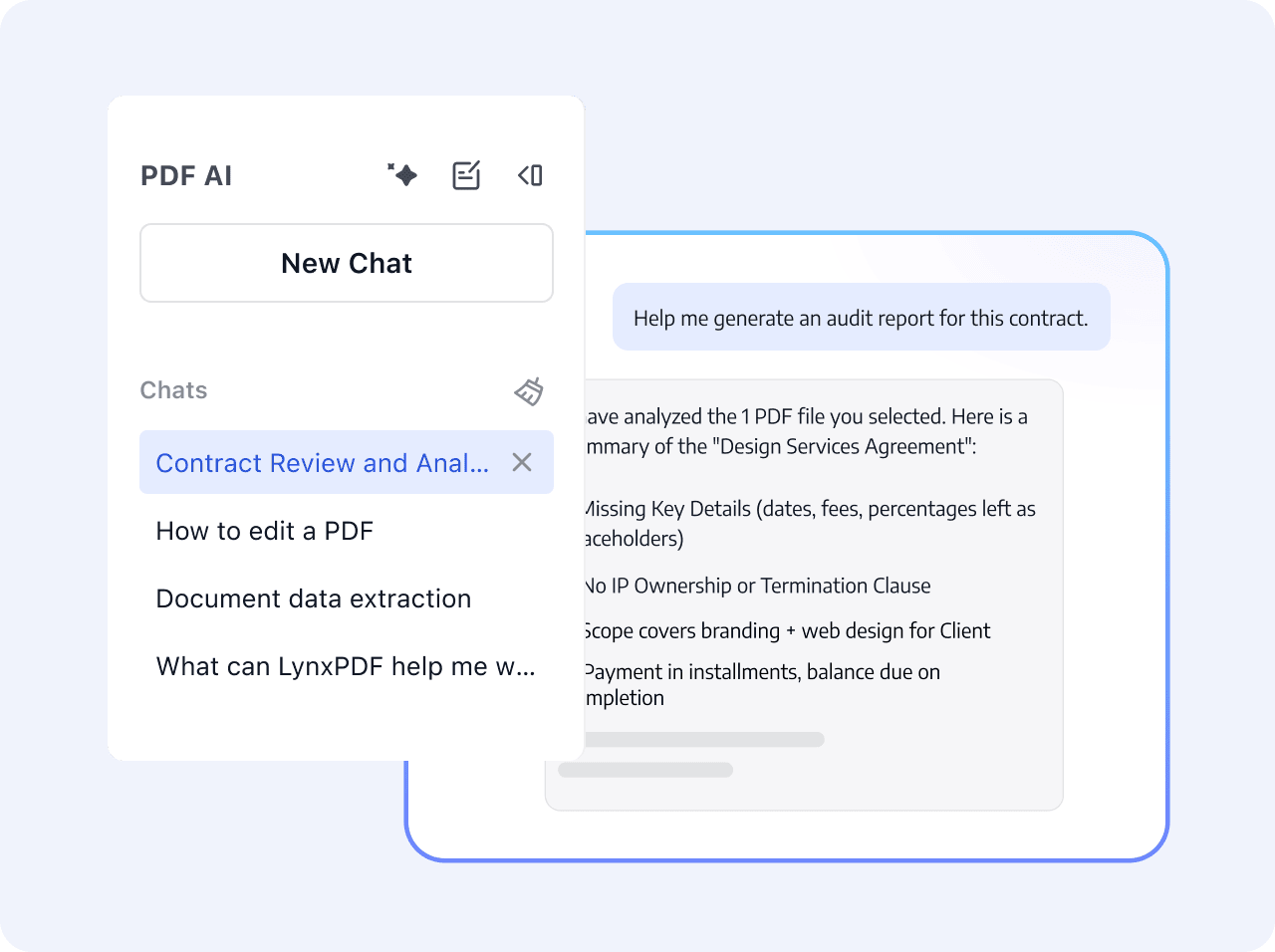
Start with your business question, ask follow-up questions, and check the answer against the complete document.
Open the current PDF and ask a specific question
Continue with follow-up questions, add conditions, or narrow the scope
Confirm the conclusion against the complete document.
Open the current PDF and ask a specific question
Continue with follow-up questions, add conditions, or narrow the scope
Confirm the conclusion against the complete document.
 Start with a specific business question