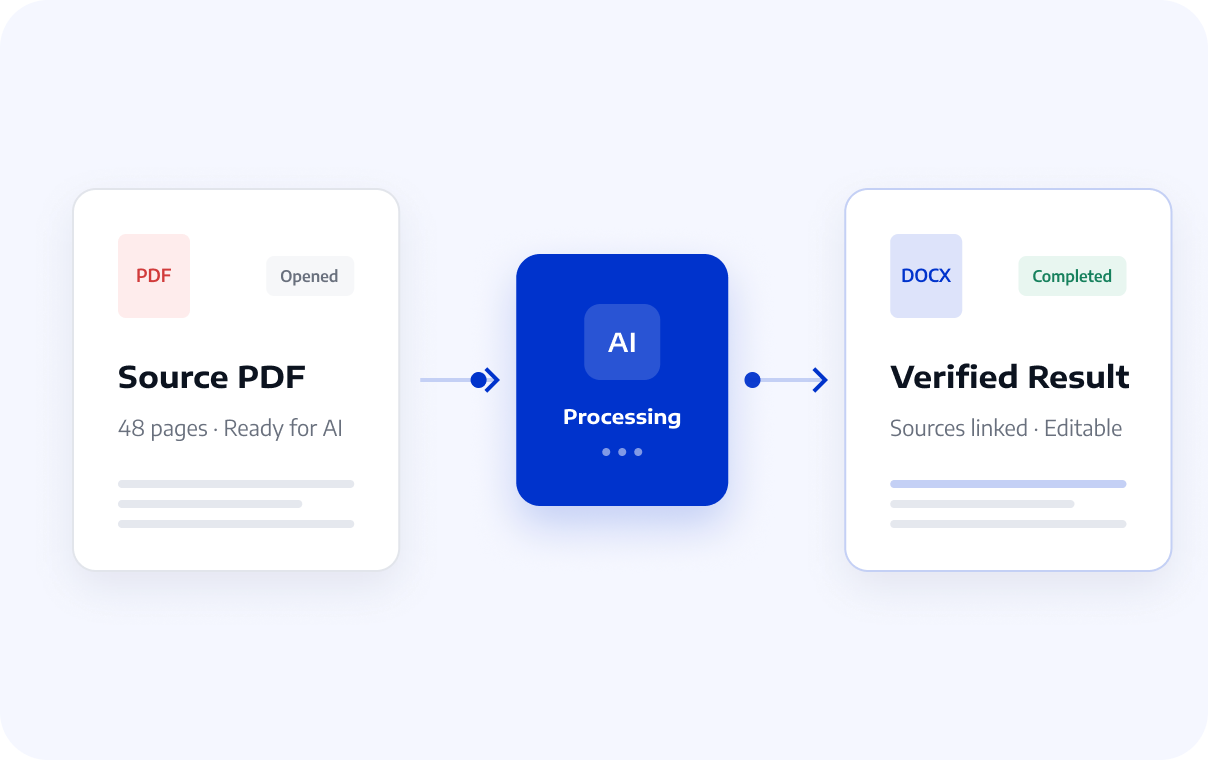
All-in-One PDF AI Tools

Extract data, ask questions, generate reports, review contracts, translate documents, and process scans with LynxPDF AI. Choose the task you need, then verify important results before use.

Find Data, Answers, and Conclusions in PDFs Faster

Start with a specific business question: extract the data you need, ask questions about document content, or turn long materials into a structured report.

Data Extraction

Turn fields, metrics, tables, and trends into structured business data for analysis.

  • Define extraction fields based on the business objective
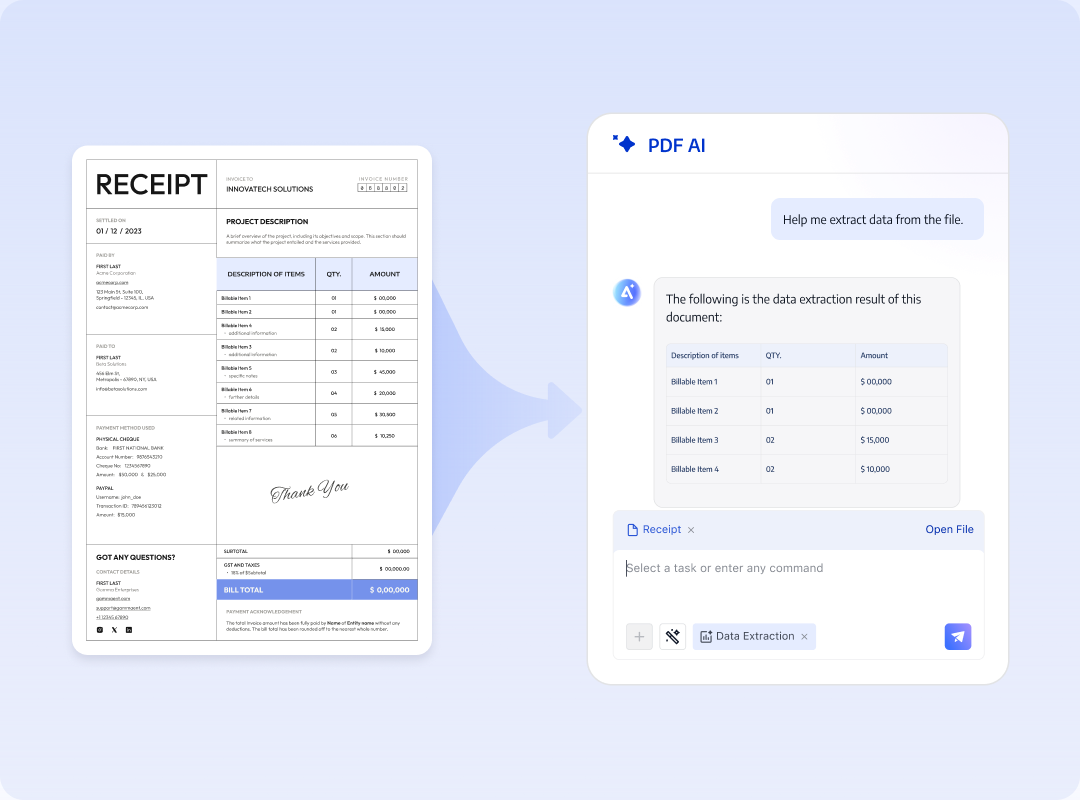
  • Keep extracted values linked to their units
  • Trace Key Results Back to the Source for Verification
Learn More
PDF source content, extraction requirements, structured fields, and source locations

Review Contract Risks and Sensitive Information

Bring contract risks, unusual clauses, and potentially sensitive content together so teams can focus their review.

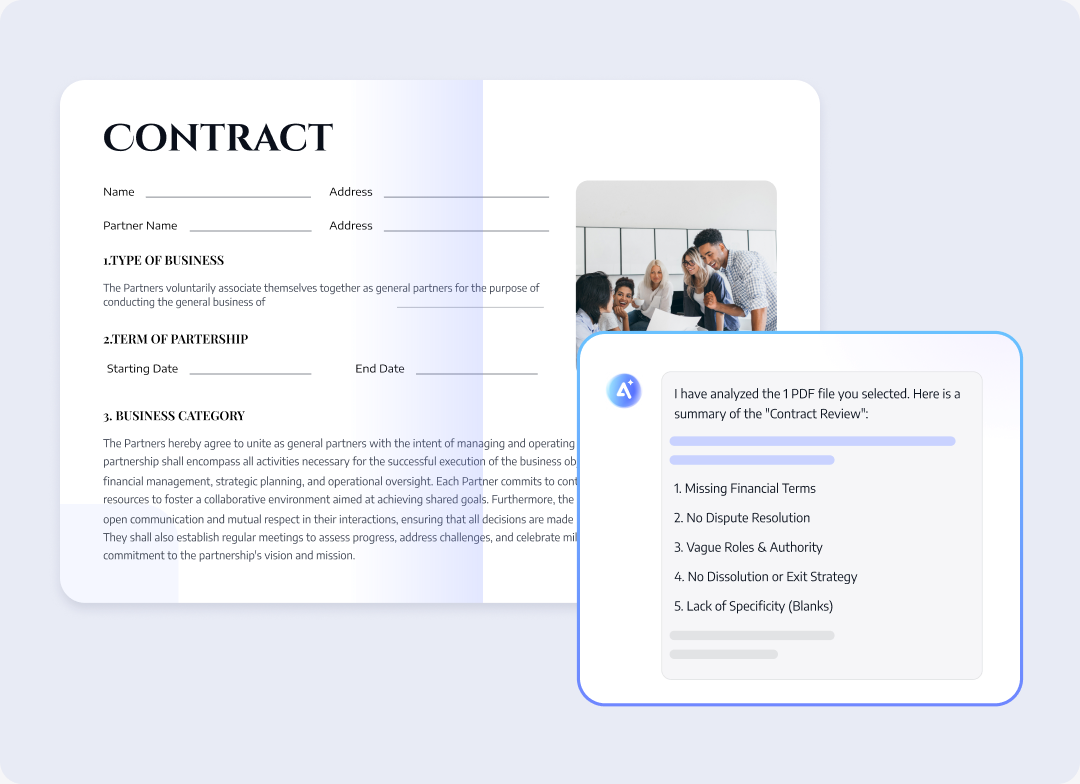
Smart Contract Review

Organize contract risks and unusual clauses that require attention, with page citations linking each finding back to the contract.

  • See potential risks and unusual clauses together
  • Prioritize clauses that need review
  • Click a citation to view the full context
Learn More
Contract source content, risk checklist, unusual clauses, and page citations

Security & Compliance

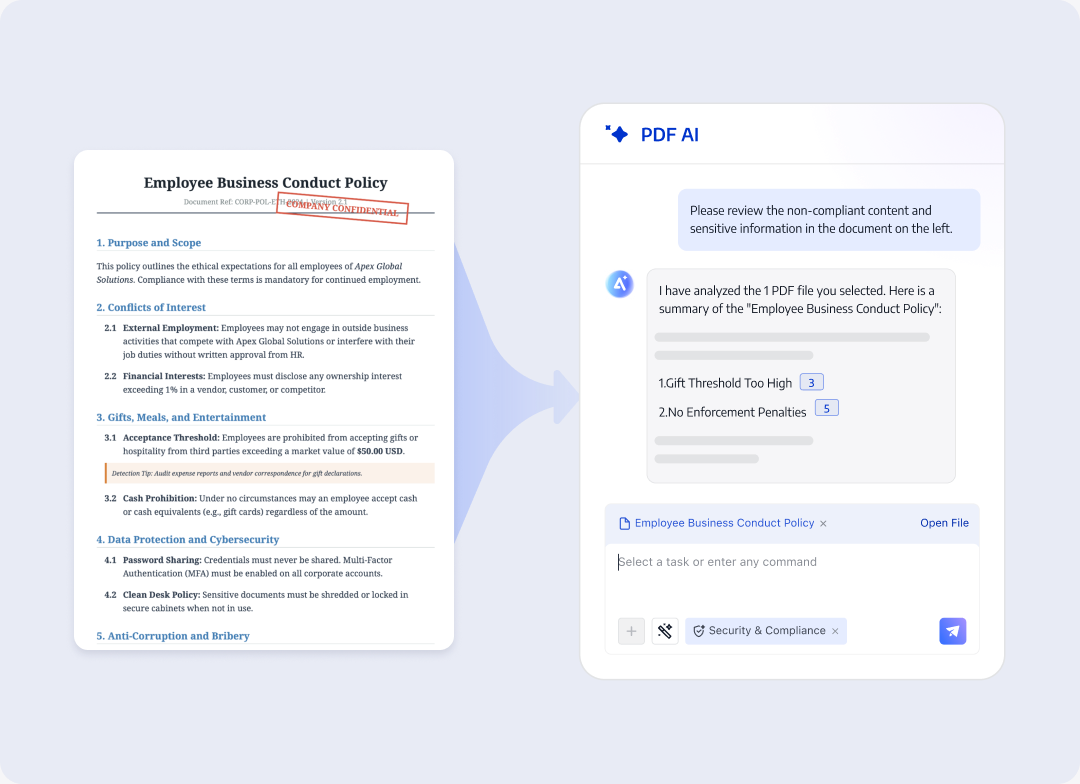
Identify content that may involve sensitive information and generate a review checklist with source citations.

  • Focus first on content that needs attention
  • Review flagged content in document order
  • Keep human compliance judgment in control
Learn More
PDF source content, sensitive-content clues, page citations, and review status

Translate Complete PDFs

Translate complete PDFs while preserving terminology, numbers, context, and structure. Compare the result with the source before downloading.

Document Translation

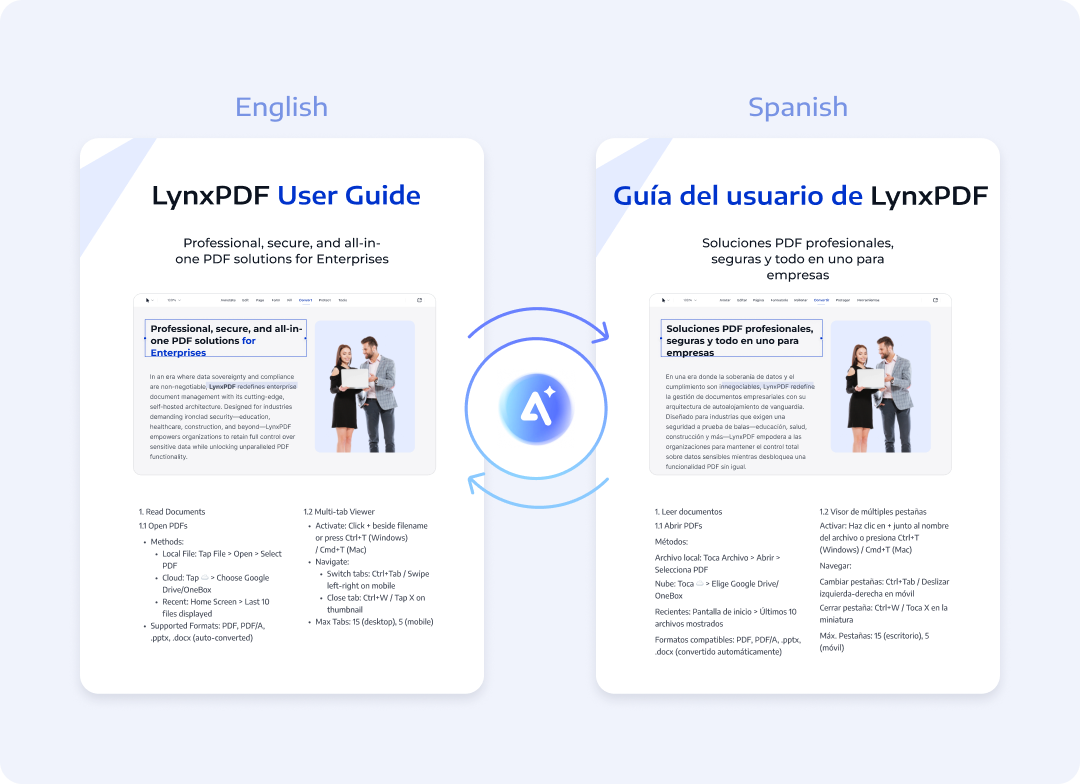
Translate the full PDF while preserving its context and structure. Open or download the translated document, and compare it with the original.

  • Translate the complete document consistently
  • Preserve terminology and context
  • Compare the source and translation side by side
Learn More
Language and tone settings, processing status, and source/result PDFs in split view

Digitize Scans and Process PDFs with Natural Language

Describe which pages need to be searched, edited, or processed. AI fills in the required parameters and runs supported PDF tools.

OCR, Image Correction, and Image Enhancement

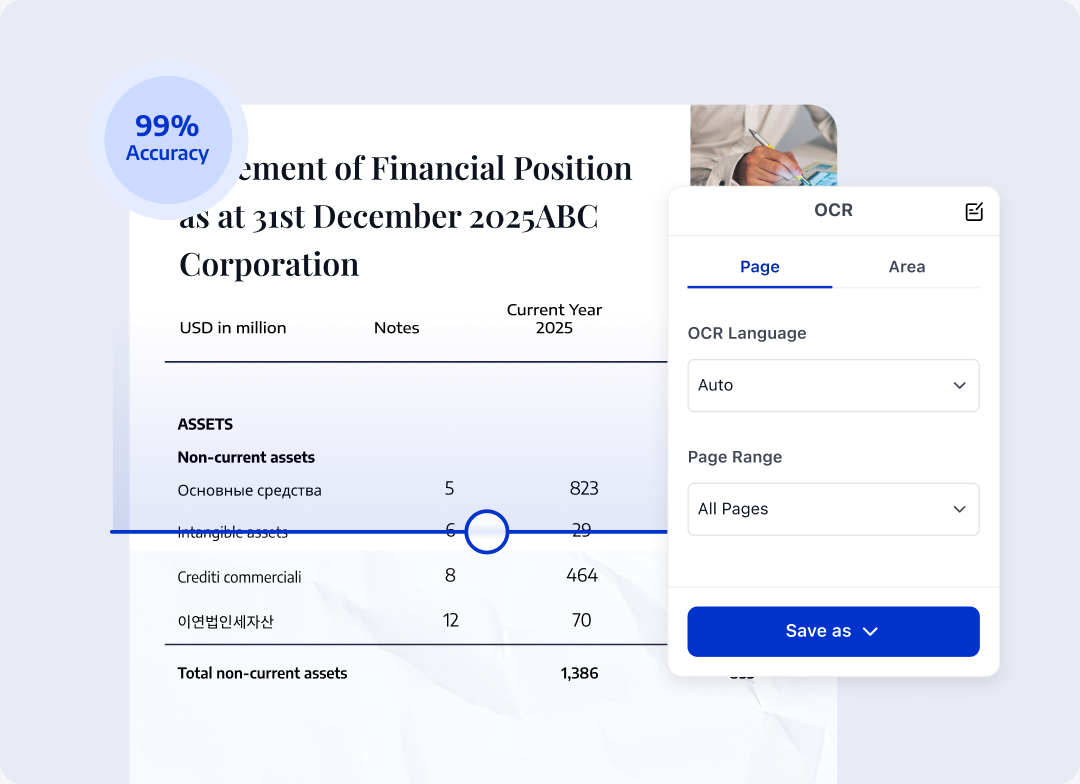
Use OCR to make PDFs searchable, or export editable PDFs and TXT files with scan-processing tools.

  • Convert scanned text into searchable content
  • Choose the pages to process
  • Output Files in Multiple Document Formats
Learn More
Original scan, OCR status, before-and-after enhancement comparison, and result file

AI-Powered Document Processing Tools

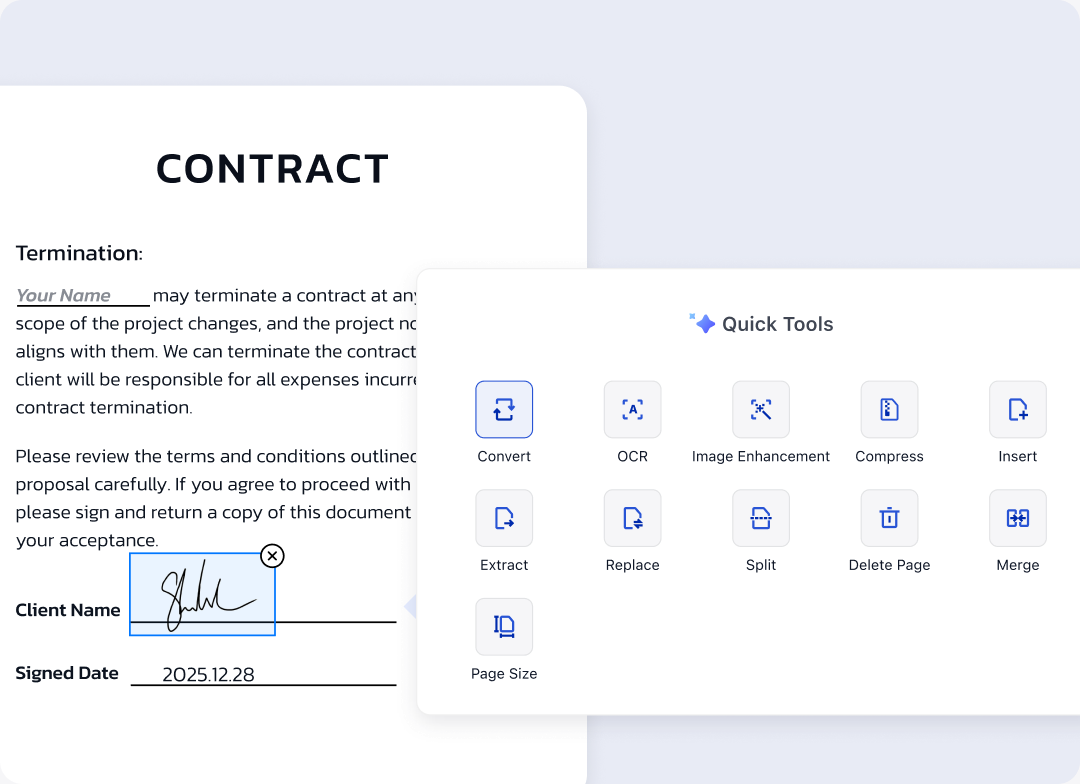
Describe your task, and AI selects a supported PDF tool for conversion, OCR, or page organization to create the result.

  • Match conversion and OCR tools to the task
  • Enhance or compress pages based on the task requirements
  • Insert, Extract, Split, and Perform Other Operations Using Natural-Language Instructions
Learn More
Natural-language instruction, parameter confirmation, processing status, and result file

PDF AI Workflows by Team

Different roles can choose different tasks for the same PDF, then check important results against the source before using them.

Finance and Business Analysis

Extract metrics from business reports, organize key trends, and generate structured summaries to prepare data and evidence for further analysis and presentations.

Learn More

From Task to Verified Result in Four Steps

AI Smart Tasks follow four steps: define the task, specify the scope, ask clearly, and verify the result against the source.

  1. 01Open or upload the PDF to process
  2. 02Choose an AI task or describe what you need
  3. 03AI reads the document and generates data, answers, a report, or a result file
  4. 04Choose the output format, then download and save the result