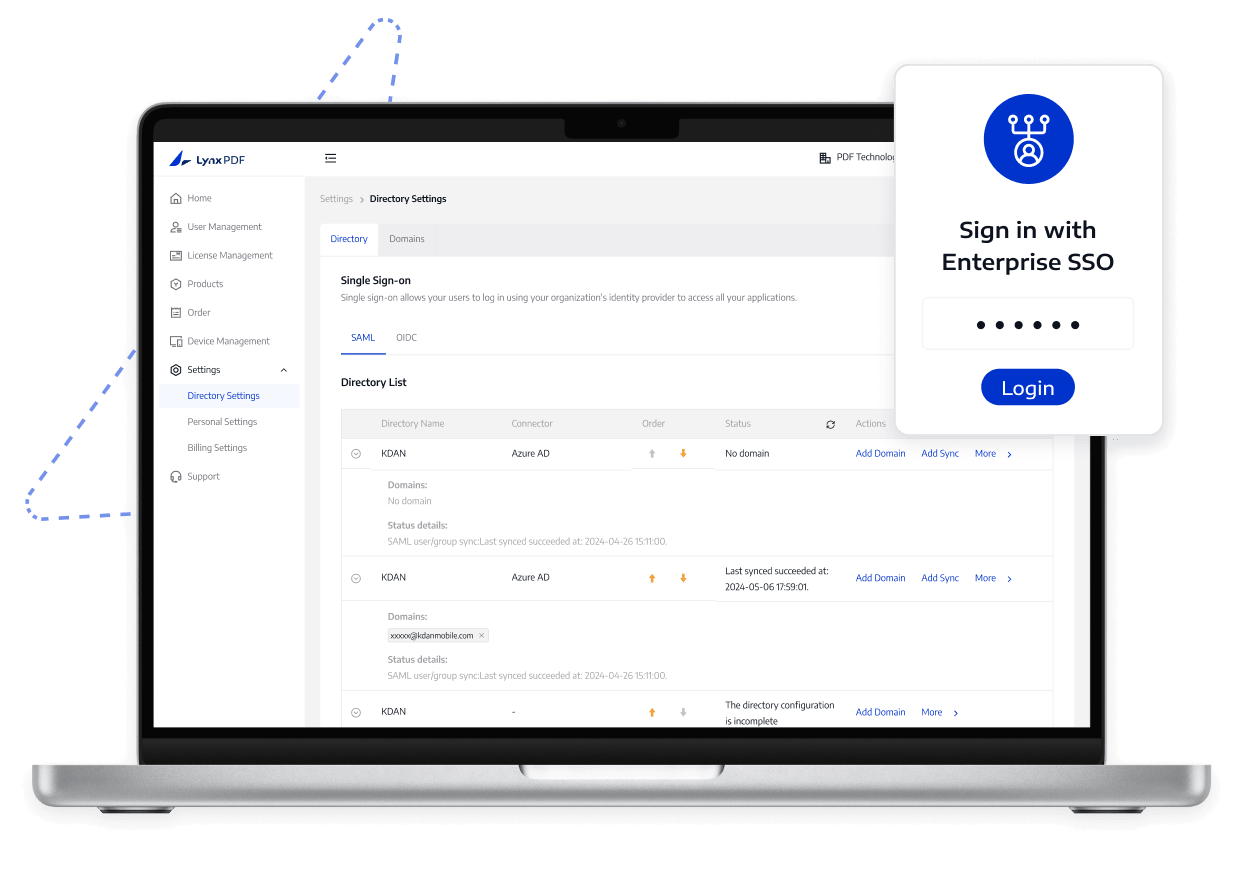

Connect LynxPDF to Enterprise Single Sign-On

Connect LynxPDF to your identity provider with SAML or OIDC so employees can use familiar sign-in credentials while IT controls the rollout.

Connect LynxPDF to Enterprise Single Sign-On

Address Enterprise Management Challenges

Give employees a simpler, more consistent way to sign in

Address Enterprise Management Challenges
  1. 01

    Separate Accounts Add Login Work

    Requiring separate credentials for PDF software adds both sign-in friction and account-maintenance work for employees.

  2. 02

    Domain and Account Matching Is Unclear

    Incomplete domain, identity, or account-matching settings may make it hard to verify that employees reach the correct enterprise account.

  3. 03

    Role Changes Can Cause Access Errors

    When employees change roles or teams, outdated account matching can send them to the wrong account or prevent access altogether.

Core Capabilities

See what LynxPDF supports and how it helps teams manage PDF access.

Use the protocol that matches the identity-provider setup and document required claims before rollout.

Learn More

Deployment and Access Boundaries

Identity administrators or IT specialists must configure the identity provider, DNS or HTTPS verification, claims, and fallback access. SSO configuration does not define team permissions, license assignments, or enterprise identity policies.

What LynxPDF Supports

  1. 1

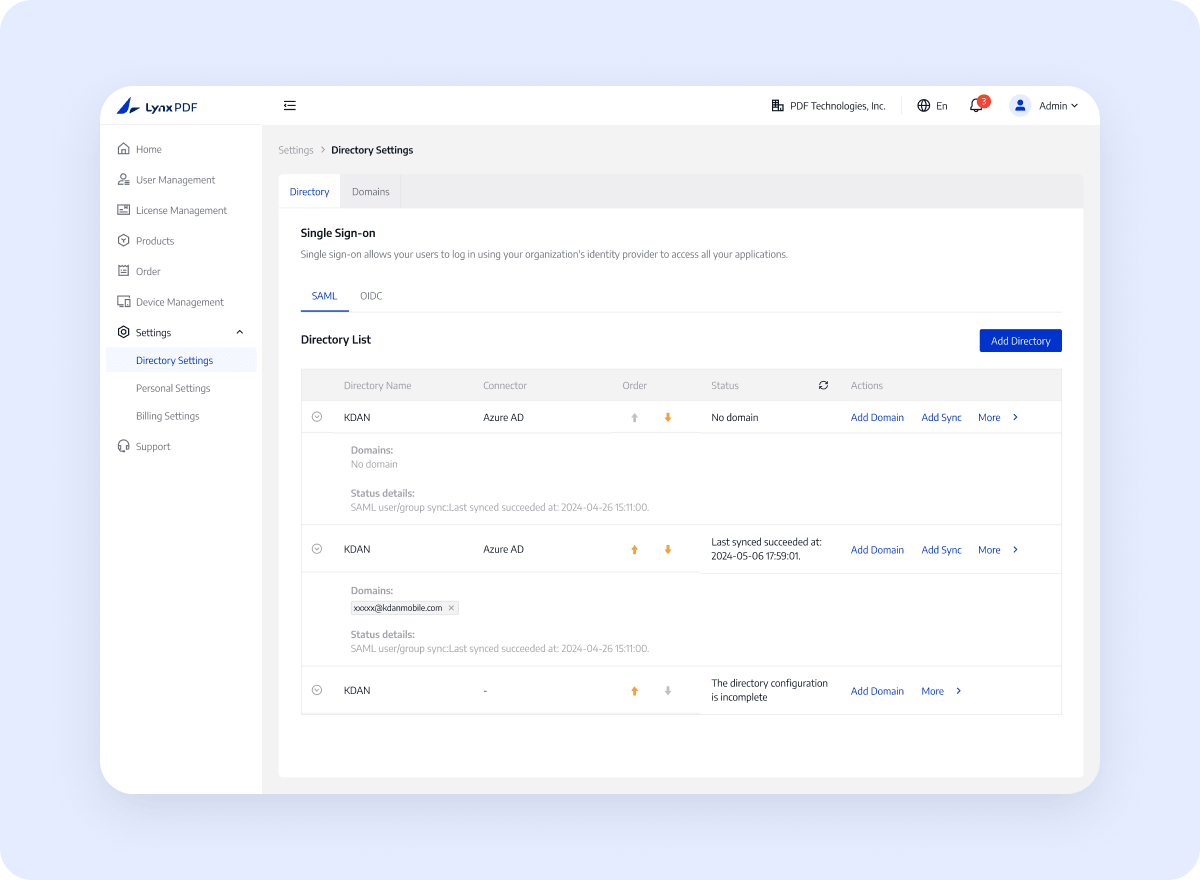
    LynxPDF supports enterprise SSO through SAML or OIDC identity-provider connections.

  2. 2

    Administrators configure claims, account matching, and the approved login flow.

  3. 3

    Verified domains and a tested login result define the access boundary.

What Your Team Should Prepare

  1. 1

    Choose the identity provider and SAML or OIDC protocol.

  2. 2

    Prepare domain verification and the required claims or metadata.

  3. 3

    Test account matching, fallback access, and rollout approval before launch.

How It Works

Follow a clear path from setup through verification.

  1. 01

    Choose a Protocol

    Choose SAML or OIDC according to the identity-provider configuration.

  2. 02

    Verify Your Domain

    Verify the organization domain through DNS TXT or HTTPS verification.

  3. 03

    Configure SSO

    Configure identity-provider claims and LynxPDF SSO settings.

  4. 04

    Test Account Login

    Use a test account to sign in to LynxPDF and confirm that the SSO configuration and account matching work as expected.

What Your Organization Gains

Bring identity verification, account matching, and rollout approval into one login path.

Contact Sales

Approved Login Path

Employees can access LynxPDF through the organization's approved identity-provider flow, while IT retains control of domain verification and rollout testing.

Controlled Rollout

Use a confirmed SSO configuration and rollout process so IT can verify the login result.

Clear Matching Result

Have the responsible administrator confirm the environment, permissions, version, and final rollout scope.

Why Choose LynxPDF

See how LynxPDF fits enterprise workflows compared with common PDF tools.

Flexible Enterprise Infrastructure

Support Windows Server, Intune, GPO, RDS, and SCCM deployment approaches for different devices and IT requirements.

Offline and Private Deployment Options

Fit restricted-network or local data-management scenarios with a local or cloud deployment path.

Coordinated Administration, Identity, and Deployment

Bring Admin Console, SSO, license management, and bulk deployment into one enterprise workflow to reduce repeated configuration and maintenance across systems.

FAQ
What Should Enterprise Teams Confirm?
Check the current product documentation for supported features, environment requirements, configuration steps, and usage limitations.