


If you're experiencing challenges while assigning a license to one user in a team while using the Admin Console as an administrator, don't worry! We have a solution for you.
From User Management:
1. Go to User Management -> Users;
2. Click on Add Users on the upper right;
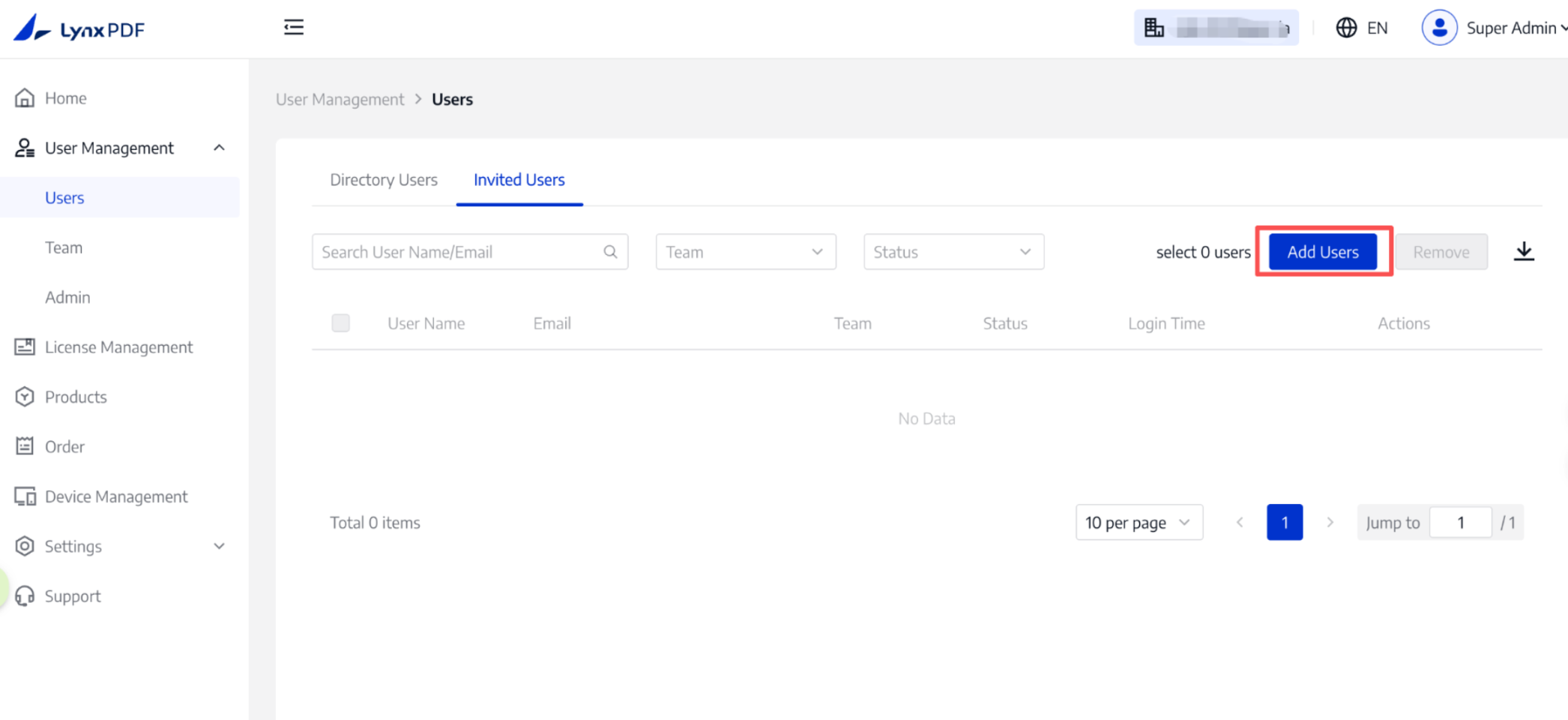
3. Choose Add individually and fill in the following information;
- User Email: the email address that team members use to receive licenses.
- User Name: the name of the member.
- Team: Select a team for the member via the drop-down box.
- Set as Team Admin: grant the member team-admin permissions.
- Assign licenses: give the member access to LynxPDF’s full features.
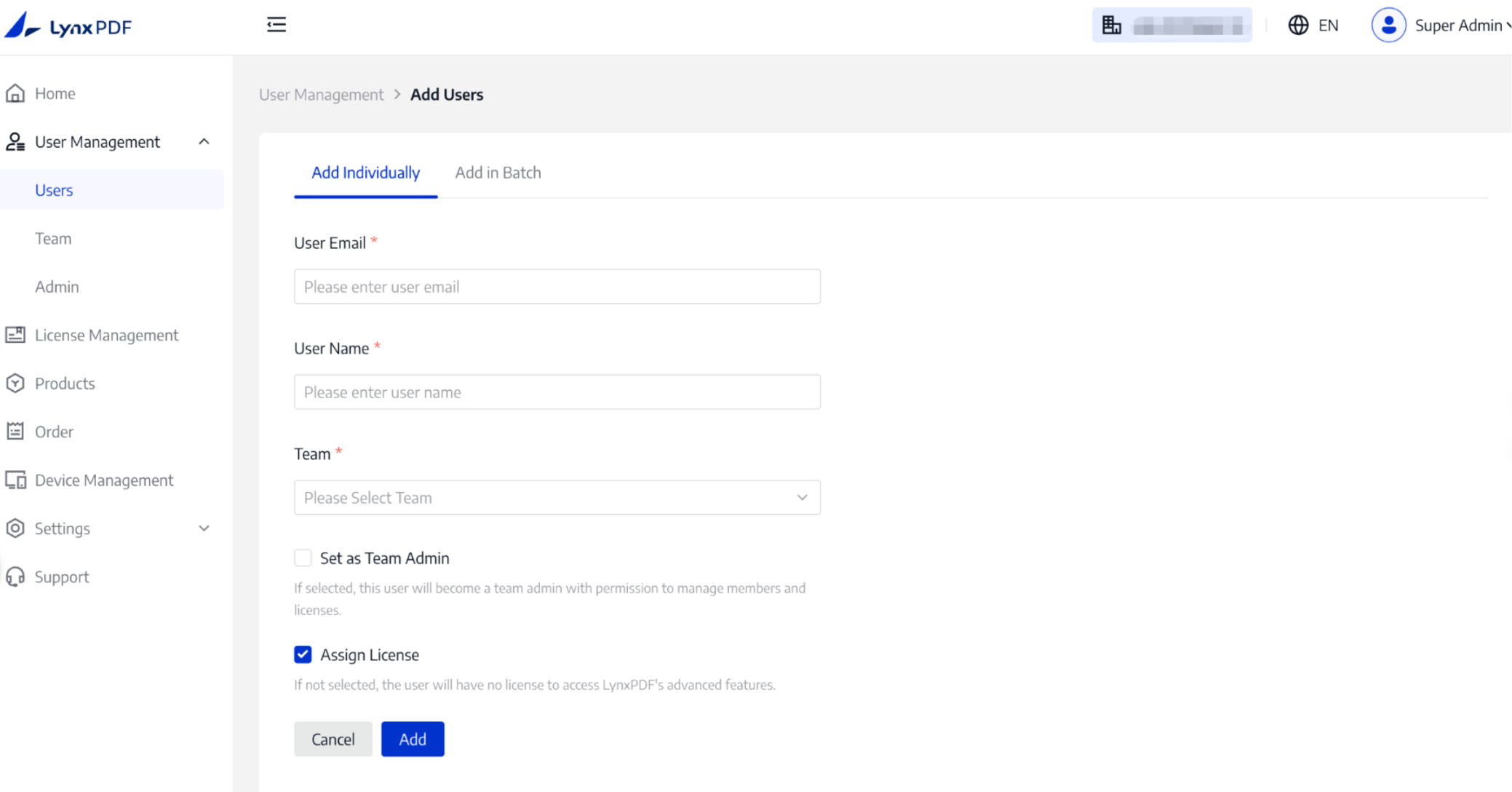
3. Tap Add to send the email.
4. The authorized members can check the authorization information via email.
From License Management:
1. Go to License Management -> Assign License;
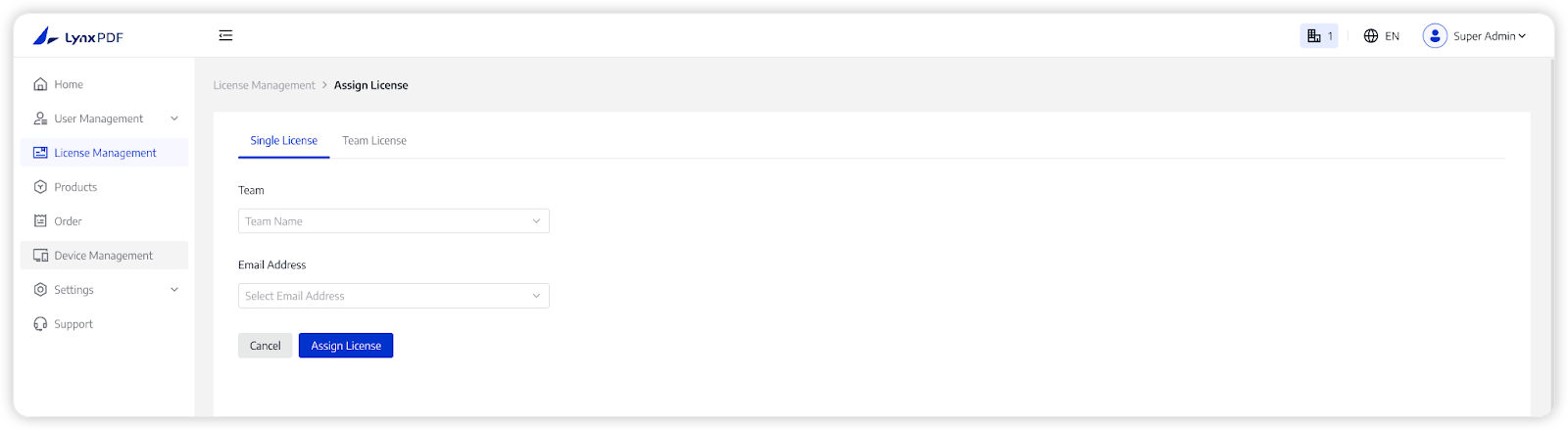
2. Choose Team (the team that the member belongs to) and Email for the member. And Assign License.
The above is the solution for how administrators assign a license to one user in a team.
We also offer the option to assign team licenses, which is a one-to-many assignment. With this convenient method, you can assign licenses to your entire team with just one action, saving you valuable time!
If you still have other questions, please contact us.

