

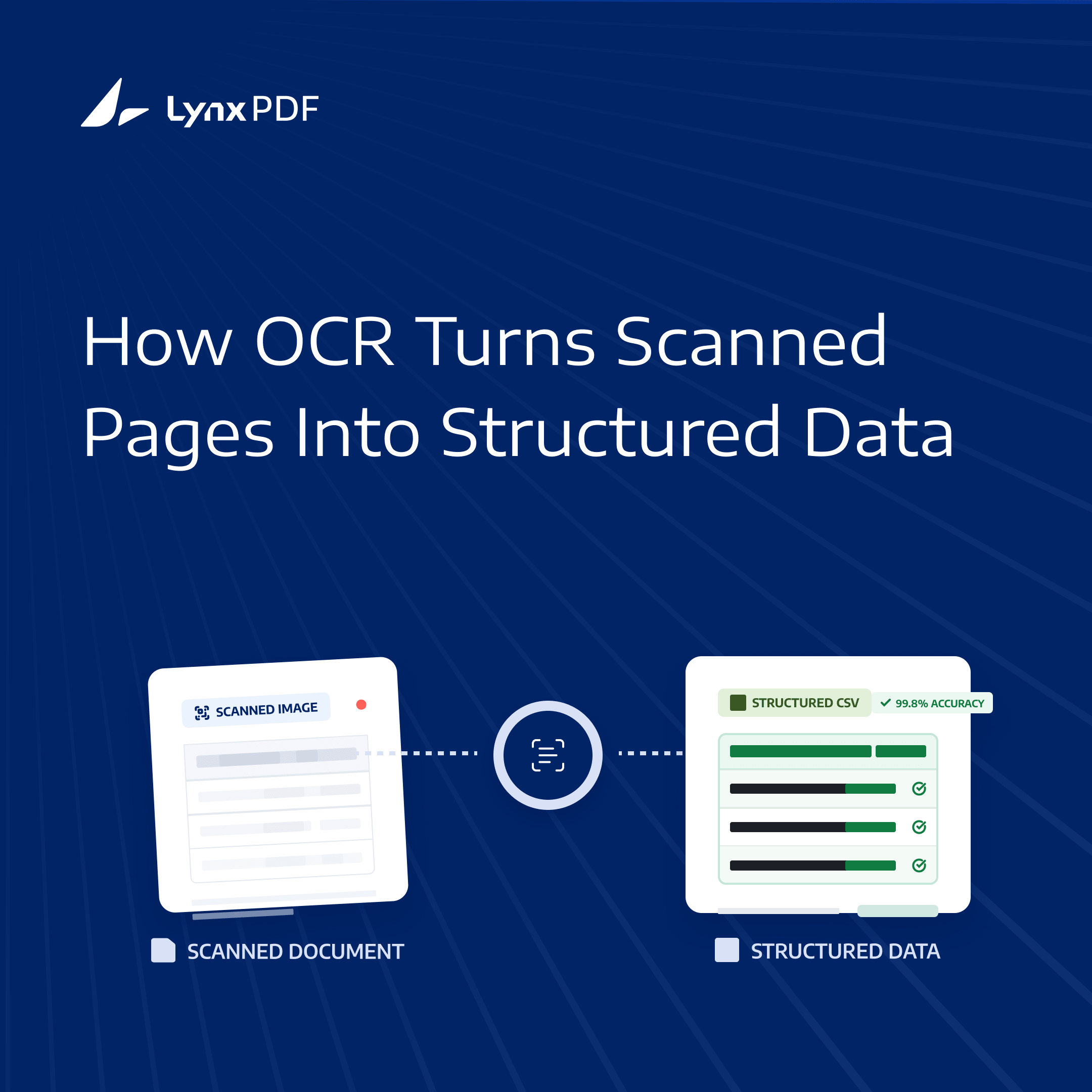
Quick Answer: OCR does not convert a scanned PDF into CSV by itself. It first makes image-based content readable by recognizing text and its position on the page, allowing table-extraction tools to reconstruct rows, columns, and structured data before export. The final result depends on scan quality, document language, table complexity, and whether important fields are checked against the original PDF.
Scanned PDFs are common in archived reports, invoices, receipts, paper forms, and historical records. They may contain valuable table data, but unlike digital PDFs, they cannot be read directly by many extraction tools because the visible content exists as page images rather than selectable text.
OCR provides the recognition layer that makes those image-based documents usable. This article explains how OCR identifies text and layout information, why table extraction remains a separate step, and what affects the accuracy of scanned PDF-to-CSV results. For a broader overview of conversion methods across different PDF types, see the PDF to CSV conversion guide.
Why Scanned PDFs Need OCR
A scanned PDF may look like an ordinary document on screen, but it stores information differently from a digital PDF.
A digital PDF usually contains a searchable text layer. You can select, copy, search, or highlight its text. A scanned PDF is typically made from images of paper pages, so the visible words, numbers, and table lines are stored as pixels rather than machine-readable characters.
| PDF type | How information is stored | Recommended approach |
|---|---|---|
| Digital PDF | Searchable text layer | Direct table extraction |
| Scanned PDF | Page images | OCR before extraction |
| Mixed PDF | Text pages and image pages | Process each section based on its source type |
For example, a digital invoice may contain an actual text value such as Invoice Number: 12345. A scanned invoice only contains an image of those characters. Software must first recognize the pixels that form 12345 before it can use the number as data.
The process usually follows:
Scanned PDF -> OCR recognition -> Text and layout detection -> Table extraction -> Structured data export
OCR makes the page readable by software. Table extraction determines how the recognized information should be organized into rows, columns, and usable records.
How OCR Turns Images Into Recognizable Text
OCR stands for Optical Character Recognition. It identifies text, numbers, and symbols within image-based documents.
Rather than copying text from a page, OCR analyzes visual patterns and produces machine-readable text with positional information. This gives software a basis for identifying where words, values, headings, and possible table areas appear.
Character and Word Recognition
OCR can analyze letters, numbers, punctuation, currency symbols, dates, reference codes, and language-specific patterns. In a scanned invoice, it may recognize an invoice ID, customer name, line-item description, quantity, unit price, and total.
Recognition quality depends on the source. Clear, high-contrast printed text is easier to interpret than faded print, low-resolution scans, handwritten notes, or pages with uneven lighting.
Text Position and Layout Detection
In addition to text recognition, OCR estimates the reading order and location of headings, lines, aligned values, and potential table regions.
This positional information helps distinguish:
- A document title from a table header
- A line item from a page footer
- A value in one column from a value in the next
- A repeated report header from actual table data
Table and Data Extraction
Once text has been recognized, a table-extraction process attempts to determine how the values relate to each other.
It may identify table headers, data rows, column boundaries, repeated headers, individual values, and subtotal or total rows. OCR and table extraction work together, but they perform different tasks.
| OCR | Table extraction |
|---|---|
| Recognizes characters, words, numbers, and symbols | Determines how recognized values relate to rows, columns, headers, and records |
| Converts image content into machine-readable text and positional data | Converts recognized content into structured tabular data |
Can identify 123.45 as text |
Determines whether 123.45 belongs to Quantity, Unit Price, or Total |
A scan can produce accurate text while still placing a value in the wrong field. A correctly recognized total, for example, may be assigned to the wrong row after a complex table is reconstructed.
Common OCR Challenges in Scanned PDF Tables
OCR makes image-based documents usable, but recognition results can be affected by the source file and the table design.
Low-Quality or Damaged Scans
Blurry text, faint ink, shadows, skewed pages, stains, and compression artifacts can make characters difficult to recognize.
Possible results include:
- Missing characters
- Broken words
- Incorrect numbers
- Lost punctuation
- Unclear table boundaries
A low-resolution scan of a financial statement may cause a decimal point to disappear or a value such as 8 to be read as 3.
Similar-Character Errors
Some characters have similar visual shapes, especially in low-quality scans.
| Original character | Possible OCR error |
|---|---|
0 |
O |
1 |
I or l |
5 |
S |
8 |
B |
. |
, or missing character |
These errors matter most when the PDF contains invoice numbers, account IDs, tax amounts, product codes, dates, or financial totals.
Complex Table Layouts
Scanned tables can contain merged headers, nested sections, multiple tables on one page, multi-line descriptions, repeated page headers, subtotals, and handwritten notes.
OCR may recognize the visible text correctly, but the later extraction step can still split one record across multiple rows or shift a value under the wrong column. For guidance on preserving row, column, and header relationships, see how to convert PDF to CSV without losing table structure.
Multiple Languages and Regional Formats
Scanned documents can contain more than one language, alphabet, or regional data format. OCR settings should match the source document as closely as possible.
Even when OCR reads values correctly, the output may still need normalization before import. For example, a destination system may expect dates in YYYY-MM-DD format, or require decimal points instead of decimal commas.
How to Improve Scanned PDF-to-CSV Accuracy
Improving the input document is often more effective than trying to repair a poor CSV output afterward.
1. Improve Scan Quality
Use the clearest available source file and check for:
- Sufficient image resolution
- Correct page orientation
- Straight page alignment
- Clear contrast between text and background
- Minimal shadowing or background noise
- Complete page edges and table borders
If a table is difficult for a person to read, OCR will likely struggle with it as well.
2. Use Appropriate Recognition Settings
Recognition settings should reflect the source document. Consider the document language, text orientation, page rotation, layout type, and whether the content is printed or handwritten.
A setting that works well for a clean English invoice may not suit a multilingual report with rotated pages and dense tables.
3. Review High-Value Fields
Not every field carries the same risk. Prioritize review for data that could create an operational, financial, or reporting error.
Check the following against the original PDF when relevant:
- Invoice and account numbers
- Dates
- Quantities
- Unit prices
- Tax amounts
- Negative values
- Totals
- Table headers
- Product or reference codes
4. Test Representative Pages First
Do not judge the entire document set from one clean page. Test pages with dense tables, wrapped descriptions, low-quality scans, page breaks, repeated headers, subtotals, and multiple table sections.
If only some pages are scanned, separate those pages from text-based pages rather than applying OCR to the entire document by default.
When OCR Results Need Manual Review
Manual review is especially important when extracted data will be used for accounting, reporting, database import, compliance, or other high-consequence workflows.
Review results carefully when the source includes:
- Financial totals, decimal values, or tax information
- Personal identifiers or account numbers
- Long values that may wrap across lines
- Faded, skewed, low-resolution, or partially obscured scans
- Merged headers or nested table structures
- Handwritten notes near table values
- Multiple languages or regional number formats
Review should confirm two things:
- Text accuracy: Are the characters, numbers, and dates correct?
- Field accuracy: Are values assigned to the correct row, column, and record?
OCR Extraction vs. Direct PDF Extraction
The right extraction approach depends on how the source PDF stores information.
| Method | Best for | Main limitation |
|---|---|---|
| Direct extraction | Digital PDFs with selectable text | Does not work reliably on image-only pages |
| OCR-based extraction | Scanned or image-based PDFs | Requires recognition and structure validation |
For mixed documents, treat image-only pages and text-based pages as separate extraction cases. This helps avoid unnecessary OCR processing and makes it easier to identify where recognition errors may occur.
How LynxPDF Supports Scanned PDF Workflows
For scanned-document workflows, LynxPDF OCR and PDF Digitization can turn image-based files into searchable, editable, and copyable PDFs while supporting image correction, multilingual recognition, and table data extraction.
OCR is most useful when it is treated as part of a broader document workflow rather than a final step. After recognition, review important text, confirm table boundaries, and validate high-value fields before the extracted data is reused in a spreadsheet, report, or business system.
To recognize text in a scanned file before reviewing or extracting its data, try OCR scanned PDFs online.
Frequently Asked Questions
Can scanned PDFs be converted to CSV?
Yes. Scanned PDFs can be converted into structured CSV data, but OCR is usually required first because scanned pages contain images rather than searchable text. After OCR, table-extraction tools can identify rows, columns, headers, and values.
Does OCR preserve the original PDF table layout?
No. OCR recognizes text from page images, but it does not preserve the PDF's original visual design, fonts, borders, spacing, or merged cells. Table extraction is needed to reconstruct usable rows and columns.
What is the difference between OCR and PDF table extraction?
OCR identifies characters, words, numbers, and their positions on an image-based page. Table extraction uses that recognized content to determine how values belong in rows, columns, headers, and structured records.
Why can OCR-recognized text still produce incorrect CSV data?
OCR may misread characters because of poor scan quality, unclear text, language settings, or page orientation. Even when text is recognized correctly, complex layouts can cause values to be assigned to the wrong row or column during table extraction.
Can OCR recognize scanned PDFs in multiple languages?
Yes, but accuracy depends on scan quality, OCR language support, and the selected recognition settings. Multilingual documents may also require additional review for special characters, dates, and regional number formats.
For step-by-step guidance, see how to convert a scanned PDF into an editable PDF using OCR.
Final Thoughts
Scanned PDF-to-CSV conversion starts with recognition, not direct extraction. OCR makes image-based pages searchable and editable; table extraction then determines whether the recognized values form usable rows, columns, and records.
For scanned reports, invoices, and archived documents, LynxPDF OCR and PDF Digitization helps prepare image-based PDFs for extraction and review. Check important values and table relationships against the original document before reusing the data in a spreadsheet, report, or business system.


