

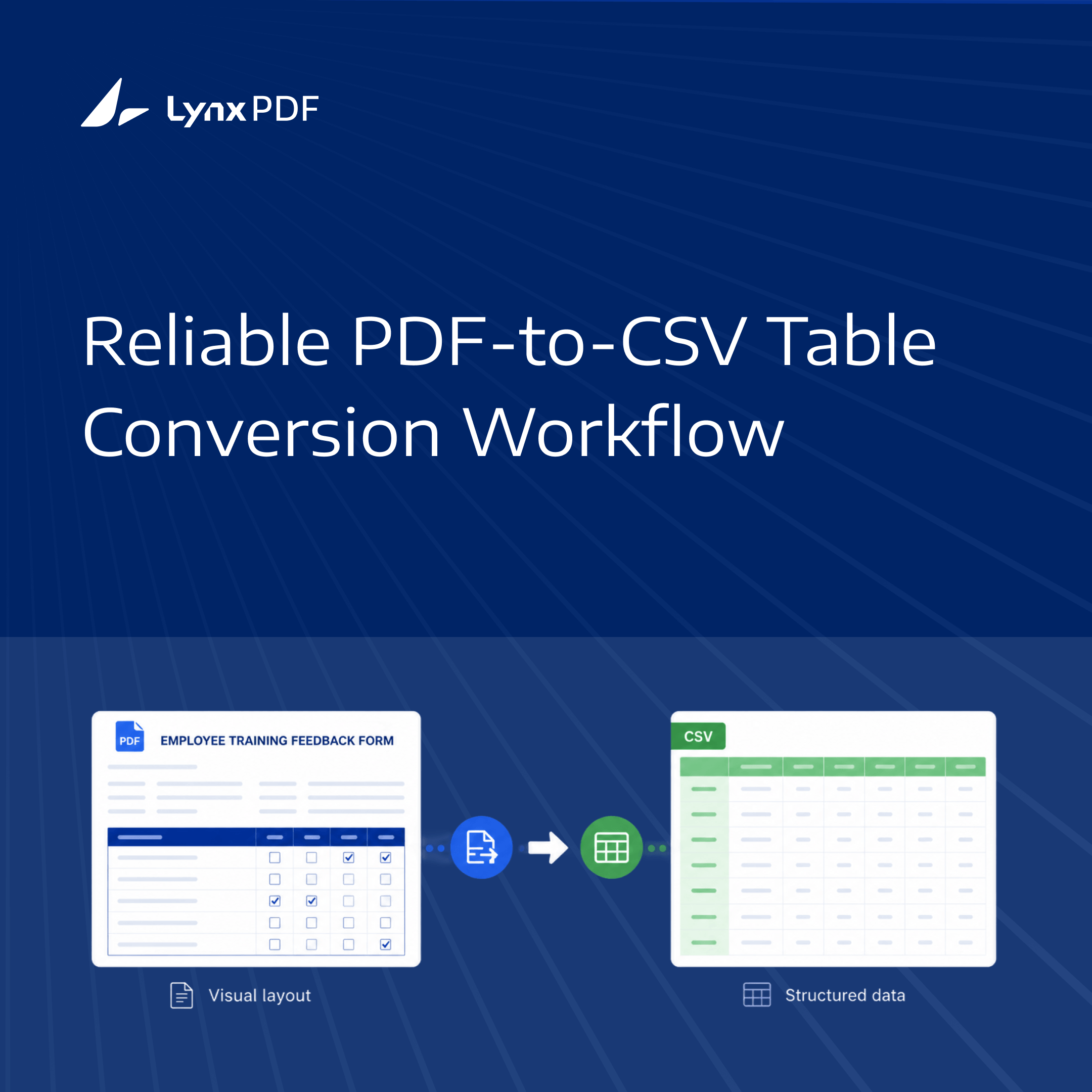
Quick Answer: To convert PDF tables to CSV accurately, first identify whether the PDF contains selectable text or scanned images. Use direct extraction for digital PDFs and OCR for scanned documents. A reliable conversion should preserve rows, columns, headers, and values while recognizing that CSV cannot retain the original PDF layout.
A PDF table may look perfectly aligned while storing its content as separate text elements positioned on a page. CSV uses a different model: values are arranged into records and fields. The conversion therefore has to infer which values belong to the same row and column.
The goal is not to reproduce the PDF's appearance in CSV. The goal is to produce structured data that can be reviewed, analyzed, or imported without unexpected shifts, omissions, or value changes. For a broader explanation of formats, conversion methods, and OCR, see the PDF to CSV conversion guide.
What Does "Table Structure" Mean in a CSV?
In this context, table structure means the relationships that make the extracted data usable:
- Each record remains on the intended row.
- Each value remains under the intended column.
- Headers identify the fields consistently.
- Multi-line text stays within its original record.
- Dates, amounts, identifiers, and negative values retain their intended meaning.
CSV does not preserve fonts, colors, borders, page breaks, merged headings, formulas, or exact column widths. If the output must retain visual formatting or multiple worksheets, use a spreadsheet format for review instead of treating CSV as a visual copy of the PDF.
Start by Identifying the Source PDF
The source type determines how table data can be recognized. Test the PDF before choosing a conversion path.
| Source type | How to identify it | Recommended first step | Main risk |
|---|---|---|---|
| Digital PDF | Text can be selected, searched, and copied | Extract a small table directly | Visual spacing may not represent true cells |
| Scanned PDF | Pages behave like images and text cannot be selected | Apply OCR before table extraction | Characters and cell boundaries may be misread |
| Mixed PDF | Some pages have selectable text and others are images | Separate pages by source type | One setting may not suit every page |
| Complex digital PDF | Merged headers, nested tables, notes, or repeated subtotals | Test representative pages and normalize fields | CSV may flatten relationships that matter |
Do not judge the whole document from its first page. Include a dense table, a page with wrapped text, a page with totals, and the lowest-quality scan in the initial test set.
A Reliable PDF-to-CSV Workflow
1. Define the Columns Before Conversion
Write down the fields the destination needs. This may include an account ID, date, description, quantity, unit price, and total. A defined target schema makes it easier to spot missing columns, repeated headers, or values that have moved to the wrong field.
Also decide whether the first row should contain headers and whether the destination expects a specific column order. These details matter when the CSV will be imported into a spreadsheet, reporting tool, or internal system.
2. Inspect Rows, Headers, and Exceptions
Look for structures that commonly confuse extraction:
- Headers that repeat on every page
- Multi-line descriptions or addresses
- Merged headings above several columns
- Subtotal and total rows
- Footnotes inside or below the table
- Blank cells that have meaning
- Tables that continue across page breaks
Mark these elements before conversion. They may need to be excluded, renamed, or handled as separate records during cleanup.
3. Choose Direct Extraction or OCR
For a digital PDF with consistent selectable text, a direct table-extraction or PDF-to-CSV path may be sufficient. For a scanned PDF, OCR is required before the text and table boundaries can be interpreted.
OCR should be treated as a recognition step, not as proof that every value was read correctly. Pay particular attention to characters that are easy to confuse, such as 0 and O, 1 and I, and decimal points in monetary values.
For users who need to handle PDF conversion as part of a broader document workflow, LynxPDF for Web provides browser-based PDF tools for conversion, OCR, editing, and document management. The appropriate workflow still depends on the source PDF, and extracted data should be checked before it is reused.
4. Compare a Sample with the Original PDF
Open the exported CSV beside the source document. Do not check only the first few rows. Compare:
- The first and last row on each tested page
- A row containing a long text value
- A row containing an amount or negative number
- Rows immediately before and after a page break
- Repeated headers and subtotal rows
- Blank values and intentionally empty cells
For a large collection, this sample is the point at which to decide whether the selected method is suitable. Processing more pages does not correct a rule that already misreads the table.
5. Normalize the Output for Its Destination
After the data relationships are correct, prepare the CSV for the receiving application. Check the delimiter, text encoding, date format, decimal convention, header names, and column order. Confirm that identifiers such as postal codes or product codes have not lost leading zeros.
Some applications expect commas, while others use semicolons or regional settings. A file can contain the right values and still appear incorrectly split when opened with the wrong delimiter or encoding.
Common Structure Problems and Fixes
Columns Shift to the Left or Right
This often happens when the PDF uses visual spacing instead of explicit table cells. Reduce the test to one table, remove decorative elements from the extraction scope, and check whether the tool can identify cell boundaries. If the layout changes between pages, process the page groups separately.
One Record Becomes Several Rows
Wrapped descriptions, addresses, and notes can be interpreted as new records. Check whether line breaks belong inside a quoted field and whether the destination application supports standard CSV quoting. If the source has a consistent pattern, normalize those records before import.
Headers Are Repeated as Data
Reports often repeat their header row after a page break. Identify the header by its field names rather than by its position alone, then remove repeated instances or handle them consistently during cleanup.
Merged Headings Lose Their Meaning
CSV has no merged-cell concept. A heading that visually covers several columns should be converted into explicit field names or documented separately. If the hierarchy is essential to the user's review process, keep a spreadsheet copy as the working version.
OCR Changes Important Values
Low-resolution or skewed scans may produce incorrect characters, missing decimal points, or broken cell boundaries. Compare IDs, dates, quantities, amounts, and totals against the original page. Improve the source image or OCR settings where possible, then repeat the sample check.
When to Use XLSX Before CSV
CSV is useful when the next system needs flat, structured data. XLSX is usually easier to review when the extraction contains several sheets, formulas, merged headings, formatting, or a large number of corrections.
A practical workflow is to validate the extracted table in a spreadsheet, normalize field names and values, and export CSV only after the data is ready for the receiving system. This does not make CSV preserve the PDF layout; it provides a clearer review step before the data is flattened into a plain-text format.
How to Check a Large Conversion
For a repeated report or large document set, use a controlled sample before processing everything:
- Group source files with similar layouts and scan quality.
- Select representative pages from each group.
- Define the fields and validation checks for the destination.
- Compare the sample CSV with the original pages.
- Record exceptions such as unreadable text, shifted columns, and unexpected totals.
- Process the remaining files only after the sample meets the agreed checks.
The required level of review depends on the consequence of an incorrect value. Financial totals, personal identifiers, and other important records may require field-level checking rather than a simple visual sample.
Frequently Asked Questions
Can PDF-to-CSV conversion preserve the original table layout?
No. CSV preserves flat data relationships such as rows, columns, headers, and values, but not PDF page layout, fonts, borders, merged cells, or exact spacing. The conversion goal is usable structured data, not a visual replica of the source.
What is the easiest way to convert PDF to CSV?
The easiest method depends on the PDF type. For simple digital tables, an online PDF converter is usually the fastest option. Scanned or complex tables may require OCR and table recognition, followed by a quick review of the exported rows, columns, and values.
Why do PDF tables lose columns during conversion?
Many PDFs describe text positions on a page instead of storing table cells. A converter must infer the column boundaries from spacing, lines, or OCR results. Irregular spacing, merged cells, and wrapped text can cause values to move between columns, so a representative sample should be checked before full processing.
Do scanned PDF tables need OCR before CSV conversion?
Usually, yes. A scanned PDF contains page images rather than searchable text. OCR is needed to recognize the text before table values can be extracted. Recognition results should still be checked against the original, especially for dates, identifiers, quantities, and amounts.
What should I check before importing a PDF-to-CSV file?
Check the header names, column order, row count, delimiter, encoding, dates, decimals, quoted text, leading zeros, and high-value totals. Import a small sample into the destination system first when the file will feed a database, report, or business workflow.
Final Thoughts
Converting a PDF table to CSV is most dependable when the source type is identified first, the target fields are defined, and a representative sample is compared with the original. Direct extraction can suit clear digital PDFs; scanned documents need OCR; complex layouts need more careful validation. Keep the PDF as the visual reference and use CSV for the structured data the next tool needs. LynxPDF helps users manage PDF workflows online, from conversion and OCR to document editing and review, across common PDF tasks.


