


1. Guidance or support resources for LynxPDF users
To help you master LynxPDF and its advanced features, we offer the following resources:
-
Video Tutorials: Visit our official videos for step-by-step guides covering features from basic editing to high-precision OCR and batch processing.
-
Direct Technical Support: Our expert team is ready to assist you. Contact us via email for fast, reliable troubleshooting.
-
Interactive Community: Join our Teams (Contact: [email protected] ) to connect with our technical specialists and other users in real-time.
-
Tailored Training: We provide training based on your specific business requirements.
2. Regular Product Update Cycle
We release major updates every two months. Each release includes critical security to protect your data, as well as new features and UI optimizations based on user feedback.
3. How to Update LynxPDF
Click Here to download the latest version for Mac.
Click Here to download the latest version for Windows.
Get the Newest Version on Mac
1. Select Help on the main menu -> click Check for Updates;
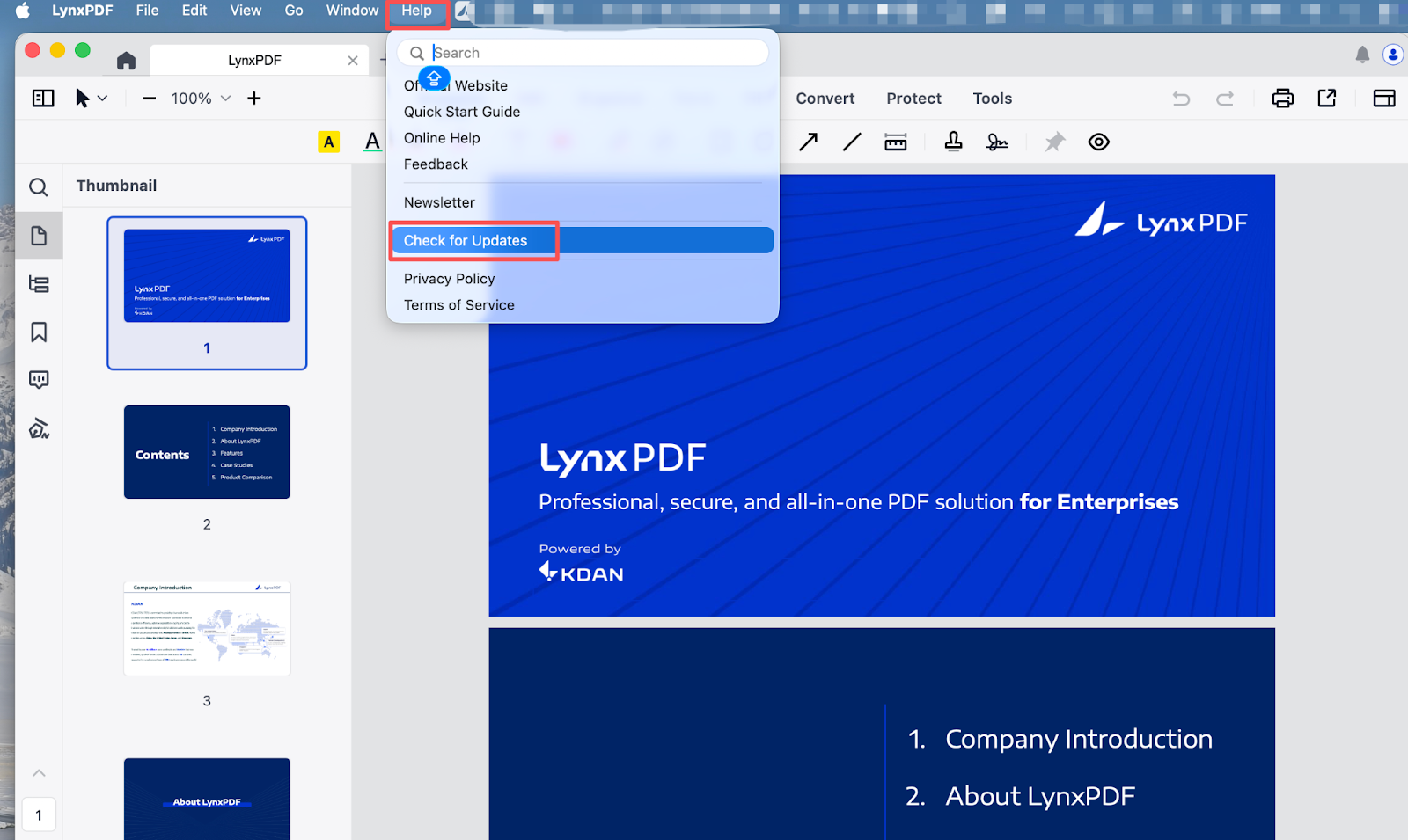
2. A new window will pop up:
If a new version is available, the new window will display update download instructions, which you can follow to install the latest version;
If you have already updated to the latest version, the window will display "You're up-to-date! LynxPDF is the newest version available".
Get the Newest Version on Windows
If you are using an outdated version of LynxPDF for Windows, a window will automatically pop up to remind you of the update every time you launch LynxPDF.
For a better reading experience, we recommend you update the software once the pop-up window appears. You can follow the instructions on the window to download the latest version.

