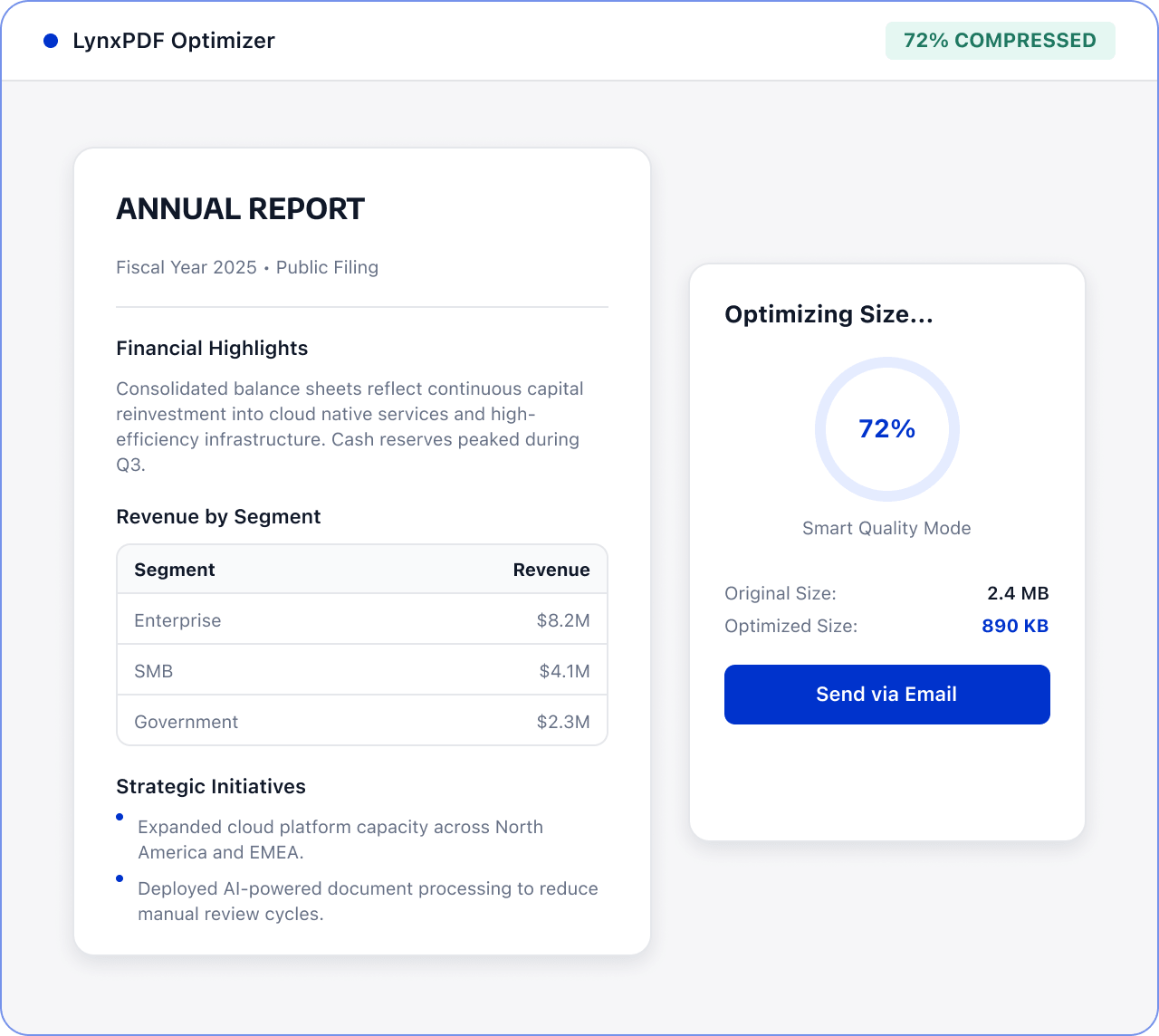
Related PDF Features
Explore conversion, OCR, page management, editing, annotations, compression, and protection.


Before email or team sharing, use LynxPDF to control PDF size through image quality, resolution, and document-data cleanup settings.

Applicable roles: Team members who send files by email or sharing

Input: PDF files to be shared

Output: Smaller, checked PDF
Files are often scattered across sources and formats, with manual checks and version exchanges. This raises costs and makes changes and handoffs harder to track.
 Files are scattered across sources, versions, and page orders.
 Teams must find, check, and organize key content manually.
 Sensitive information and final versions require review before handoff.
Use LynxPDF to choose compression settings, review the output, and prepare the PDF for your email workflow.
Confirm the version, page range, and recipients.

Select a compression level based on clarity and file-size requirements.
Confirm text, images, and sensitive information before sharing through an approved channel.
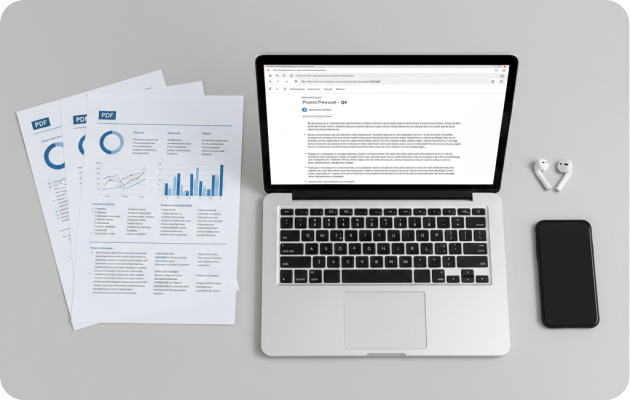
Choose a high, medium, or low quality preset to balance file size and image clarity.
Adjust the image threshold, target PPI, and font embedding as needed.
Remove scripts, forms, annotations, metadata, attachments, and other data that does not need to be retained.