Sync Active Directory Users with LynxPDF

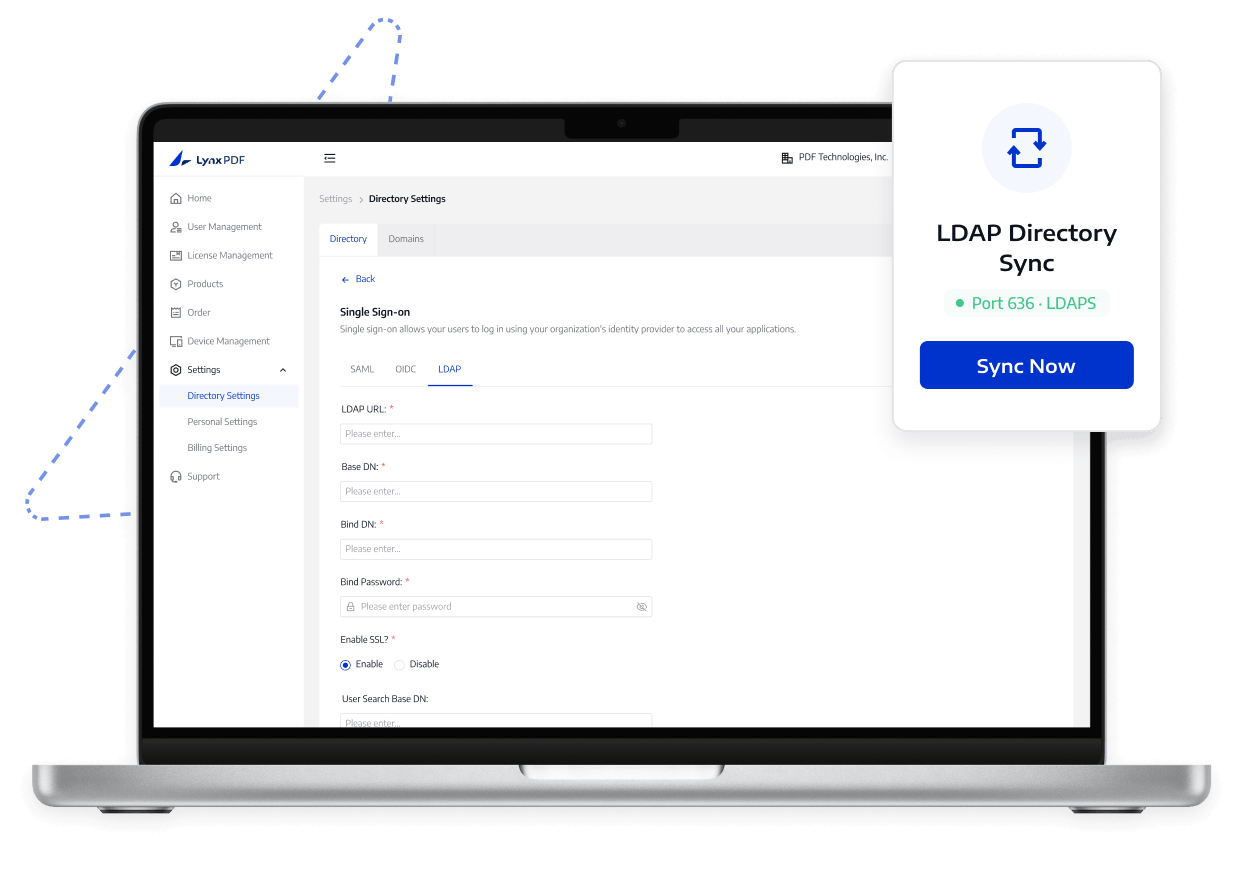
Connect Windows Active Directory through LDAP or LDAPS to make directory user management more efficient.

Sync Active Directory Users with LynxPDF

Address Enterprise Management Challenges

Reduce manual directory-user administration

Address Enterprise Management Challenges
  1. 01

    Directory users require manual maintenance

    Employee changes require administrators to maintain accounts in both Active Directory and LynxPDF, increasing the risk of missed access updates.

  2. 02

    Missing parameters disrupt synchronization

    A mismatch in the directory host, port 389 or 636, read-only bind account, CA certificate, or network access can cause the connection to fail or prevent certificate trust from being established.

  3. 03

    Review Sync Results before Assigning Licenses

    Administrators must review user mappings, organization membership, and license assignments; otherwise, synchronized users may still lack access or may receive licenses incorrectly.

Core capabilities

See what LynxPDF supports and how it helps teams manage PDF access.

Use LDAP on port 389 or LDAPS on port 636 based on directory and transport-security requirements.

Explore More

Deployment and access boundaries

Verify the directory host, ports, bind account, certificates, network access, and user mappings. Directory sync does not replace AD governance or assign licenses automatically.

What LynxPDF supports

  1. 1

    LynxPDF supports Windows Active Directory connections through LDAP or LDAPS.

  2. 2

    IT controls the directory host, ports, read-only bind account, and user mapping.

  3. 3

    LDAPS can use a CA certificate to verify the directory server trust chain.

What your team should prepare

  1. 1

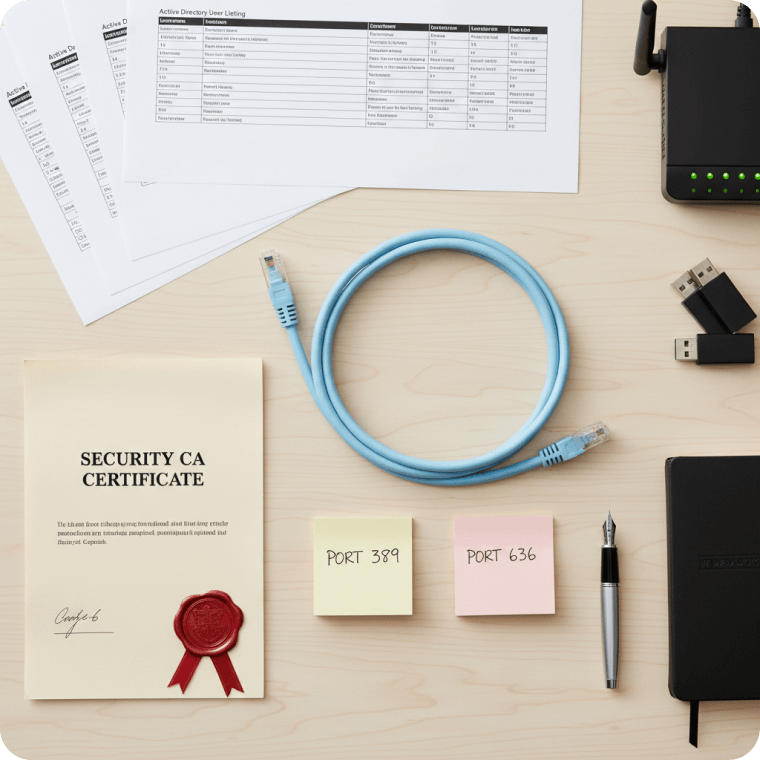
    Prepare the directory host, port 389 or 636, and a read-only bind account.

  2. 2

    Prepare the CA certificate and network access when LDAPS is required.

  3. 3

    Test the connection and review synchronized users before assigning access.

How it works

Follow a clear path from setup through verification.

  1. 01

    Prepare a directory account

    Prepare Windows AD details and a dedicated read-only bind account.

  2. 02

    Choose a connection

    Use LDAP on port 389 or LDAPS on port 636, and configure the directory connection for your environment.

  3. 03

    Configure the directory

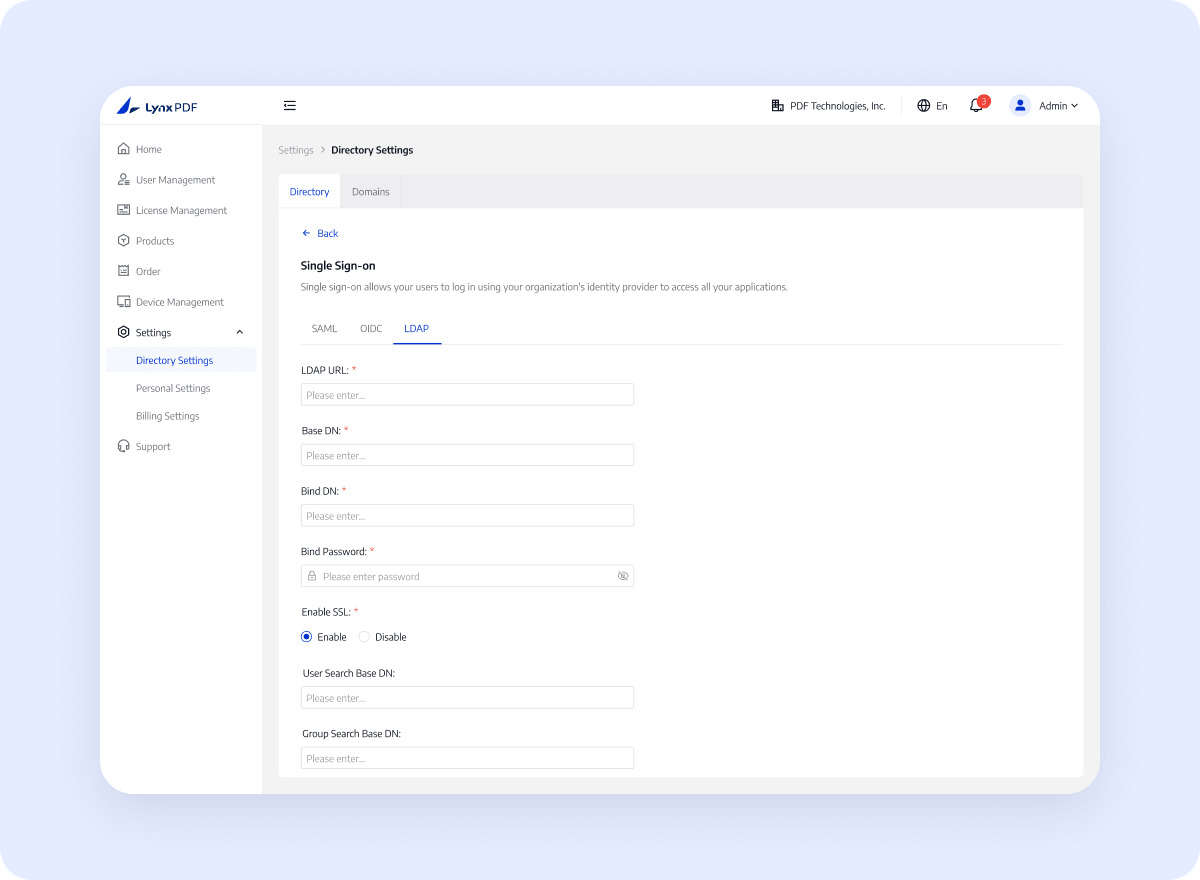
    Configure parameters and upload a CA certificate when LDAPS trust requires it.

  4. 04

    Sync directory users

    Test the connection, synchronize users and review the directory-user list.

What your organization gains

Reduce directory maintenance and make connection requirements and licensing boundaries easier to review

Contact Sales

Less manual entry

A tested directory connection and synchronized user list give IT a clearer foundation for controlled LynxPDF access management.

Clear transport requirements

Use confirmed directory and access settings so IT can verify synchronization and access results.

Controlled access setup

Have the responsible administrator confirm the environment, permissions, version, and final rollout scope.

Why choose LynxPDF

See how LynxPDF fits enterprise workflows compared with common PDF tools

Flexible enterprise infrastructure

Support Windows Server, Intune, GPO, RDS, and SCCM deployment approaches for different devices and IT requirements.

Offline and private deployment options

Fit restricted-network or local data-management scenarios with a local or cloud deployment path.

Coordinated administration, identity, and deployment

Bring Admin Console, SSO, license management, and bulk deployment into one enterprise workflow to reduce repeated configuration and maintenance across systems.

FAQ
What Should Enterprise Teams Confirm?
Check the current product documentation for supported features, environment requirements, configuration steps, and usage limitations.