The Latest Version of LynxPDF for Mac is Downloading
Step 1
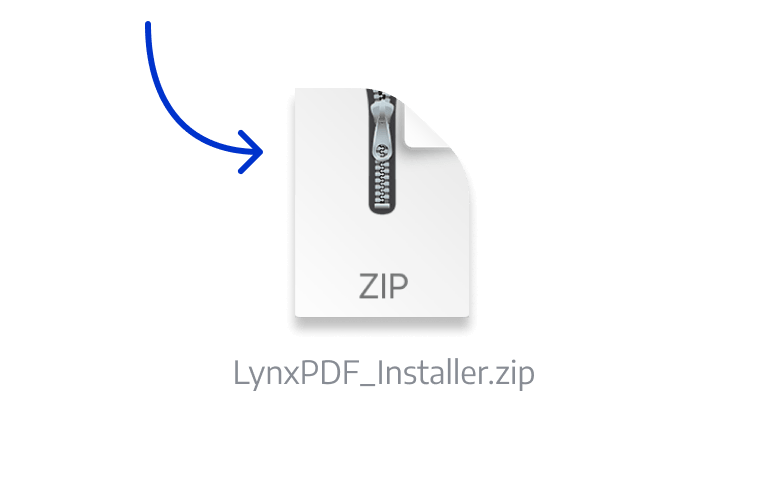
Locate the Installer
Open the installer from your browser’s downloads folder.

Step 2
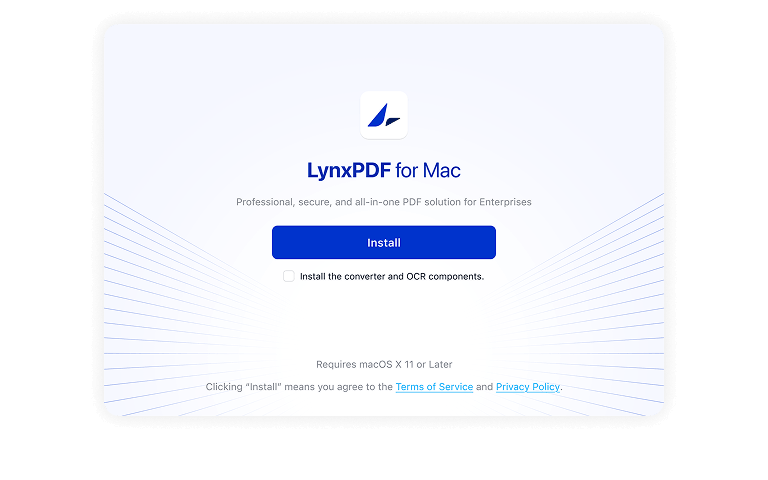
Execute the Installer
Click the LynxPDF installation package, and then drag LynxPDF into the "Applications" folder in the pop-up window.

Step 3
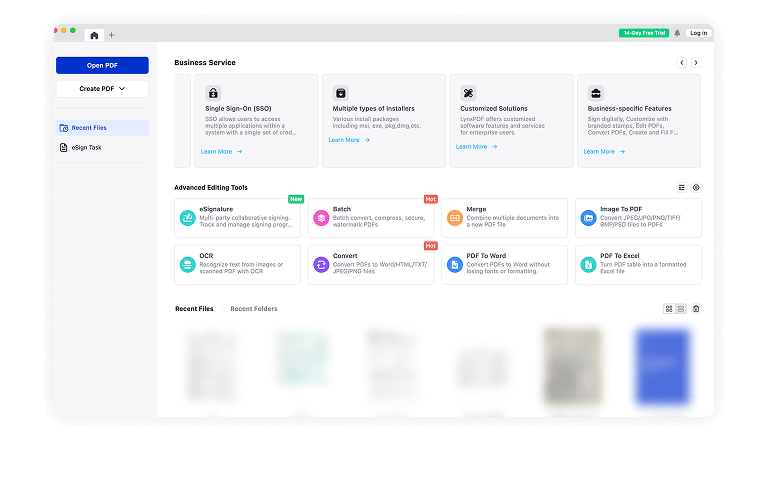
Initiate LynxPDF
LynxPDF is now installed and can be initiated from your Applications folder or Launchpad. If it prompts "Unidentified developer", please click here to rectify it.


More LynxPDF Versions to Download
FAQ
1. Why the Installation Shows Error on Mac?
By default, macOS only permits users to install applications from 'verified sources'. In effect, most attempts to install software from the internet or physical media.
Please go to Installation Error on Mac to learn more details about the installation errors.
2. How Can I Activate LynxPDF after My Purchase?
After purchasing LynxPDF, product usage rights will be automatically assigned to the email account provided during purchase. The account login password will be sent to your email address. Administrators who purchase multiple products can assign usage rights to team members.
If you have any other questions, please feel free to contact us: [email protected] .
3. Why the Installation Shows Error on Windows?
Microsoft Defender SmartScreen protects against phishing or malware websites and applications, and the downloading of potentially malicious files. It applies to Windows 10, Windows 11 and Microsoft Edge.
Click to learn more details about the installation errors.