

Managing apps and devices efficiently is crucial in today's tech-driven world. With a multitude of applications and various devices in use, it's easy to feel overwhelmed.
However, by adopting a few strategic practices, you can streamline your digital experience, ensuring everything runs smoothly.


Step-by-Step Guide to Working with PDF Documents in LynxPDF
Step 1: Download and Install LynxPDF
-
Visit the Official Website: Go to the LynxPDF website.
-
Download the Software: Click on the download button suitable for your operating system (Windows or Mac).
-
Install the Editor: Follow the installation instructions. Once installed, open the LynxPDF.
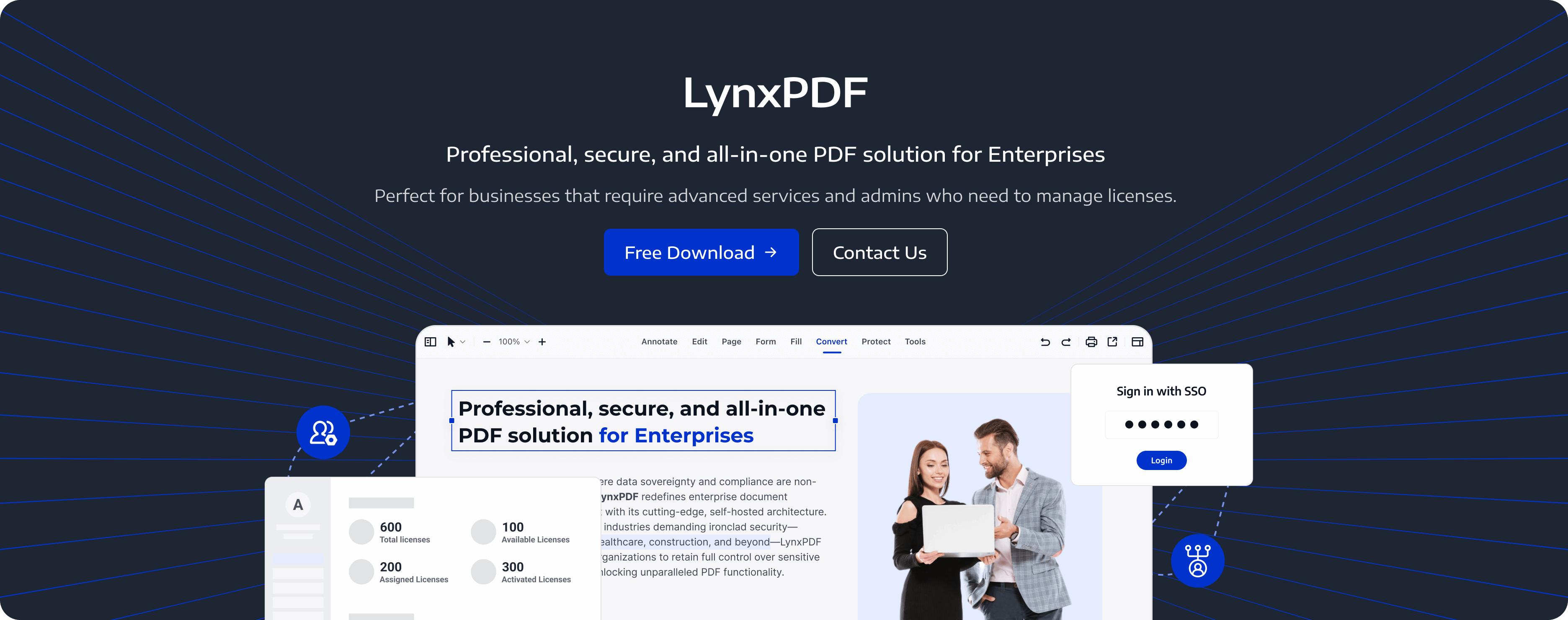
Step 2: Edit PDFs Efficiently
-
Open a PDF: Click on 'File' and then 'Open' to select the PDF you want to edit.
-
Use Editing Tools: Utilize tools like text editing, image insertion, and annotations to make necessary changes.
-
Save Changes: After editing, click on 'File' and 'Save' to keep your modifications.

Step 3: Merge Multiple PDFs
-
Select PDFs to Merge: Click on 'Merge' from the main menu.
-
Add Files: Use the 'Add Files' button to select the PDFs you want to combine.
-
Arrange Order: Drag the files into your preferred order.
-
Merge Files: Click on 'Merge' to combine the selected PDFs into a single document.
Step 4: Split PDFs
-
Open the PDF: Click on 'File' and 'Open' to select the PDF you want to split.
-
Select Split Tool: Choose the 'Split' tool from the toolbar.
-
Specify Pages: Define the pages you want to split into separate documents.
-
Split PDF: Click 'Split' to create new PDFs from the selected pages.
Step 5: Secure Your PDFs
- Open Security Settings: Go to Protect > Set Passwords
- Set Passwords: Set a password to restrict access to your PDF.
- Encrypt Document: Apply the available PDF protection options to protect sensitive information.

Step 6: Access PDFs Across Devices with LynxPDF for Web
-
Open LynxPDF for Web: Visit LynxPDF for Web in your browser.
-
Sign In: Log in with your LynxPDF account.
-
Upload Documents: Upload local PDF files to your online workspace, where you can access and manage them.
-
Access PDFs on Another Device: Open LynxPDF for Web in a compatible browser on another device and sign in with the same account. Find your uploaded PDFs under My Documents to continue working online.
 Jane Doe
Download LynxPDF
Ready to edit your PDFs? Download LynxPDF for Windows or Mac from the official download page .

 Admin Console
 Custom Business Stamps
 System Integration
 Digital Signatures
Best Practices and Tips
Here are some helpful tips for organizing, editing, and protecting PDFs with LynxPDF:
Organizing and Preparing Documents
Always save an original version of your file before making edits. For example, save your original file as "myFile.pdf" and your edited version as "myFile_edit.pdf". This ensures you have a reference point in case of unintended changes.
Create specific folders for different categories of documents to keep your workspace organized. This makes it easier to find and manage your files.
Editing Techniques
When adding images, opt for vector graphics over raster images. Vector graphics are scalable without loss of quality and are usually smaller in file size, making them more efficient for sharing and editing.
Familiarize yourself with keyboard shortcuts to speed up your workflow. Common shortcuts include Ctrl+C (copy), Ctrl+V (paste), and Ctrl+Z (undo).
Advanced Features
Utilize OCR to convert scanned documents or images into editable and searchable text. This is particularly useful for modifying or extracting information from non-editable PDFs.
Transform static PDFs into interactive forms by adding text boxes, checkboxes, and dropdown menus. This enhances usability and allows recipients to input and submit data easily.
Security Measures
Secure your PDFs by setting passwords to restrict access. This prevents unauthorized viewing and editing of sensitive information.
Use digital signatures to authenticate documents, ensuring their integrity and origin. This is crucial for official documents and contracts.
Batch Processing
For handling multiple PDFs, use batch processing to apply consistent changes across documents. This feature saves time and ensures uniformity in edits.
 Mark R.
FAQ
How can I reduce the file size of my PDFs without losing quality?
Use compression tools available within LynxPDF to reduce the file size. Adjust settings to balance between size reduction and maintaining an acceptable level of quality. Common solutions like Acrobat, SmallPDF, and Nitro Pro offer robust compression options.
What should I do if I accidentally make unwanted changes to a PDF?
Having a backup version of your document helps in such cases. Revert to your original file saved before edits, or use the undo function if the changes are recent.
How do I ensure my PDFs are compatible across different devices and platforms?
Use standardized fonts and vector graphics. PDF is a versatile format, but ensuring that your files do not rely on specific software or hardware features enhances compatibility. Test your PDFs on different devices to confirm they display correctly.


