

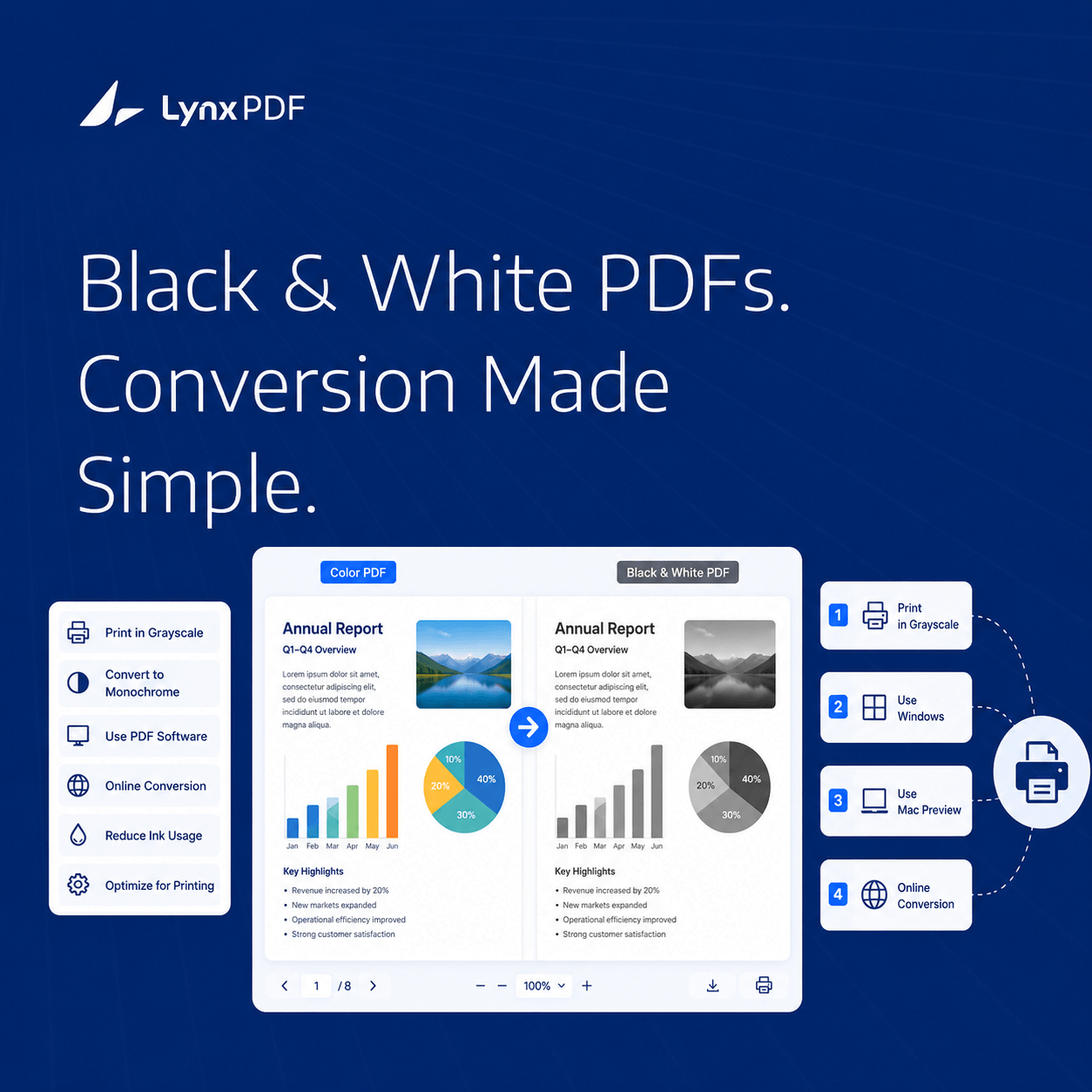
How to make a PDF black and white depends on what you need: a black-and-white printout, or a grayscale PDF file you can save and share. For printing, most PDF apps and printer drivers have a built-in black-and-white option—no conversion needed. For saving a grayscale PDF file, you need a tool that re-renders the document. Desktop apps like LynxPDF handle this non-destructively through print settings, while online converters process the file directly. For enterprises managing multiple users, deploying a uniform print configuration via Admin Console eliminates the need for individual settings changes.
Color printing costs 3–5× more than black and white.
For teams printing contracts, invoices, reports, or compliance documents, that difference compounds quickly across hundreds of files and dozens of employees.
Making a PDF black and white is one of the most common document tasks—and also one of the most misunderstood. "Convert to black and white" can mean two very different things:
- Print in black and white — the output on paper is monochrome, but the PDF file stays unchanged
- Save as a grayscale PDF — the file itself is permanently converted, so it prints in grayscale everywhere
This guide covers both, with steps for Windows and Mac, and explains which method suits individual users versus enterprise teams.
Method 1: Print in Black and White via Printer Settings
The quickest method—no additional software required. You instruct your printer to use only black ink for this print job.
- Open the PDF in any PDF viewer
- Press Ctrl + P to open the Print dialog
- Click Printer Properties (or Preferences / Attributes)
- Go to the Paper/Quality tab
- Under Color, select Black & White
- Click OK, then Print
- Open the PDF in your PDF app
- Press Command + P
- In the print dialog, locate the Color or Output section (varies by printer driver)
- Select Black & White or Grayscale
- Click Print
Limitation: This only affects the printed copy. The PDF file itself remains in color. If you share the file, recipients will see it in color.
Method 2: Use LynxPDF for Consistent Black-and-White Printing (Enterprise)
For teams where dozens of employees print the same document types, enforcing print settings manually creates inconsistency and wastes ink.
LynxPDF is an enterprise PDF solution for Windows and Mac that provides a standardized printing workflow.
- Open your PDF in LynxPDF
- Click Print (top right) or press Ctrl + P
- Click Attributes → go to Paper/Quality
- Under Colour, select Black & White
- Click Print
- Open your PDF in LynxPDF
- Click File → Print… or press Command + P
- In the Pages section, select your Printer
- Check Black & White
- Click Print
→ For the best grayscale print quality and page-specific workflows, see How to Print PDFs in Black and White: Best Grayscale Results
Method 3: Online PDF-to-Grayscale Converters
Several free online tools convert a color PDF into a grayscale file you can download and share.
| Tool | Preserves Searchability | Page Selection | File Size Limit | Notes |
|---|---|---|---|---|
| ILovePDF Grayscale | ✅ Yes | ❌ Whole file | 200 MB | Fast, clean output |
| PDF2Go | ✅ Yes | ❌ Whole file | 50 MB (free) | Preserves OCR layer |
| PDF24 | ✅ Yes | ❌ Whole file | Unlimited (free) | Offline app also available |
| Adobe Acrobat online | ✅ Yes | ❌ Whole file | 2 GB (with account) | Requires Adobe login |
Key concern for enterprise: Uploading confidential documents to free online tools introduces data security and compliance risks. For contracts, legal records, or regulated data, files should not leave the corporate network. A desktop solution like LynxPDF processes everything locally—no upload required.
→ See the detailed comparison: Best Free Online PDF Black and White Converters
Method 4: Adobe Acrobat Pro — File-Level Color Conversion
For users who already have Acrobat Pro, this is the most precise method for saving a grayscale PDF file:
- Open the PDF in Adobe Acrobat Pro
- Go to Tools → Print Production → Output Preview
- Under Simulate, choose Dot Gain 20% (or a grayscale profile)
- Or use Tools → Preflight → run the "Convert to grayscale" profile
- Save as a new PDF
This produces a true grayscale PDF with preserved text searchability and OCR layers. It is the gold standard for print production workflows—but requires an Acrobat Pro subscription.
Which Method Should You Use?
|
Scenario |
Recommended Method |
|---|---|
|
One-off black-and-white printout |
Printer driver settings (Method 1) |
|
Enterprise team with standardized print settings |
LynxPDF + Admin Console deployment (Method 2) |
|
Need to share a grayscale PDF file |
Online converter or Acrobat Pro |
|
Regulated industry (legal, healthcare, finance) |
LynxPDF (on-premise, no upload) or Acrobat Pro |
|
Print only specific pages in black and white |
PDF app with page range + B&W print setting |
|
Highest quality for professional print |
Acrobat Pro Preflight or LynxPDF |
Does Converting to Black and White Affect Text Searchability?
No — if done correctly.
Text searchability in a PDF lives in a separate layer from the visual content. Most conversion methods—whether print settings, online converters, or Acrobat Pro—preserve this text layer.
The exception: rasterization. If you convert a PDF to an image (JPEG or PNG) and then back to PDF, you destroy the text layer. Always use a method that outputs a proper PDF, not an image.
Online tools like ILovePDF and PDF2Go preserve searchability. Desktop apps process the color visual layer without touching the text layer.
Frequently Asked Questions
Q: What's the easiest way to convert a color PDF to black and white?
A: For a printout: change the printer color setting to Black & White in the print dialog. For a saved grayscale file: use a free online converter like ILovePDF or PDF2Go, or use Adobe Acrobat Pro's Preflight tool.
Q: Can I convert only certain pages of a PDF to black and white?
A: For printing, most PDF apps let you select a page range and apply B&W print settings to those pages only. For saving a grayscale file of specific pages, extract those pages first, then convert them. See the step-by-step guide: How to Print PDFs in Black and White: Page-Specific Workflows.
Q: Does making a PDF black and white reduce file size?
A: Often yes—color images in PDFs contain more data than grayscale versions. Converting reduces the color image data, which typically reduces file size by 20–50% depending on image content. Text-heavy PDFs with few images see less reduction.
Q: Is it safe to use free online tools to convert PDFs to black and white?
A: For non-sensitive documents, reputable tools like ILovePDF and PDF2Go are generally safe. For confidential business files—contracts, HR records, financial reports—use a desktop application that processes files locally. LynxPDF processes files on your device without any upload.
Q: Which method gives the best grayscale result for printing?
A: Adobe Acrobat Pro's Preflight grayscale conversion produces the most accurate result for print production. For everyday office printing, LynxPDF's built-in B&W print setting (available on Windows and Mac) delivers consistent, clean grayscale output without additional configuration.
Summary
There is no single "correct" way to make a PDF black and white—the right method depends on whether you need a printout or a file, and whether you are an individual or managing a team.
- Quick printout: Change the print color setting directly—takes 30 seconds
- Shareable grayscale file: Use an online converter or Acrobat Pro
- Enterprise scale: Deploy LynxPDF with configured print defaults via Admin Console


