
Manage Enterprise PDF Access in One Place

Manage users, teams, licenses, devices, and organization settings in one place, so IT can support your teams more efficiently.

Manage Enterprise PDF Access in One Place

Address Enterprise Management Challenges

Keep license and device status clear

Address Enterprise Management Challenges
  1. 01

    License status is difficult to track

    When employees join, leave, or change roles, administrators must repeatedly check assigned, activated, and remaining licenses, making changes easier to miss.

  2. 02

    Team changes create repeated work

    Changes to teams and membership require repeated updates to license assignments, adding work and coordination for administrators.

  3. 03

    Device and Organization Records Are Scattered

    When device activations, orders, and organization settings sit in separate records, checking current access takes longer.

Core capabilities

Explore centralized license management and the tools available to manage PDF access.

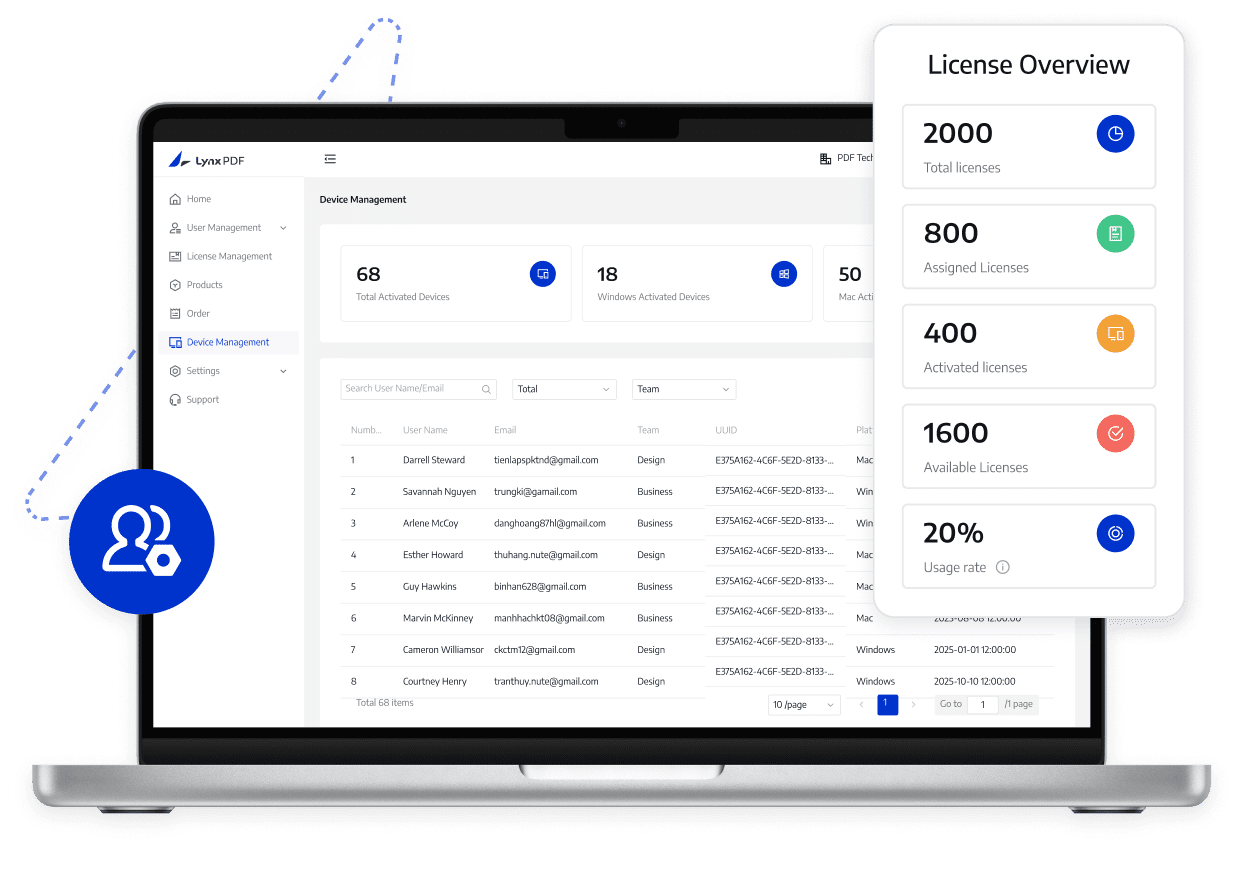
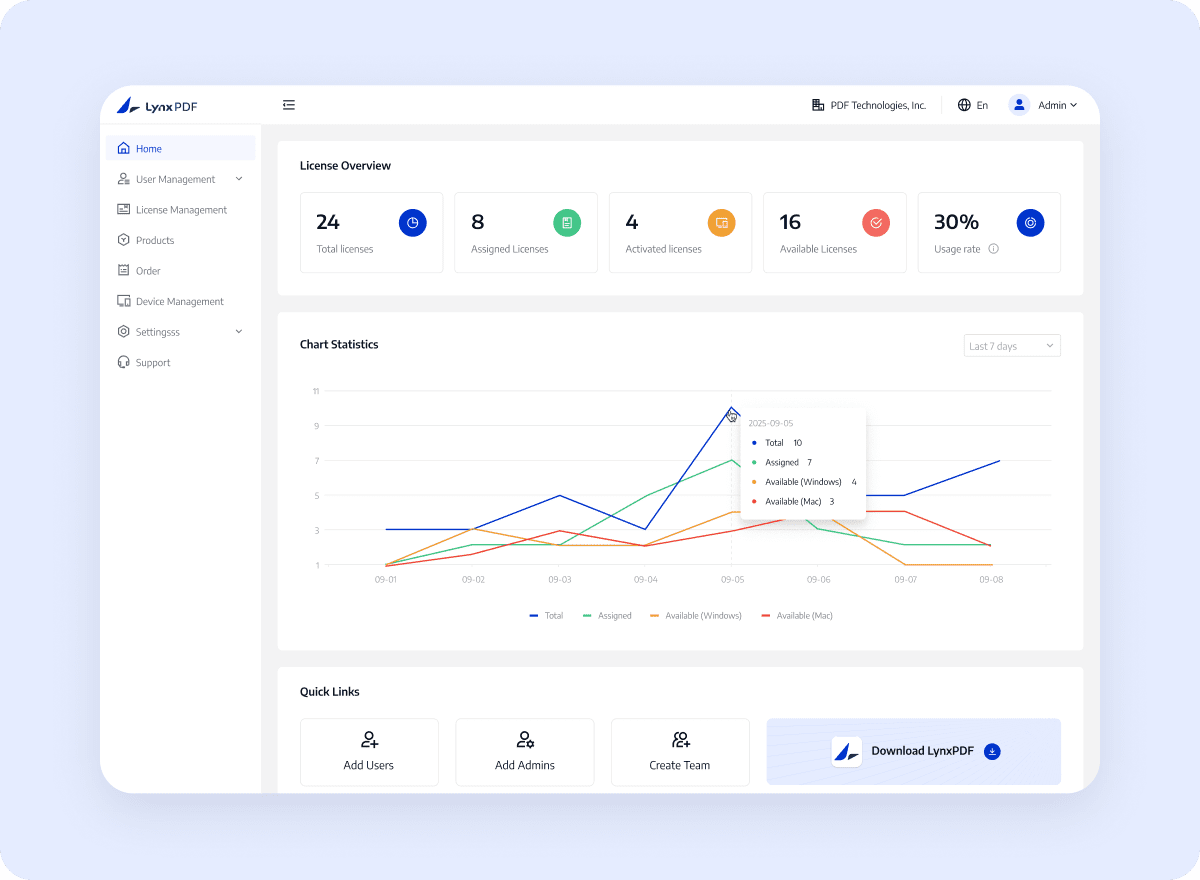
View total, assigned, activated, and remaining licenses, alongside Windows and Mac device activations.

Explore Solutions

Deployment and access boundaries

Before making changes, administrators must verify members, teams, license quantities, and device status. Admin Console does not replace your identity provider, HR system, procurement system, or internal approval processes.

What LynxPDF supports

  1. 1

    LynxPDF Admin Console brings teams, members, licenses, devices, and orders into one cloud administration portal.

  2. 2

    Review organization and license status, manage membership, and assign access.

  3. 3

    Configure supported SSO integration and organization-domain verification through directory settings.

What your team should prepare

  1. 1

    Confirm the Admin Console login link and administrator credentials.

  2. 2

    Confirm organization members, team structure, license quantities, administrator roles, and device status.

  3. 3

    For directory setup, prepare SAML or OIDC details and DNS or HTTPS domain verification.

How it works

Follow the setup steps and verify the results before rollout.

  1. 01

    Open Admin Console

    Open Admin Console to review organization, license, device, and order information.

  2. 02

    Manage teams and members

    Create or update teams, then add, remove, or import members.

  3. 03

    Assign team licenses

    Assign licenses to individuals or teams and remove assignments when responsibilities change.

  4. 04

    Manage settings and devices

    Manage administrator accounts and review device activations and organization settings.

What your organization gains

Help administrators locate license changes, team ownership, and device access issues faster

Contact Sales

Clear status overview

View organization, product, order, and device status alongside assigned, activated, and remaining licenses.

Faster team and license changes

Manage teams and members, then assign or remove licenses individually or in bulk to reduce repeated coordination.

Clear Administrative Boundaries

Review administrator roles, organization settings, SSO, domain verification, and device status before confirming access.

Why choose LynxPDF

See how LynxPDF stands out in enterprise workflows based on official comparison information.

Flexible enterprise infrastructure

Support Windows Server, Intune, GPO, RDS, and SCCM deployment approaches for different devices and IT requirements.

Offline and private deployment options

Fit restricted-network or local data-management scenarios with a local or cloud deployment path.

Coordinated administration, identity, and deployment

Bring Admin Console, SSO, license management, and bulk deployment into one workflow to reduce repeated configuration and maintenance.

FAQ
What Should Enterprise Teams Confirm?
Check the current product documentation for supported features, environment requirements, configuration steps, and usage limitations.