

In corporate environments, most professional files — ranging from complex contracts to compliance reports — undergo constant cycles of merging, updating, and redistribution.
Disorganized pages may seem minor, but in reality, they can disrupt business operations:
-
Professionalism in contract delivery
-
Efficiency of management decision-making
-
Compliance and audit preparedness
For this reason, the ability to organize PDF pages is one of the most frequently used — but often underestimated — capabilities in enterprise PDF editing.
Reorganizing Pages to Restore Clarity and Readability
The core purpose of using page editing in a business context is not simply "modifying PDFs," but rather making documents clearer, more reliable, and more aligned with business logic when they are read, reviewed, and delivered.
1. Reorder Pages — Let Documents Follow Business Logic
It is common to find yourself with a PDF that doesn't follow a logical flow, especially after merging files from different teams or scanning a stack of paper contracts. This directly leads to information confusion for relevant staff and makes it difficult to integrate important information.
LynxPDF allows enterprises to quickly reorder pages directly within the PDF, creating a clear, logical flow without returning to the original source files. You can simply drag and drop pages to rearrange them into the correct sequence. Whether you need to move a key summary to the front for a meeting or group all appendices at the end, reordering ensures your document follows a clear, professional logic that is easy for any reader to follow.
2. Reverse Page Order — Correcting System-Generated PDFs
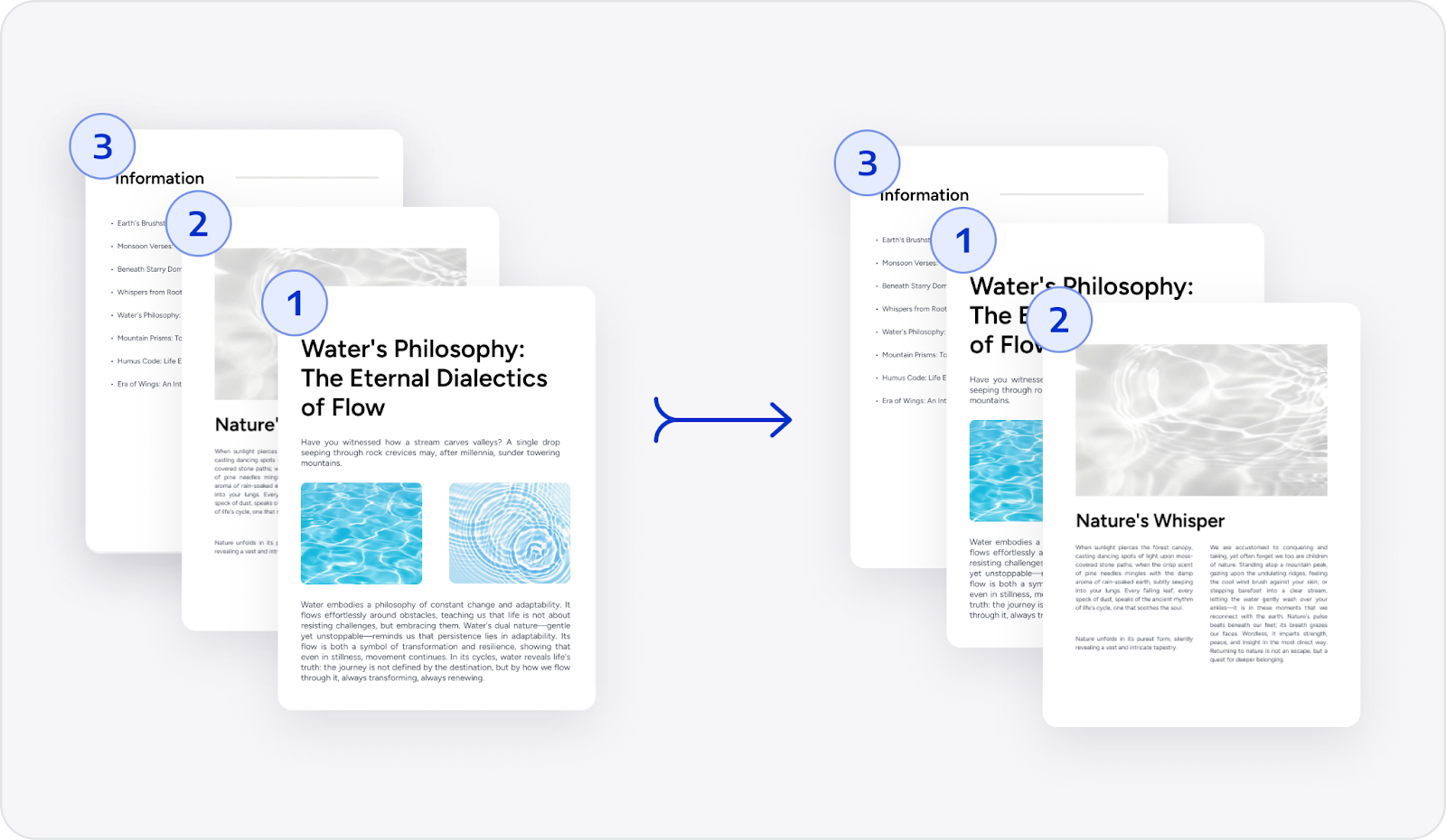
Technical inconsistencies during the scanning process can result in documents being generated in reverse order. Manually re-scanning these files introduces unnecessary operational costs and delays.
The reverse function provides an immediate solution to flip the page sequence for a specific range or an entire document. This ensures that enterprise files remain readable and consistent across different platforms, maintaining professional standards while eliminating redundant manual labor.
3. Delete Pages — Removing Noise Before Sharing or Review
During the preparation phase, PDFs appear to have redundant pages, such as blank pages, internal instructions, or redundant descriptions.
The ability to remove unnecessary pages before external distribution or final approval is essential for maintaining document focus. It not only reduces the reading burden but also avoids information exposure.
Page reorganization is about better conveying intent. By rearranging, reversing, or deleting pages, teams can ensure their documents are read in the correct order before being read, reviewed, or shared.
Inserting, Replacing, and Extracting Pages Without Rebuilding Files
Truly efficient page editing involves making localized adjustments without reverting to the original source or recreating the file.
1. Insert Pages — Expanding Documents Without Disrupting Structure
Business requirements often change after a document has been finalized, necessitating the addition of new signature pages, updated charts, or supplemental data.
LynxPDF allows enterprises to insert new pages into any position within an existing PDF, whether from another file, a blank page, clipboard content, or directly from a scanner. This flexibility enables teams to expand documents without rebuilding the entire file or disrupting the formatting of existing sections.
2. Replace Pages — Updating Content Without Breaking the File
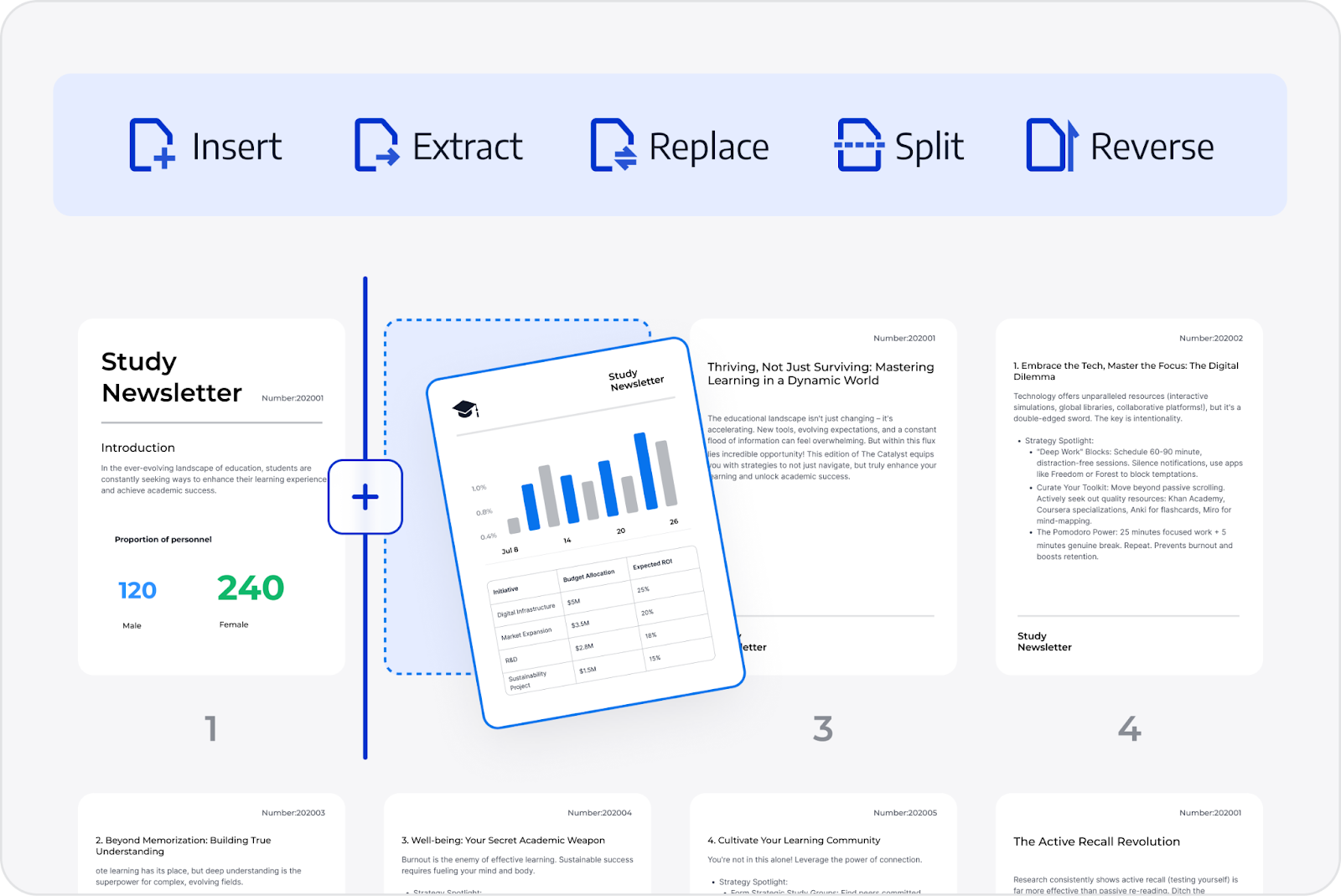
When specific information — such as a price list, a specification sheet, or a data table — needs to be updated, replacing individual pages is more efficient than re-generating the full document.
The replace feature allows for targeted updates, ensuring that the rest of the document remains untouched. This minimizes the risk of version-control errors and reduces the time required to maintain long-term assets like product manuals or periodic business reports.
3. Extract Pages — Creating Purpose-Built PDFs from Larger Files
A comprehensive master report may contain sections that are only relevant to specific stakeholders. Extracting these pages into a new, independent PDF allows for more targeted communication.
This capability enables the creation of customized versions of a document for different audiences — such as extracting financial terms for a legal department or technical data for an engineering team — thereby improving information flow and protecting sensitive data from over-circulation.
Splitting and Merging PDFs to Facilitate Team Collaboration
As document size continues to grow, the real problem is whether the file remains manageable, understandable, and reusable.
1. Split PDFs — Breaking Large Files into Manageable Assets
Large-scale projects, such as bids or technical manuals, often involve multiple contributors. Splitting a PDF into smaller, manageable files allows team members to work on their respective sections in parallel, improving collaboration and reducing the risk of errors.
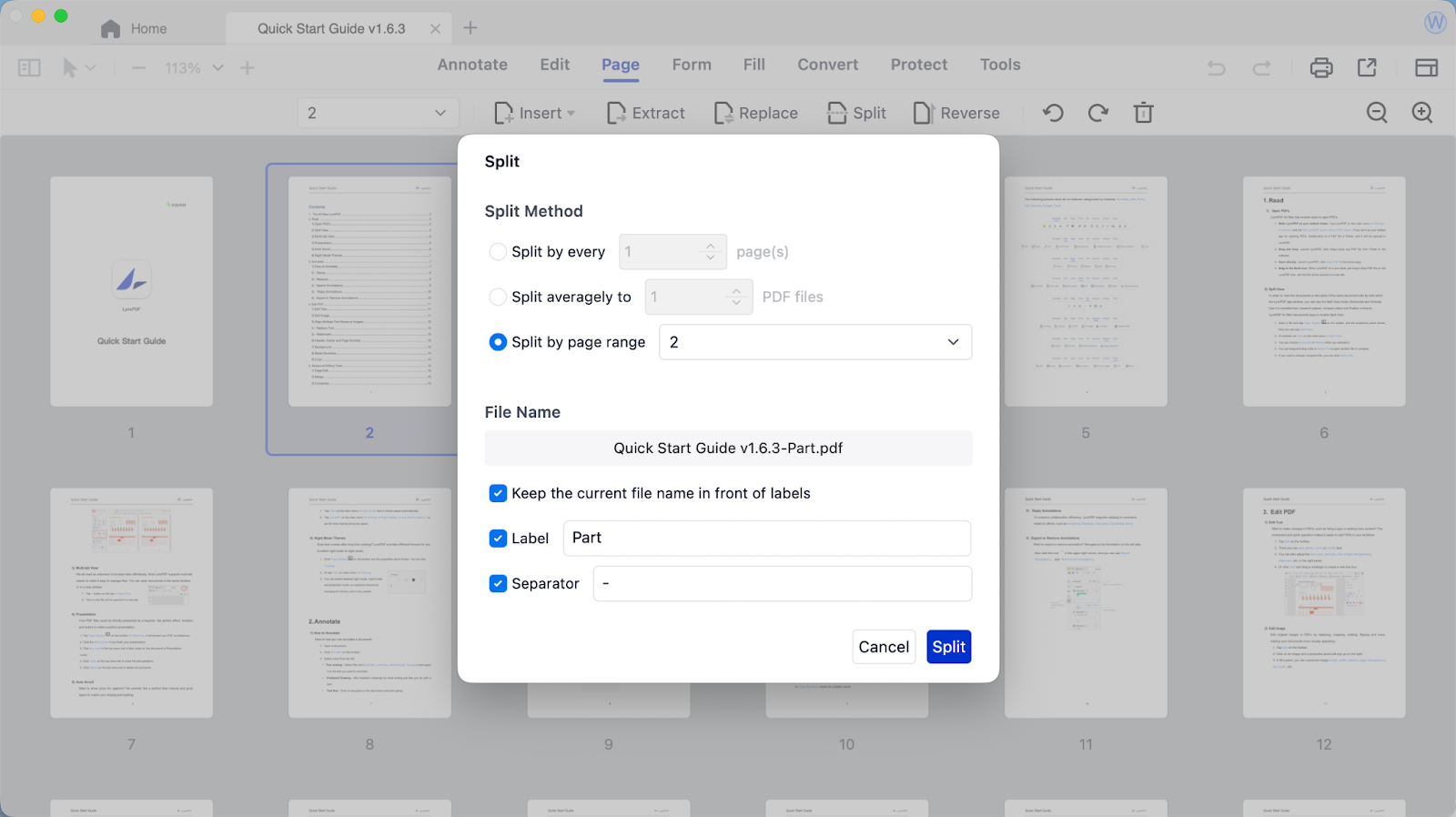
LynxPDF provides flexible splitting options to suit different needs: you can split by individual pages, divide a document evenly across a set number of PDFs, or extract specific page ranges. This versatility ensures that even the most complex files can be organized efficiently for review, editing, or distribution, and prevents errors.
2. Merge PDFs — Reassembling Content into a Coherent Whole
Once individual contributions are finalized, documents must be brought back together into a single, coherent file. LynxPDF offers flexible PDF merging options, allowing you to quickly combine multiple PDFs or precisely merge selected pages from different documents. Just navigate to Tools-> Merge to quickly start merging documents. This approach allows teams to intentionally curate the final structure: combining approved sections from different departments, consolidating outputs from multiple systems, or assembling only the pages required for a client-facing or archival version.
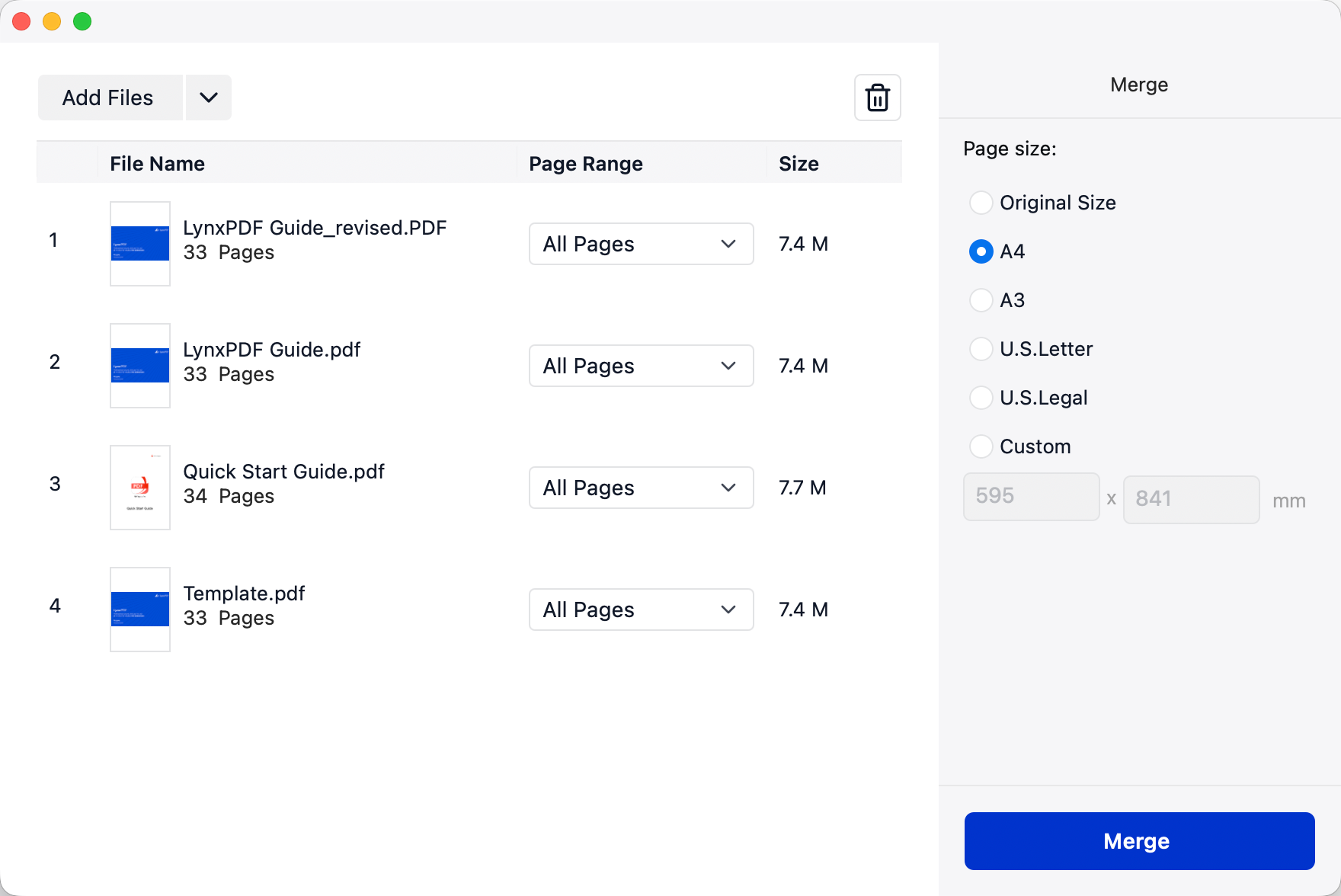
Splitting and merging are not opposite operations, but rather two stages of the same process: first breaking down, then reorganizing. They allow teams to redefine document structure without going back to the source file. This "structural-level editing" is one of the most frequent needs for businesses using PDFs.
Fixing Page Orientation and Cropping from Scanned and Imported Sources
Incorrect page orientation, messy scan edges, excessive blank space, and off-center layout — if these problems are not fixed, subsequent reading, reviewing, and archiving will become inefficient or even unacceptable. Rotate and Crop are used to fix these physical structural problems of the page, returning the document to a "deliverable state".
1. Rotate — Correcting Page Orientation Errors
Page orientation errors are a common result of inconsistent scanner settings or mobile document capture. Ensuring every page is oriented correctly is vital for a professional reading experience. Rotate tool allows for the correction of individual or batch pages, ensuring the document is presented in a uniform, readable format across all corporate devices.
2. Crop — Cleaning Up Page Layout and Visual Noise
Scanned and imported documents often include excessive margins, binding marks, or uneven borders that distract from the core content. LynxPDF provides flexible cropping options to address these issues with precision. Pages can be automatically cropped based on content or fixed proportions, ensuring consistent framing across documents from different sources.
For greater control, cropping can be defined using exact page size or margin settings, and applied to the current page, all pages, or a selected page range. This level of control allows enterprises to normalize page layouts at scale, ensuring visual consistency, improved readability, and a polished appearance when multiple documents are combined into a single report.
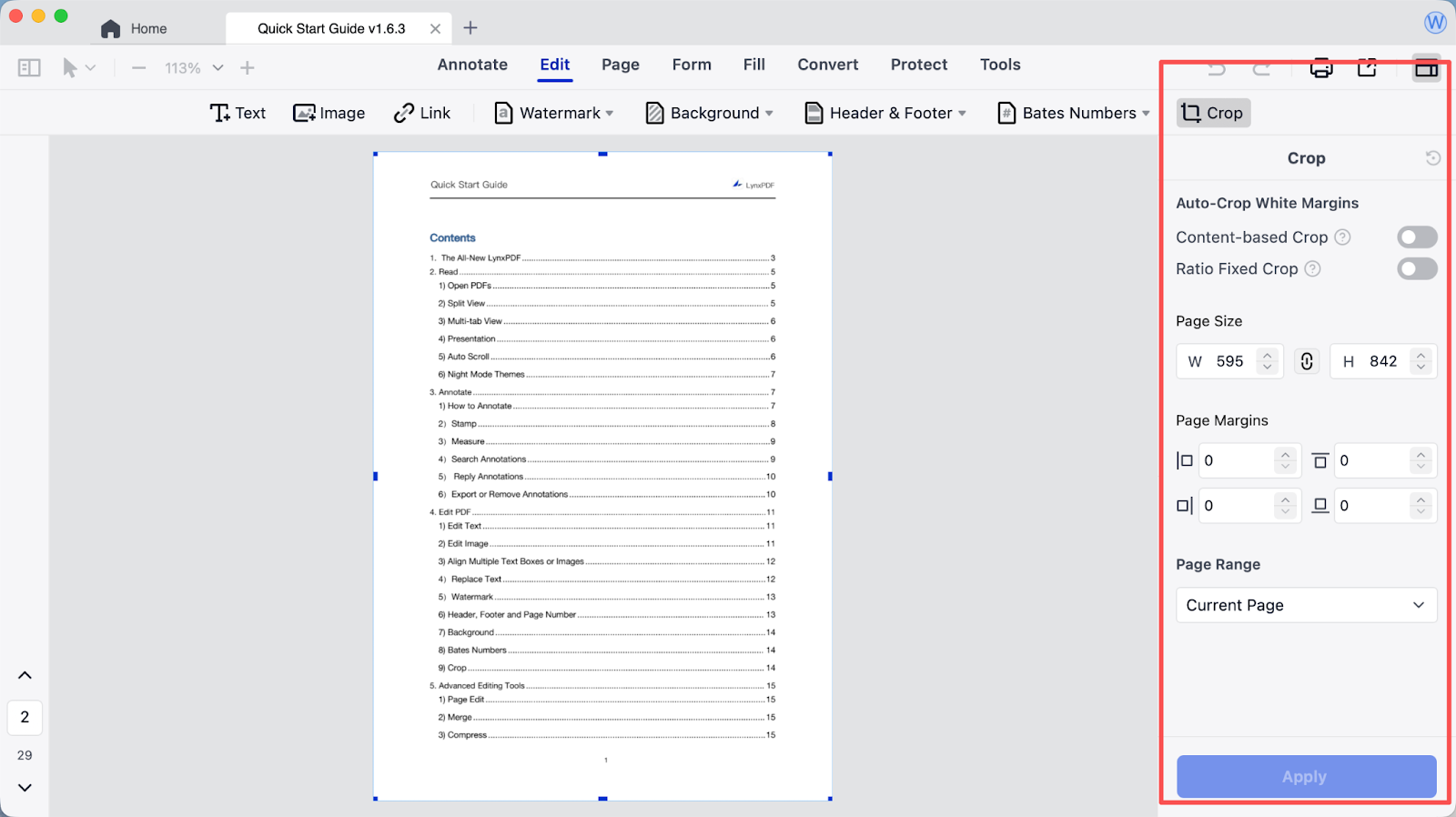
Rotate and Crop are often used together to unify page orientation and clean up messy edges, presenting the content in a more natural and readable way. Without altering any of the text content, the page structure is optimized, making the document as a whole clearer, more standardized, and more compliant with professional delivery standards.
Conclusion: Organizing PDF Pages Must Be a Business-Ready Capability
With LynxPDF, enterprises can adjust file structures, maintain consistent versions, and present materials professionally and reliably. In today’s fast-paced business environment, this capability turns complex, evolving PDFs into structured, business-ready documents.
Click below to download LynxPDF and see how it helps teams organize PDF pages with precision, transforming chaotic files into clear, controlled, and deliverable assets.


