


When logging in to LynxPDF, some users may see the message: “Network connection error. Please check your network connection and ensure it is working properly.” If your Wi-Fi or company network works normally but the problem still occurs, it is usually because:
-
Enterprise firewall
-
Antivirus software
-
Network proxy or security gateway
These systems may block the servers that LynxPDF needs to access. To fix this, you need to add the related domains to your network whitelist.
The steps below will help you solve this issue quickly:
🌟 Domains Required by LynxPDF
Please add the following domains to the whitelist of your firewall, antivirus software, or network device:
|
Domain |
Purpose |
|
License activation and serial key verification |
|
|
Update check and basic services |
|
|
Microsoft services (such as SSO login) |
|
|
Admin console and enterprise management |
|
|
https://console.pdfreaderpro.com |
Login, registration, data sync, SSO/SAML login |
🌟 How to Whitelist on Windows (Single Device)
Method 1: Add Domain in Windows Firewall
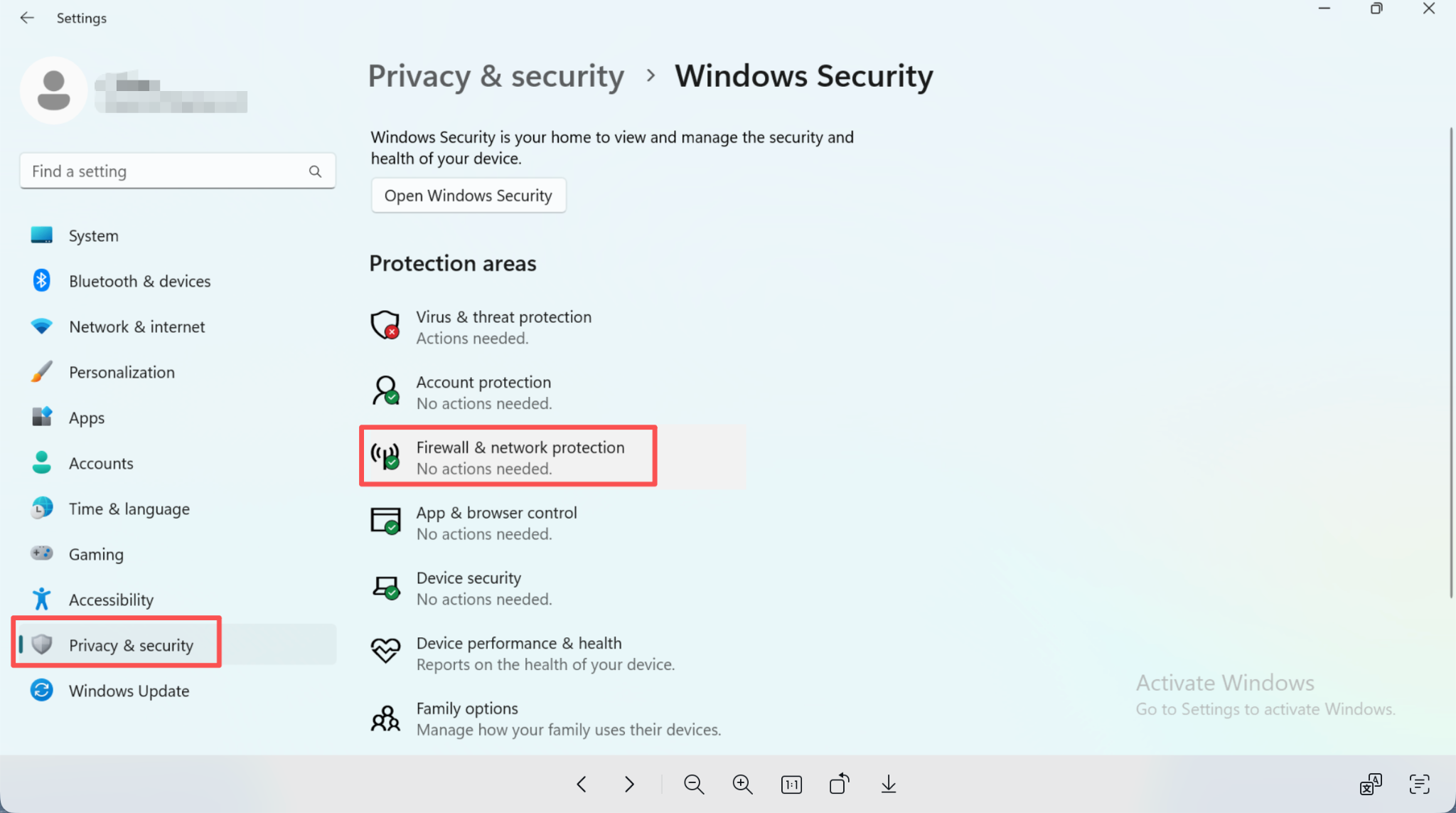
1. Open: Control Panel → Privacy & Security → Firewall & Network Protection
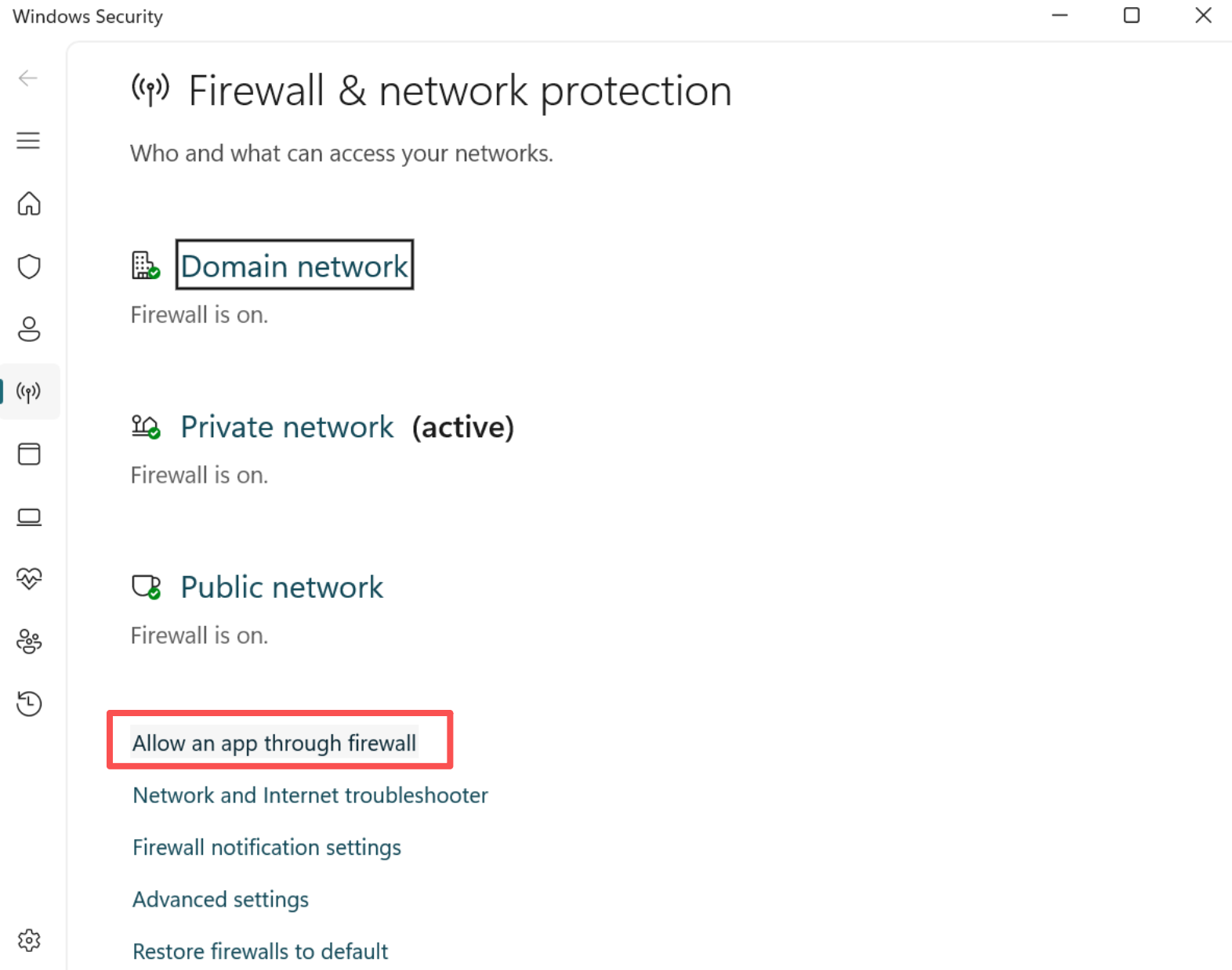
2. Click: Allow an app through firewall
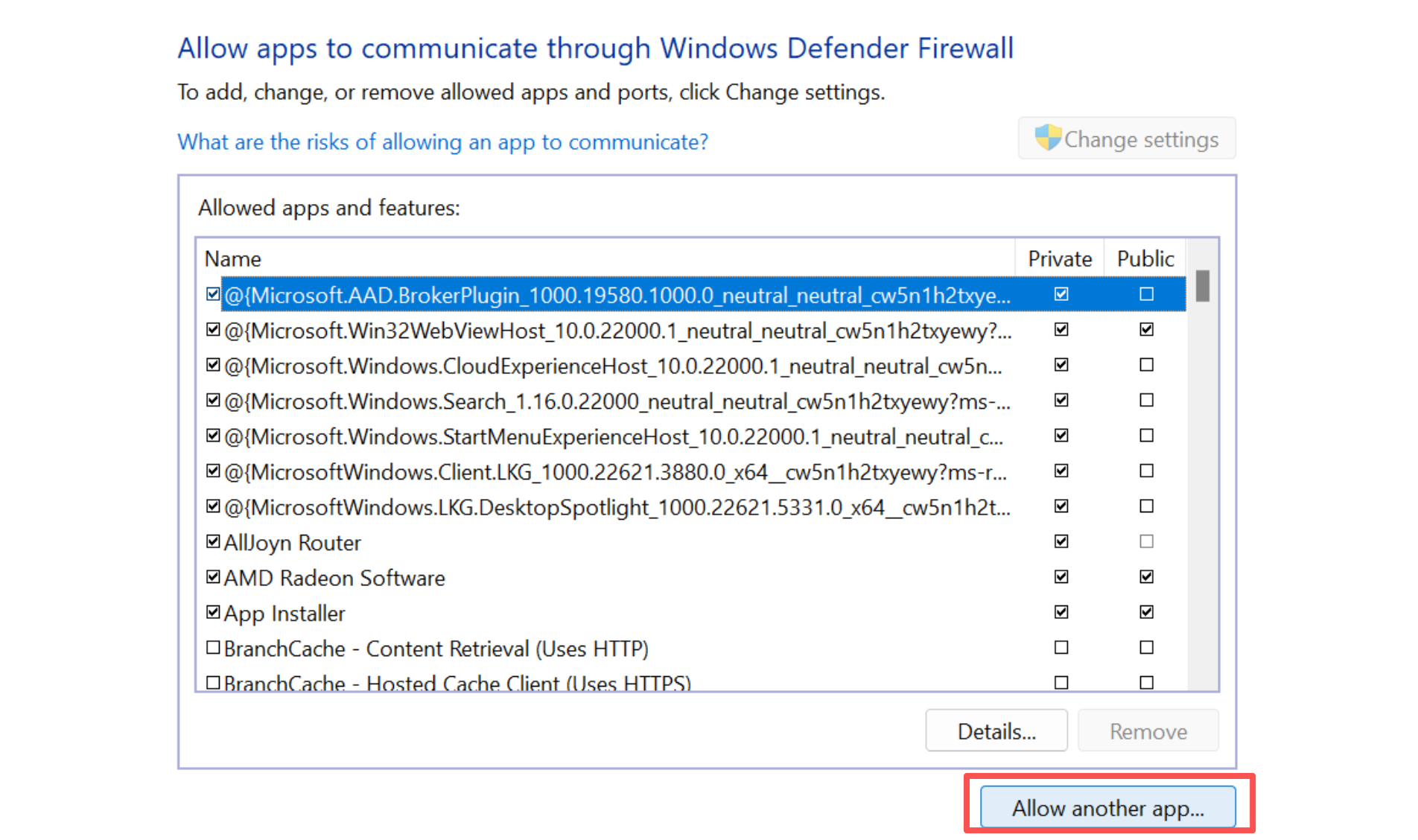
3. Click: Change settings
a. Click: Allow another app
b. Add LynxPDF program (for example: LynxPDF.exe)
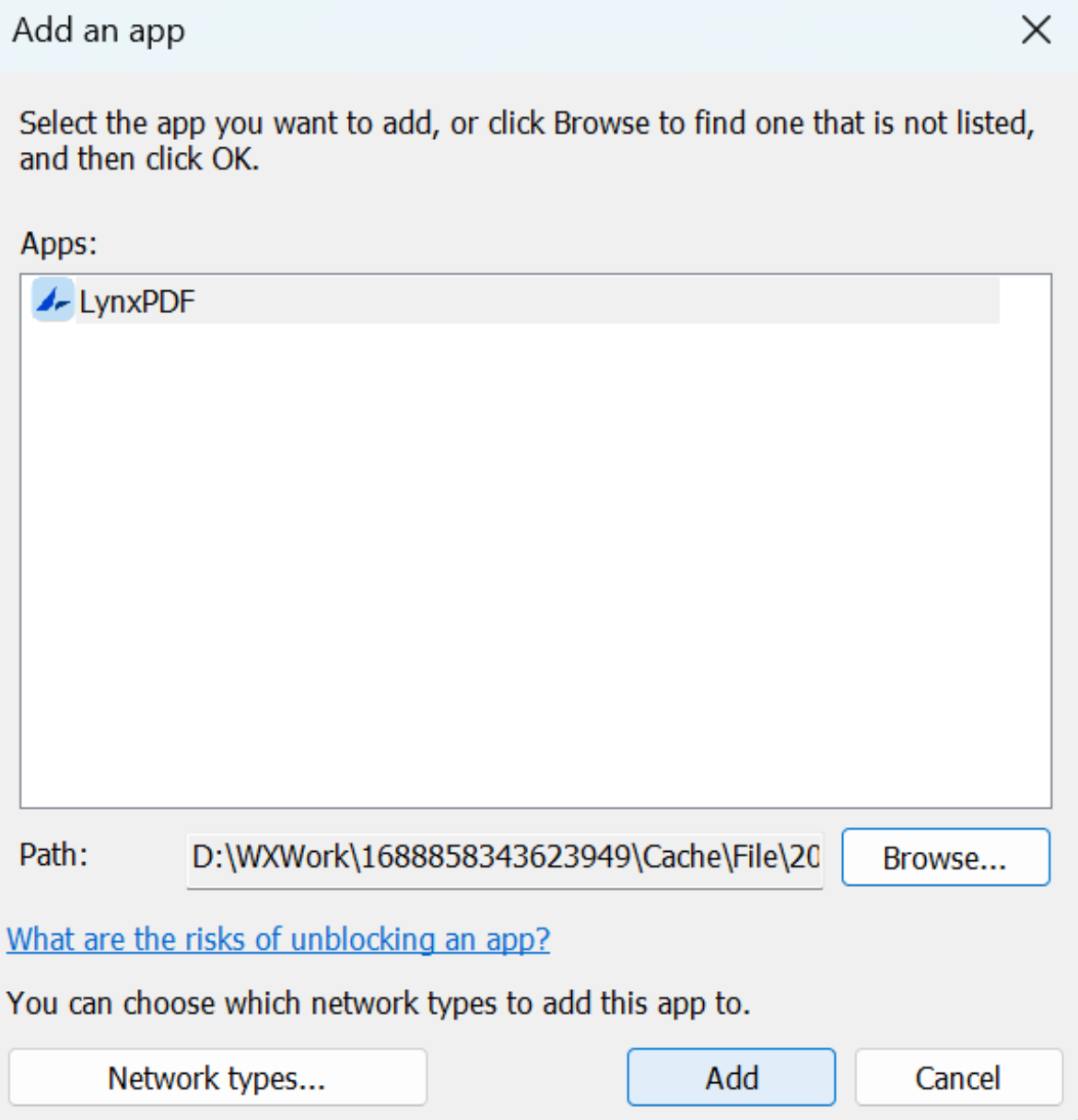
c. Check both Private and Public networks
d. Save and restart LynxPDF
Method 2: In Third-Party Antivirus or Firewall
If you use software such as Kaspersky, McAfee, or an enterprise security gateway:
1. Open the security software
2. Find: Network Protection / Firewall / Website Filtering / App Control
3. Add the LynxPDF program and the domains listed above to the Trusted List / Whitelist
4. Save settings and restart your computer or LynxPDF
🌟 How to Whitelist on macOS (Single Device)
Method 1: Adjust macOS Firewall
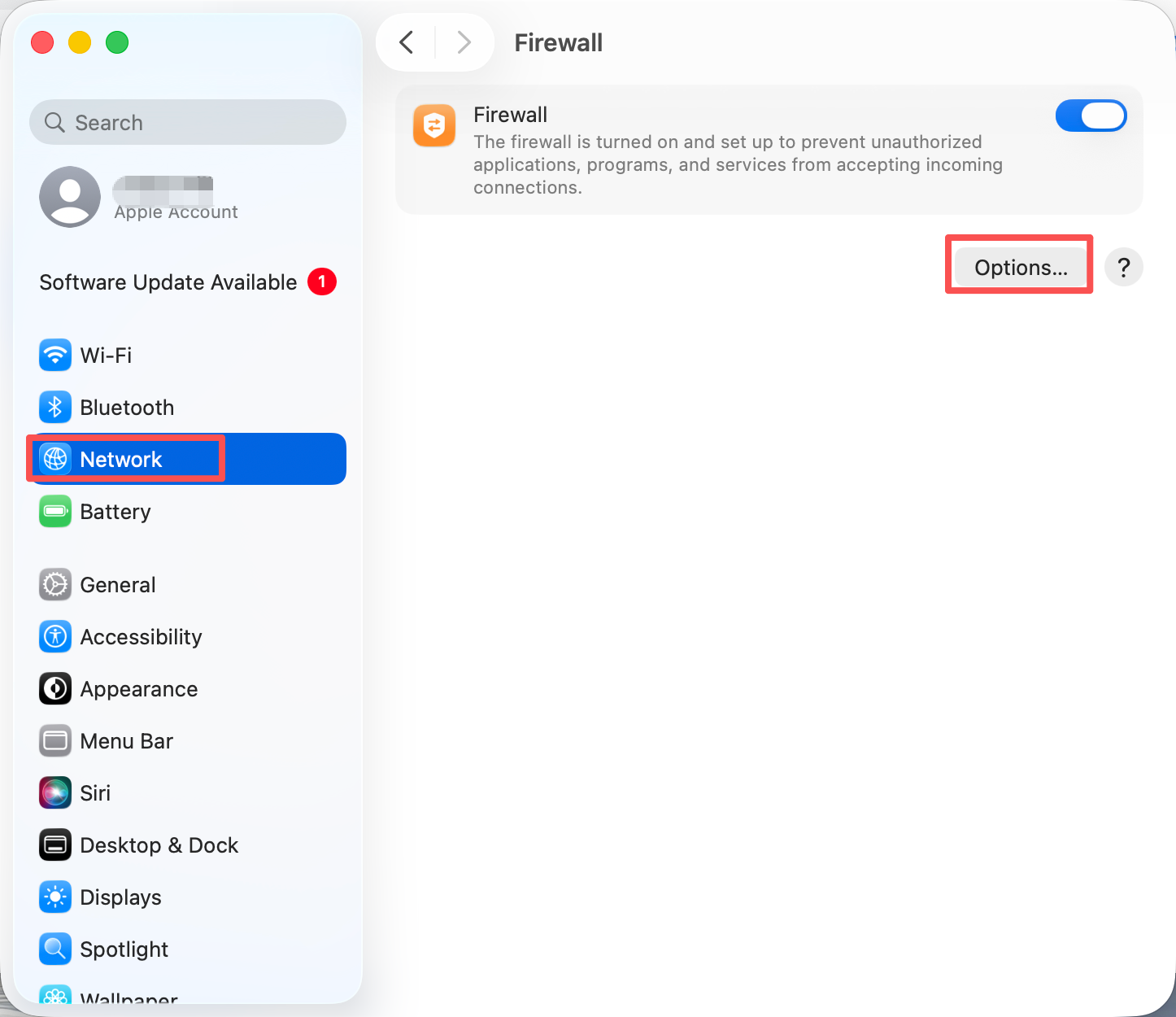
1. Open: System Settings → Network → Firewall
2. Click: Options
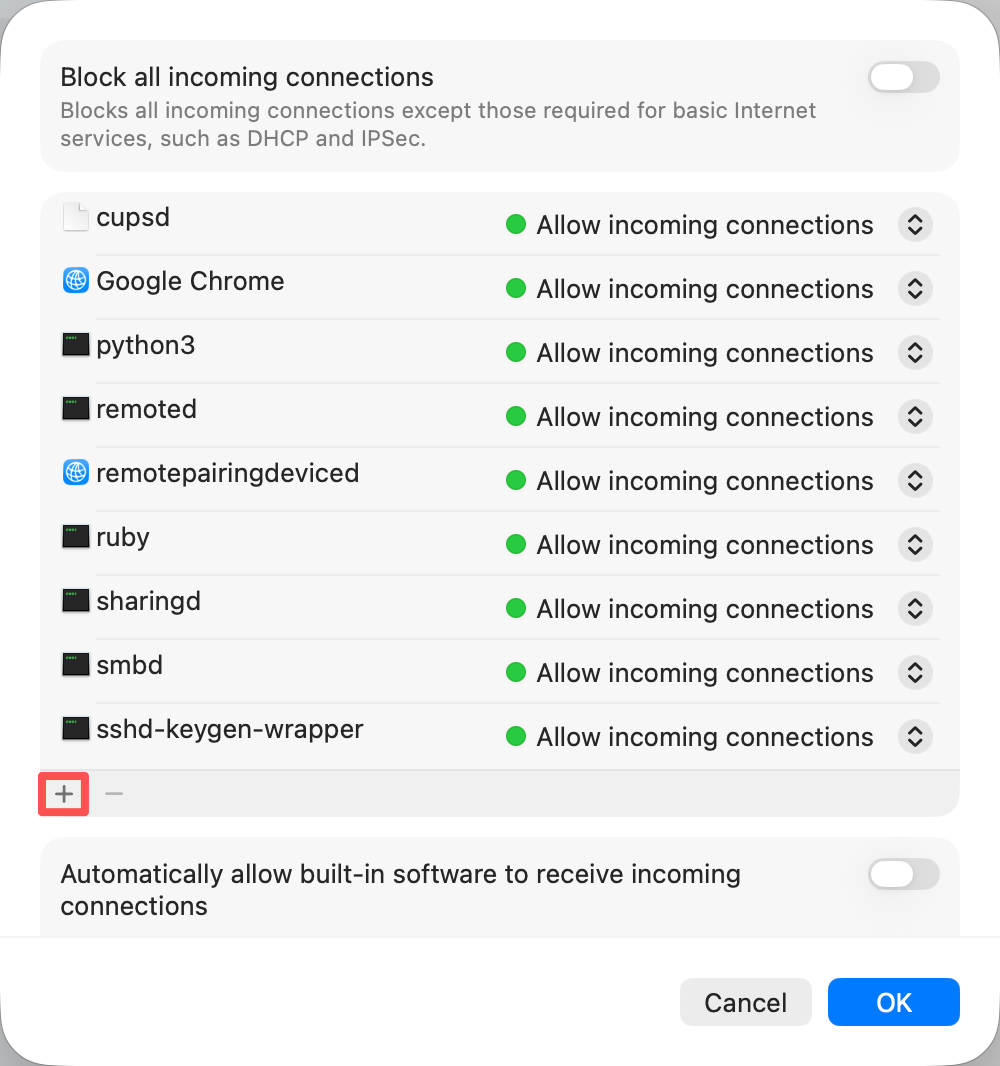
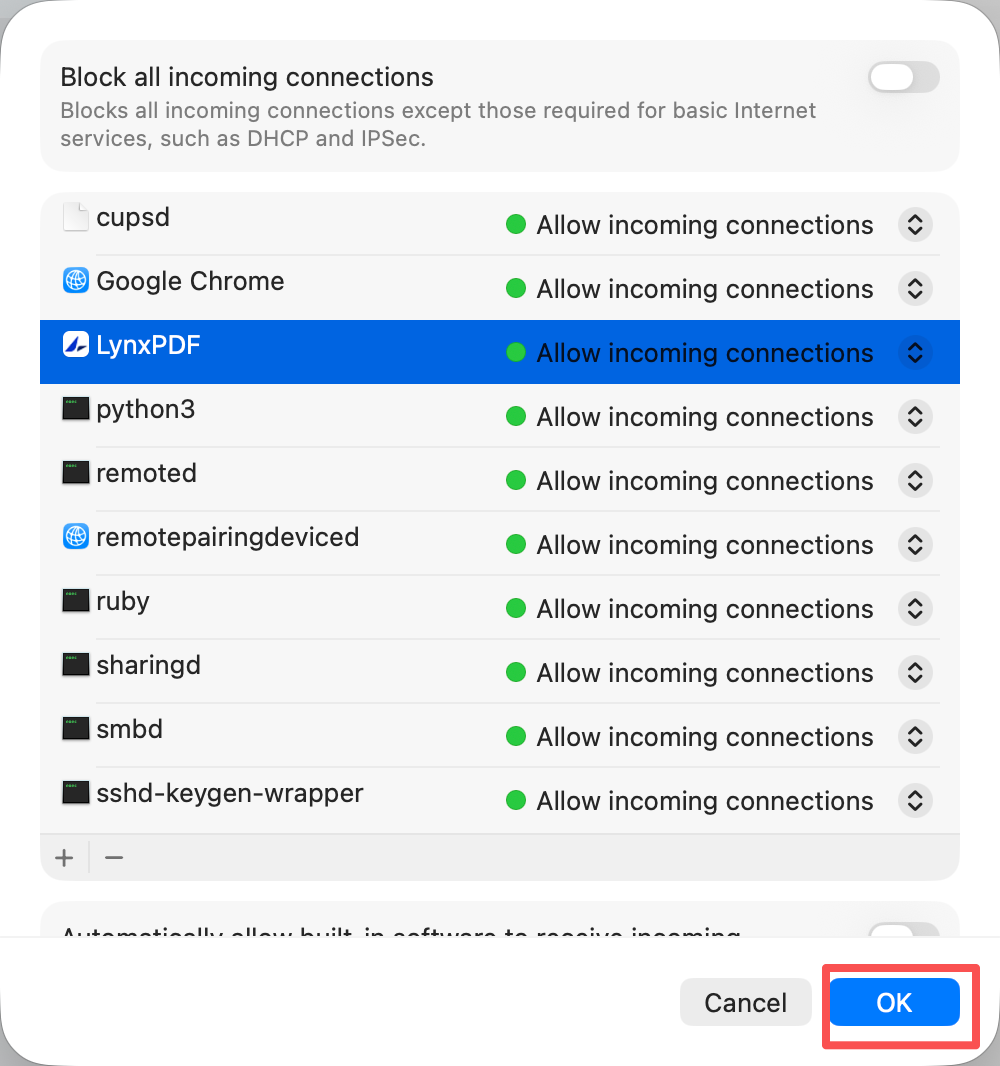
3. Find LynxPDF
4. Click OK and Restart LynxPDF
Method 2: Allow in Privacy & Security
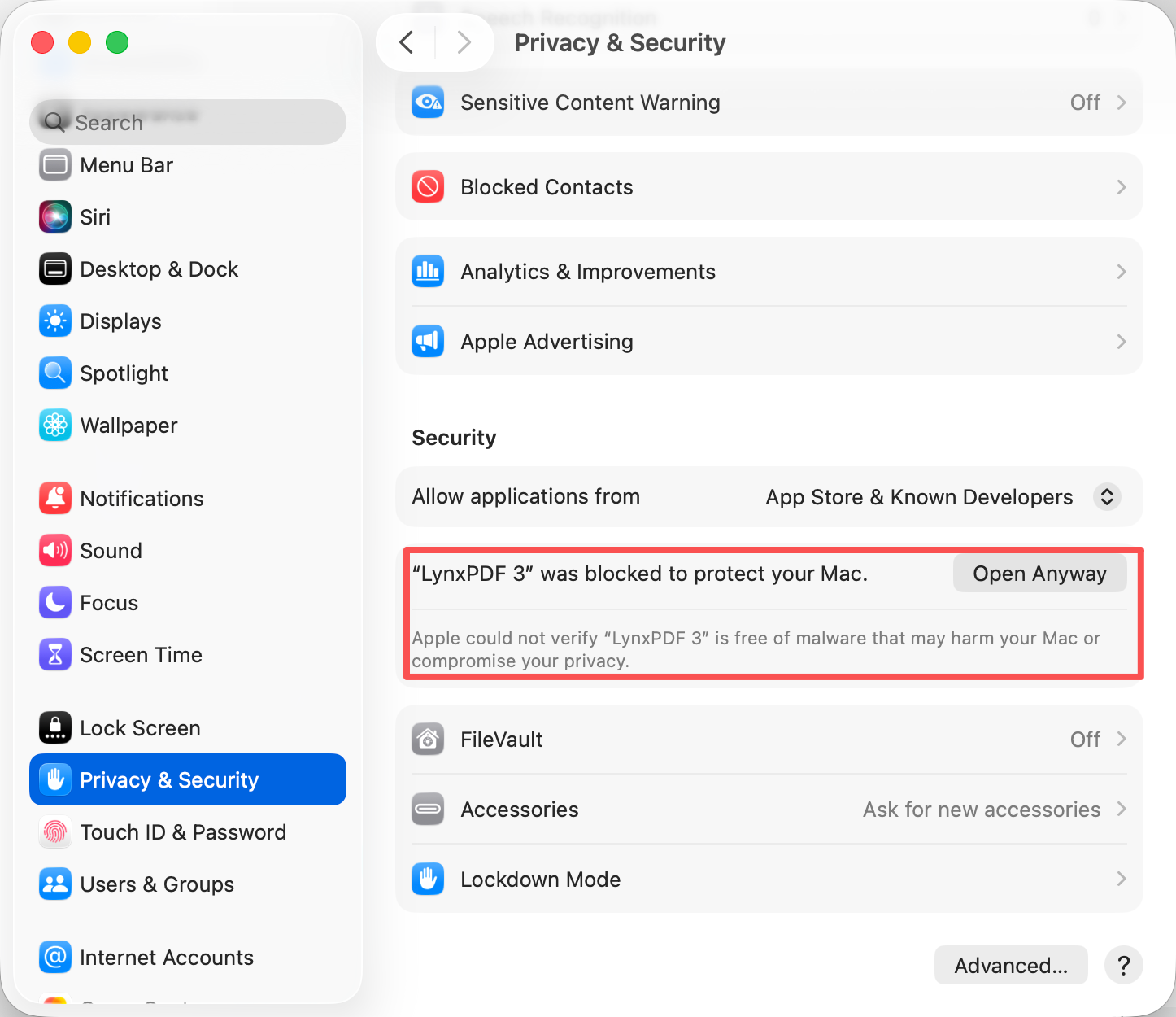
1. Open: System Settings → Privacy & Security
2. Check if there is a warning about LynxPDF being blocked
3. If you see “LynxPDF was blocked,” click Open Anyway
🌟 Company-Wide Whitelist Setup
Network administrators should add all required LynxPDF domains to the company firewall or security system. After this, all devices on the internal network will be able to access LynxPDF normally.
🌟 After You Finish Whitelisting
1. Try opening https://www.lynxpdf.com in a browser to check if it loads normally. If this site works, activation should also work.
2. Fully close LynxPDF, then reopen the app.
3. Try logging in again.
4. If the error still appears, restart your computer and try again.
🌟 Still Not Working?
If the problem continues, please contact support and provide:
-
Your operating system version (Windows/macOS)
-
Firewall or antivirus software name
-
Whether your device is company-managed
-
A screenshot of the error
📩 Contact: [email protected]. Our support team will help you resolve the issue.

